
Academics
Weekly Grades
Record a mark per subject each academic week, publish the week to parents and pupils, and optionally carry the term average onto the report card.
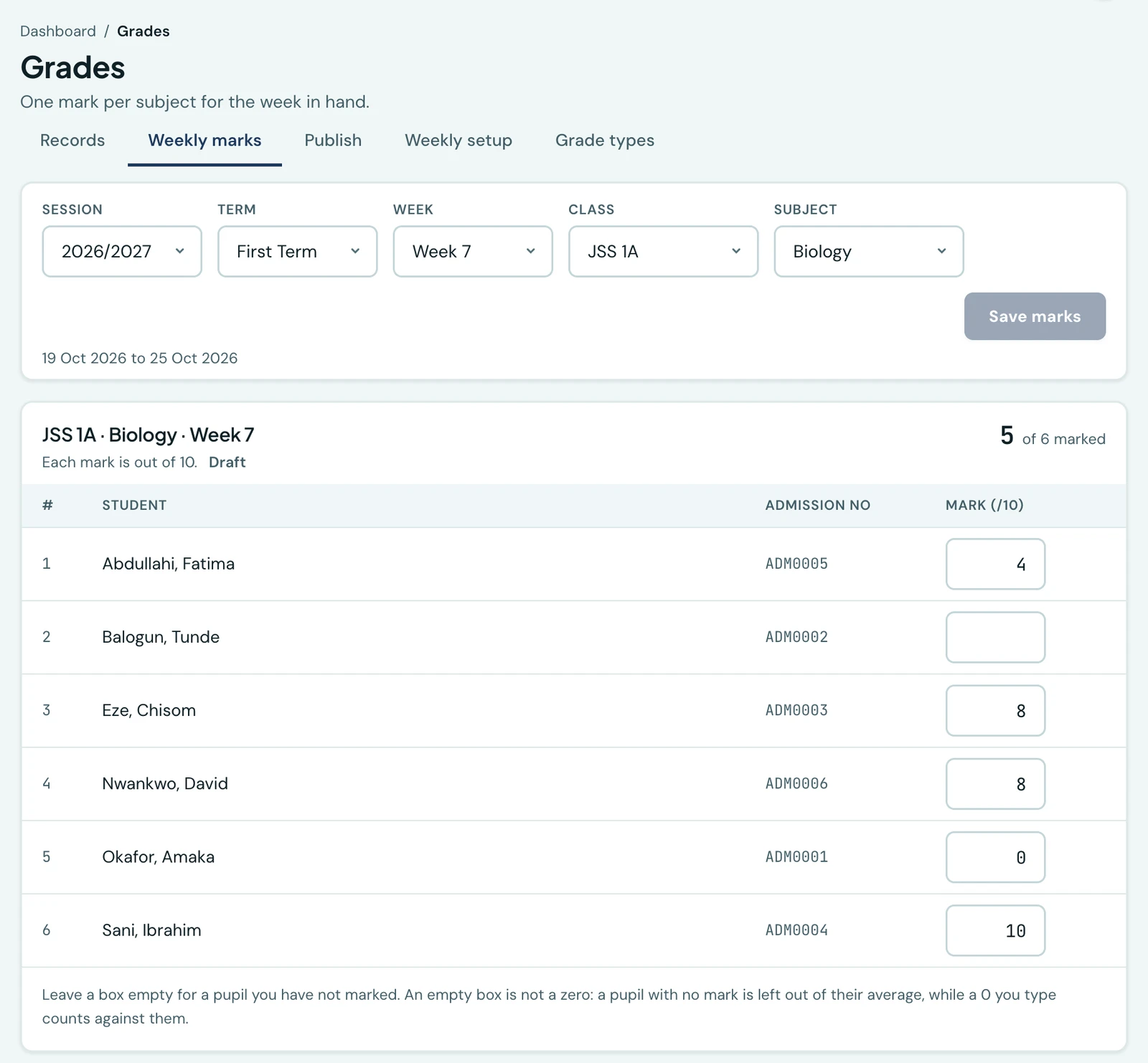
Weekly grades let a teacher record one mark per subject per academic week, and let the school release each week to its families. They sit alongside your ordinary term grades rather than replacing them, and nothing changes for a school that does not switch them on.
Switching it on
There is nothing to switch on. Every subject a class takes is graded weekly by default, so a teacher can open a sheet and start marking on the first day. Go to Grades → Weekly setup only to change something: to switch off a subject the class does not mark weekly, or to change what a mark is out of (ten by default).
Switching a subject off costs nothing if you change your mind. A subject nobody marks has no marks, so it is absent from every average and prints on no report card, whether it is switched off or simply unmarked. A switched-off subject also leaves the subject list on the mark sheet, so nobody is offered a subject that cannot be marked.
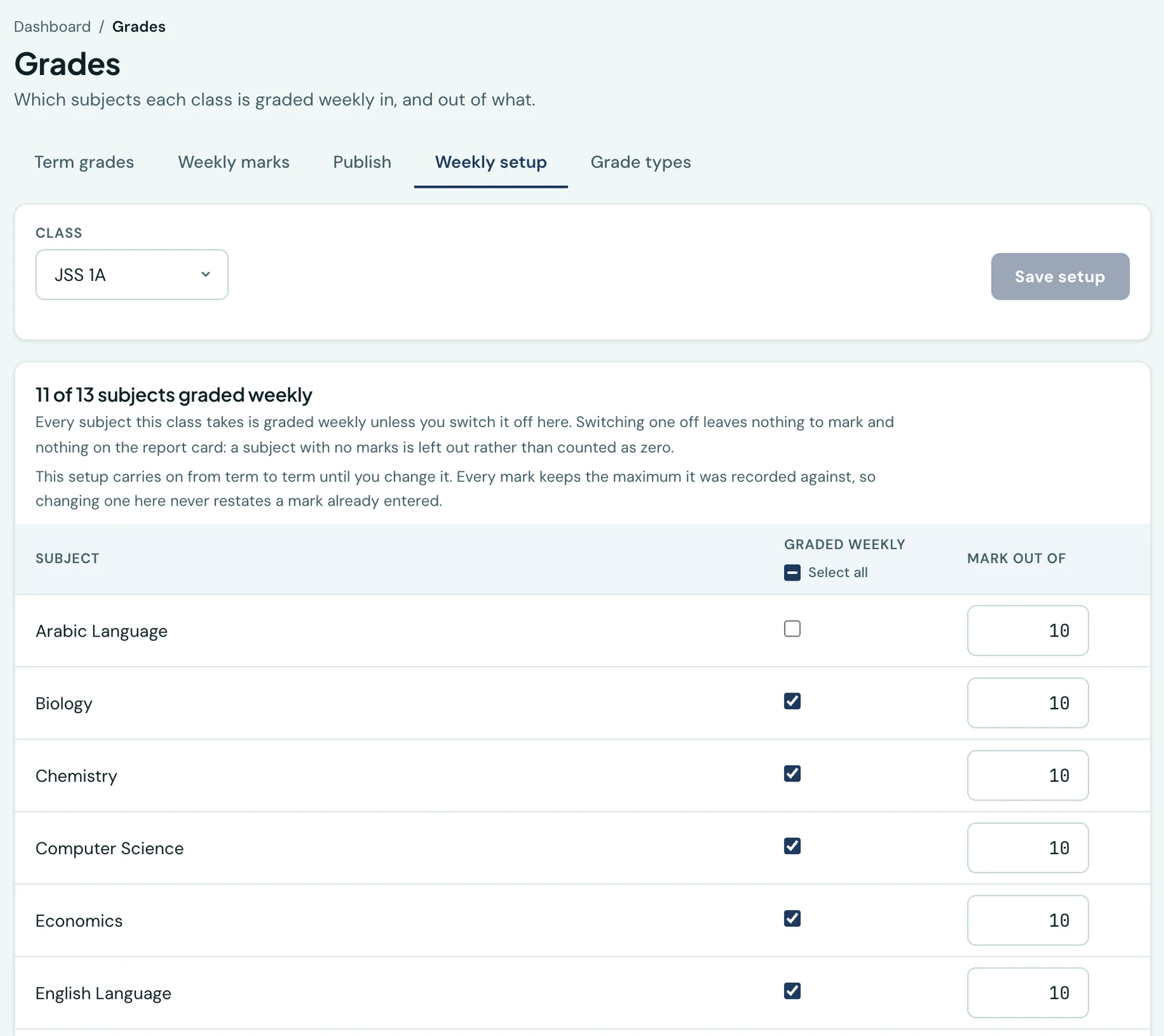
The setup for one class. There is no term to choose: it carries on from term to term until you change it.
What a class takes comes from its own subject list, and from your whole subject catalogue for a class whose list you have not filled in. A class's setup carries on from term to term until you change it, so there is nothing to redo at the start of a term. To grade a subject weekly in the first term and not the second, switch it off when the second term starts.
Switching a subject off does not lock away marks already entered in it. Its sheet still opens for any week that already has marks in the subject, so a mistake from an earlier week can still be corrected, and a week that holds marks in it still lists it on the Publish tab.
The week numbers come from your academic calendar. A term with no dates set has no weeks to grade, so set its dates under Academic Setup first.
A week that has not begun yet cannot be marked. Its sheet opens read-only and says when the week starts, so a full column of marks cannot be entered for lessons two months away.
Entering marks
Grades → Weekly marks opens on this term and the week it is now, so on a Friday afternoon a teacher picks a class and a subject and starts typing. Enter, or the arrow keys, moves down the column. One Save writes the lot, and a count of unsaved boxes appears as soon as there is one.
Leave a box empty for a pupil you have not marked. An empty box is not a zero:
- No mark is left out of that pupil's average entirely.
- A 0 you type is a mark, and counts against them.
That distinction runs through everything below, including the report card, so it is worth knowing before a class of sixty is filled in.
Admins can enter marks for any class and subject. Class teachers can enter any subject for their own class, and every other teacher the subjects they are assigned to teach in that class: the same rule as ordinary grades.
A class taught as several streams
Where a class is divided into streams and each stream lists the subjects it takes, the sheet shows only the pupils who take the subject, plus anyone in no stream and anyone who already has a mark in it. A subject only the science stream takes lists only the science stream.
Where several streams take the subject, the sheet can be narrowed further to the one being marked: Everybody, each stream by name, or In no stream. Only the streams that take the subject are offered, and the choice is not shown when there is only one group on the sheet.
Narrowing changes what is on the screen and never what has been recorded. A mark typed under one stream stays typed, and stays in the save, when you move to the next, so a teacher can mark three streams in three passes and save once. The same row of choices is on both the web and the phone.
A comment beside the mark
Each mark takes an optional comment: a sentence or two about that pupil in that subject this week, typed in the box beside the mark on the web, and behind the comment icon on each pupil's row in the app. It is the same box on both, holds up to 500 characters, and is never required. A teacher marking a column of forty passes straight over it.
Two things follow from a comment belonging to the mark rather than to the pupil's week:
- A comment needs a mark beside it. Clearing a mark clears its comment with it, and saving a comment on an empty box is refused by name rather than quietly dropped, so a sentence you have written is never lost without being mentioned.
- A pupil can have one comment per subject each week, each written by the teacher who gave that mark. "8/10, still reversing her sevens" is a sentence a parent can act on in a way that a remark floating beside nine subjects is not.
Families read the comment when the week is published, alongside the mark it belongs to, so it is written for them rather than as a private note. Until the week is published nobody outside the staff room sees it, the same as the marks.
Publishing a week
A week goes out once for a class, across every subject at once, rather than each teacher notifying families as they finish. Grades → Publish does it either a class at a time or for the whole school in one press. It opens on the whole school for anybody holding the publish permission; somebody who may only lock a week opens on One class, and is not offered the scope that would refuse them.
It works the same way on the phone: Weekly Grades → the send icon opens the same list of classes with the same one button, for staff who hold the publish permission. Reviewing one class subject by subject stays on the web, since that is a table.
The whole school at once
All classes lists every class that grades weekly with how many marks are in, which subjects nobody has marked, and whether the week is already out. Tick the classes you want and press Publish all. The confirmation names the classes that are only part-marked before anything is sent.
Nothing goes out silently. A class with no marks at all is skipped rather than sent empty, a locked class is left alone, and both are reported back by name afterwards, so a run of eighteen classes never leaves you checking each one by hand to find the two that did not go.
Clicking a class name opens that class on its own, which is where the missing pupils are named.
One class at a time
One class shows every subject the class grades weekly, how much of each is entered, and the pupils still missing by name. It is the right scope when one class's marks are in and the rest are not, and the only one that names who is missing from which subject.
An incomplete week can still be published, since a school whose Physics teacher is away should be able to send the other eight subjects. Those missing marks are simply absent from the week; they are never counted as zero. The confirmation says which subjects are short before you send it.
Publishing notifies each pupil's parents (and pupils who have no parent on the system), in the app and by whichever channels you have chosen under Settings → Communication → Notification Channels.
Telling families at all is itself a setting. Under Settings → Weekly Grades, Tell families when a week is published is on by default; switch it off and publishing a week sends nothing on any channel, whatever the channel matrix says. The week still becomes visible to families on their own pages the moment it goes out, so this is the setting for a school that would rather publish quietly than not publish at all.
WhatsApp is offered, and off until you tick it. Its box in that matrix starts empty, on the web and in the mobile app from version 1.9.8. Ticked, each family gets one WhatsApp message per child, naming the child, the week, the term and the class, with a link to the marks; a guardian contact with a phone number is reached even without an account. Think before ticking it. WhatsApp gives the whole platform a shared daily allowance of business-initiated conversations, and one school of twenty classes publishing a week is several hundred messages in an evening. A week published up to fifteen times a term is by a wide margin the most frequent notice the platform sends, so it becomes the largest line on your own allowance too, which is charged per message sent.
What goes out names the week, not the marks. The push, the email and the WhatsApp message all say which class and which week, and send the reader to the screen; none carries a score, and the email has no PDF attached. The email subject includes the week, term and session, for example Week 6 grades, First Term (2025/2026). A lock screen is not the place for a child's marks, and nine of them emailed fifteen times a term is a report card sent every week. The PDF is a download on the week itself, once the reader has signed in.
Tapping the notice in the mobile app opens the child's week. A parent who taps the push or the notice in the app goes straight to that child's Weekly Grades, on the term the week was published in. A parent with two children in the class is told once and asked which child to open. Pupils go to their own Weekly Grades, on the same term.
Submitting Publish twice publishes once and notifies once.
Withdraw, lock, unlock
- Withdraw hides a published week from families again. Nothing further is sent.
- Lock freezes a published week so its marks can no longer be changed, once you consider it closed.
- Unlock reopens a locked week for correction.
A published week still accepts corrections, so a teacher who finds a transcription error on Monday can simply fix it. Locking is how you say the week is finished.
Lock and unlock are on the phone as well, on the class itself: each published class in Weekly Grades → the send icon carries a Lock week action, and each locked one an Unlock week. Locking asks you to confirm, because it stops the teacher who has just spotted a wrong mark; unlocking only hands that back, so it does not ask. Withdrawing a week stays on the web, beside the review that says what the families were sent.
What parents and pupils see
The week that has just ended also appears in the weekly parent digest, the Sunday email, under its own heading beside the term grades, once the school has published it. Only that week is included: if it is not published by the time the digest goes out, the digest leaves weekly marks out rather than sending an earlier week again. A week published late is still on the child's Weekly Grades page, but it does not appear in a later digest. A week a teacher is still working through never reaches a family by email.
Parents open a child's record and tap or click Weekly Grades; pupils have their own Weekly Grades page. Both show only weeks the school has published, most recent first, with:
- every subject's mark for the week,
- the same subject in the previous published week,
- whether it moved up or down, and
- whatever the teacher wrote about that mark, under the subject's name.
The comparison is the point: nine marks on their own say very little, and beside last week's they answer the question a parent actually has. Each week can also be downloaded as a branded PDF.
Each week also shows its percentage: the week's total over what it was marked out of, across the subjects that were marked. A week of 36 out of 50 reads 72%, on the week's card and on the printed PDF. It is the same figure staff rank the class on, shown without the rank.
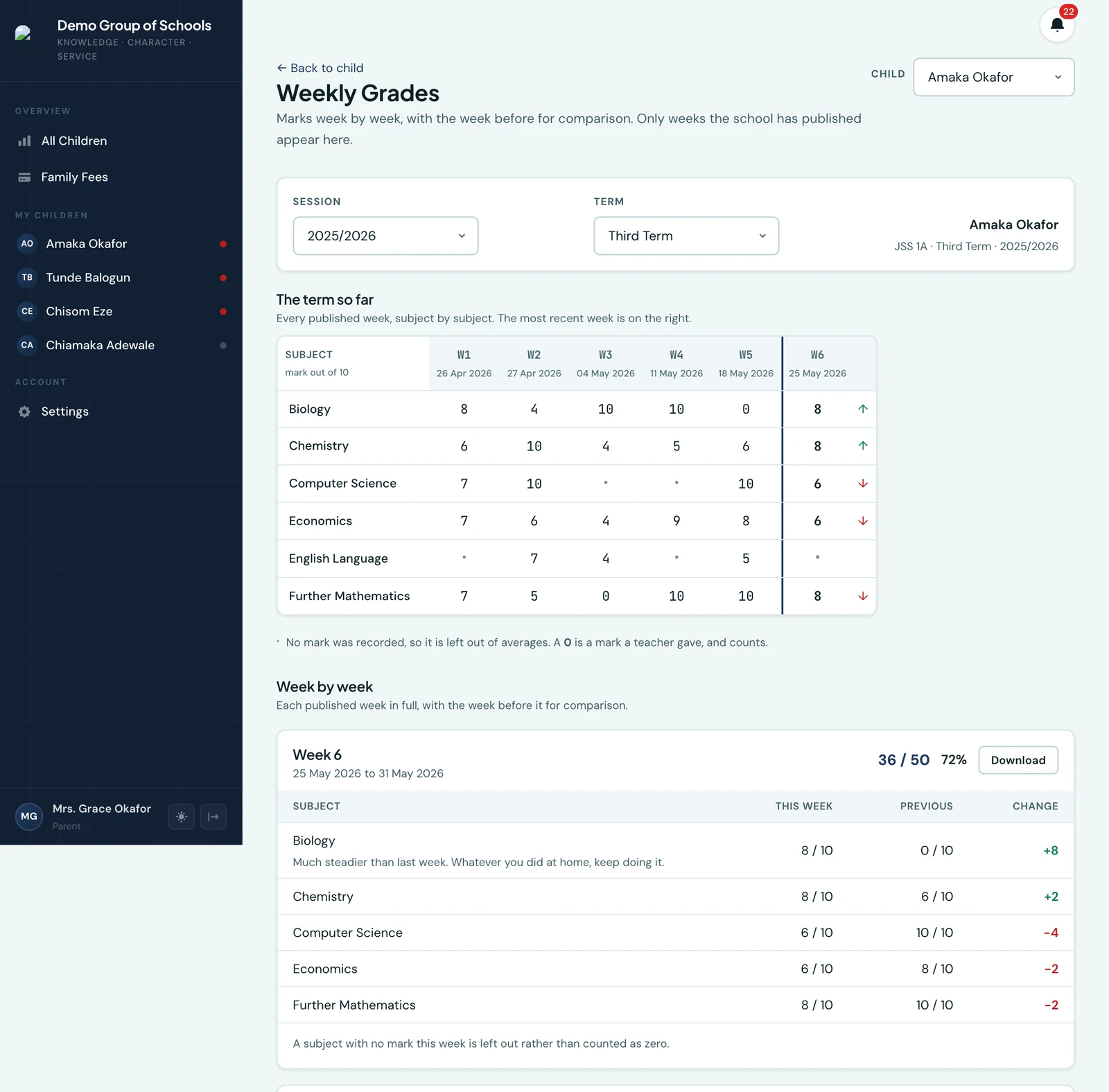
A week as a parent reads it: the total, the percentage, and each subject against the week before.
Positions
Positions are for staff only. Families see the marks, the total and the percentage, never a place in the class. For staff, every week carries each pupil's position in the class, and their position in each subject:
- The class position is across the whole class, whatever set a pupil is in. It is worked out on the percentage of what each pupil was marked out of, not on the raw total, so a pupil whose set takes five subjects is not placed below one who takes six just for sitting fewer papers
- A subject position is among the pupils with a mark in that subject that week, which is the sets that take it
- Pupils on the same figure share a place, and the next place is skipped: two pupils joint second are followed by fourth
- Only published weeks count. A week still being marked moves nobody's position
Staff read positions in the Class ranking below. They are not shown on the family's page, in the app's family screens, on the downloaded PDF or in any notification.
The class ranking
Staff can see a whole class in position order from the Class ranking button beside the week's actions, on both the marking and the publishing screens. It lists every pupil with their stream, how many subjects they were marked in, their total and their percentage, with anyone not marked that week at the bottom. It is read-only.
At the top it gives the week's class average: the average of the ranked pupils' percentages, so a pupil with no mark that week is left out rather than counted as zero, and a pupil marked in fewer subjects counts the same as one marked in all of them. Like positions, the average is for staff only.
It includes weeks you have not published yet, so you can check the order before you publish; a draft week says so at the top, and its positions and average move as more marks go in. Anyone who can see every class's weekly grades can open it for any class, and a class teacher for their own class.
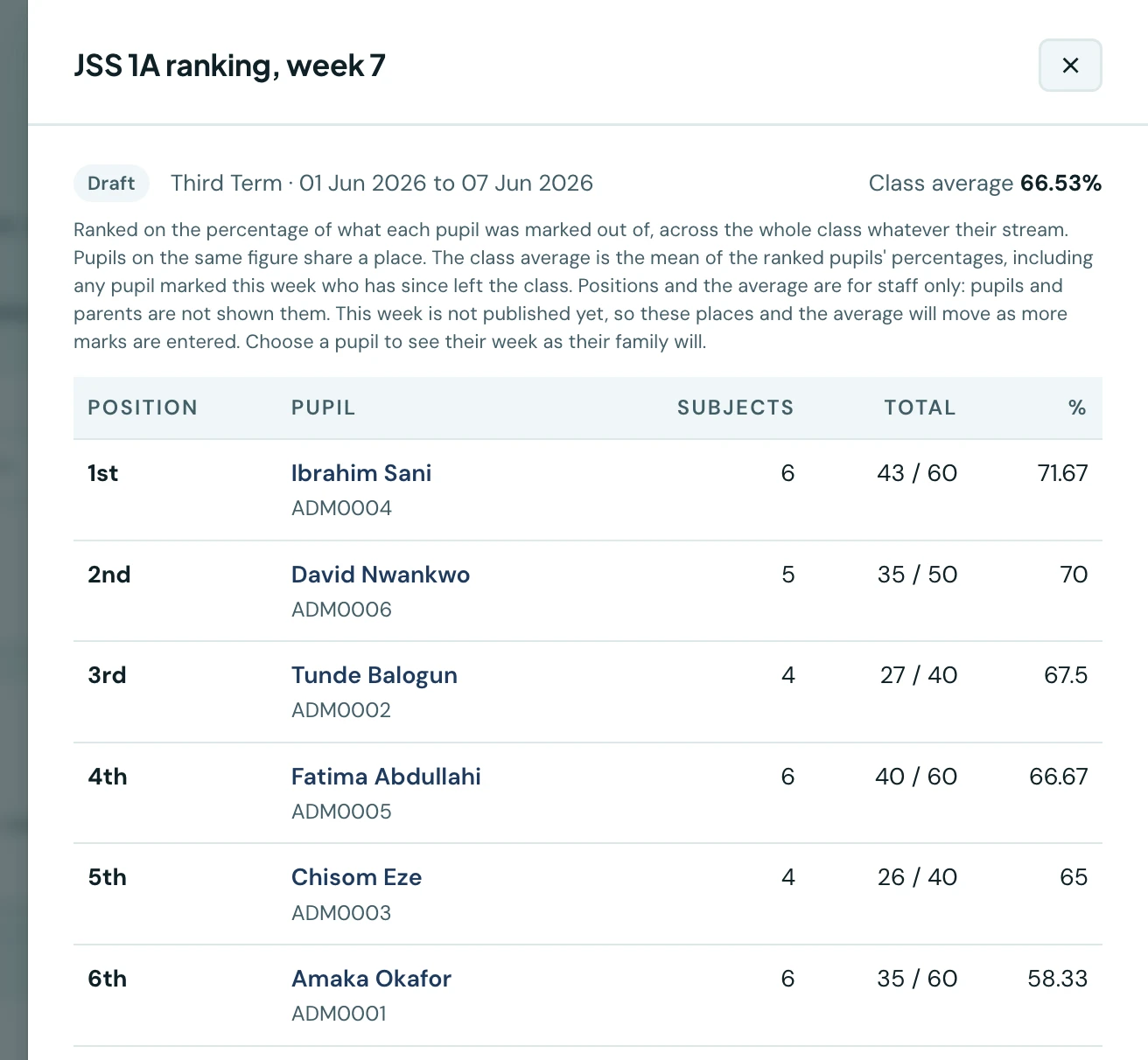
A week still being marked, with its class average. David is second on 70% although he was marked in one subject fewer than Ibrahim.
One pupil's week before it is published
Choose a pupil's name in the ranking to see their week exactly as their family will read it once it is published: every subject's mark beside the last one, the change, the teacher's comments, and the week's total and percentage. It is how a school checks a child's week before releasing it, without publishing anything. A week still in draft says so, and says the marks may still be corrected before it goes out; Back to the ranking returns to the class.
The comparison column is the last week this class published, and there are no positions, as on the family's own copy. Who can open a pupil's week is the same as who can open the ranking.
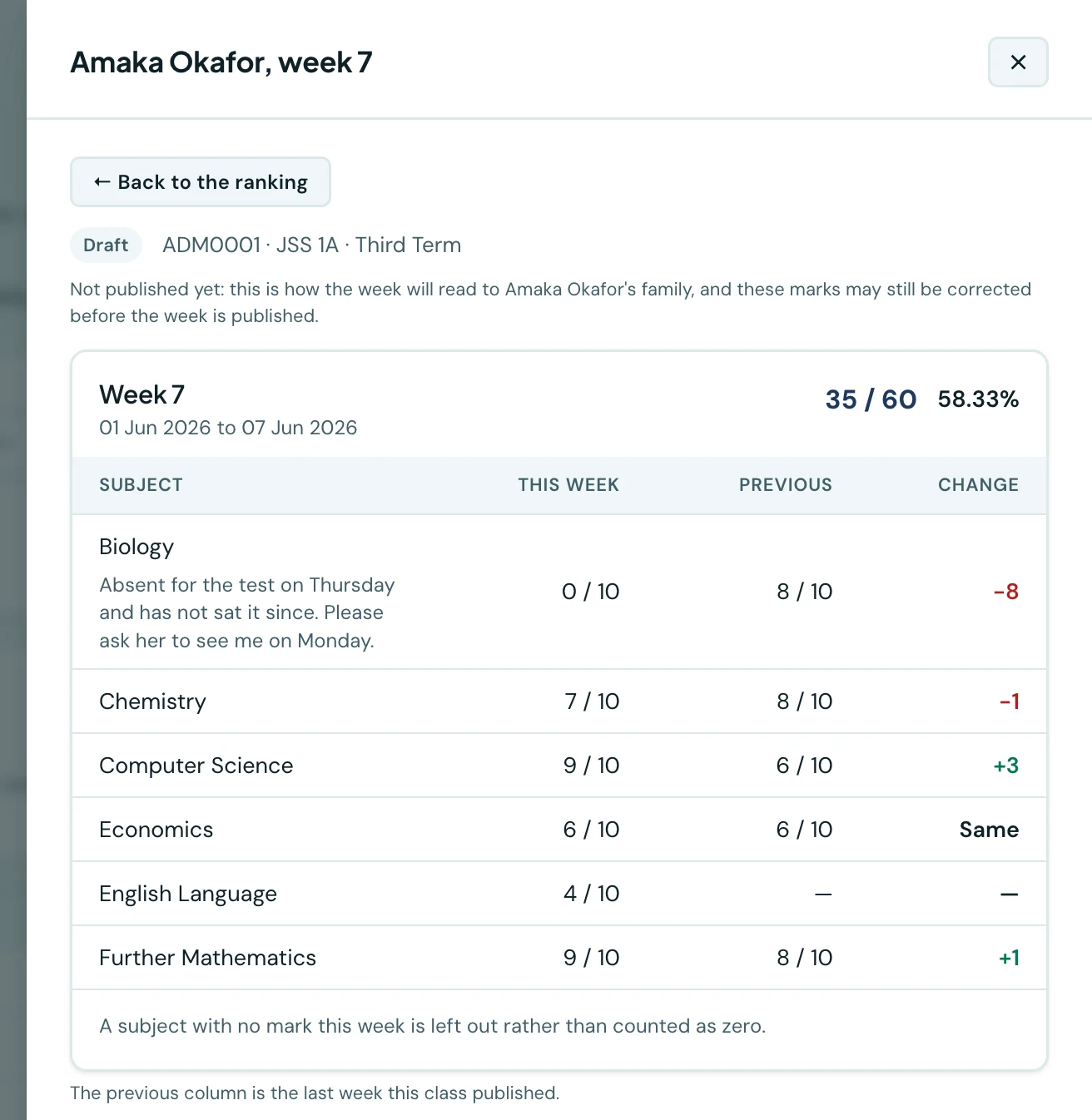
Amaka's draft week as her parents will see it, with her Biology teacher's note about the missed test.
A week you have not published is invisible to families everywhere: on the web, in the app, in the PDF and in the notifications.
On the report card
Weekly marks reach the term report card in one of two ways, and which one a class gets depends on its assessment structure.
Counted into each subject, through the assessment structure
Weekly marks count towards a subject's total only when the class's assessment structure has a Weekly marks part: for example 1st CA 10, 2nd CA 20, Exam 60 and Weekly marks 10, which is 100. Add it under Grades → Assessment structures: open a structure, press Add weekly marks, and set what it counts for. Nobody types it. Each pupil's figure is the average of their published weeks in that subject, converted to what the part counts for: weeks averaging 7.3 out of 10 give 7.3 out of 10, or 14.6 if the part counts for 20.
On the card, the part is a column of the subject table, and the subject's total, percentage, letter, position and the class average all follow from the total with it in. On the grade forms it shows beside the parts teachers type, as "Weekly marks 7.3 / 10 (4 weeks published)". The broadsheet carries the same totals, so the two documents cannot disagree about a pupil.
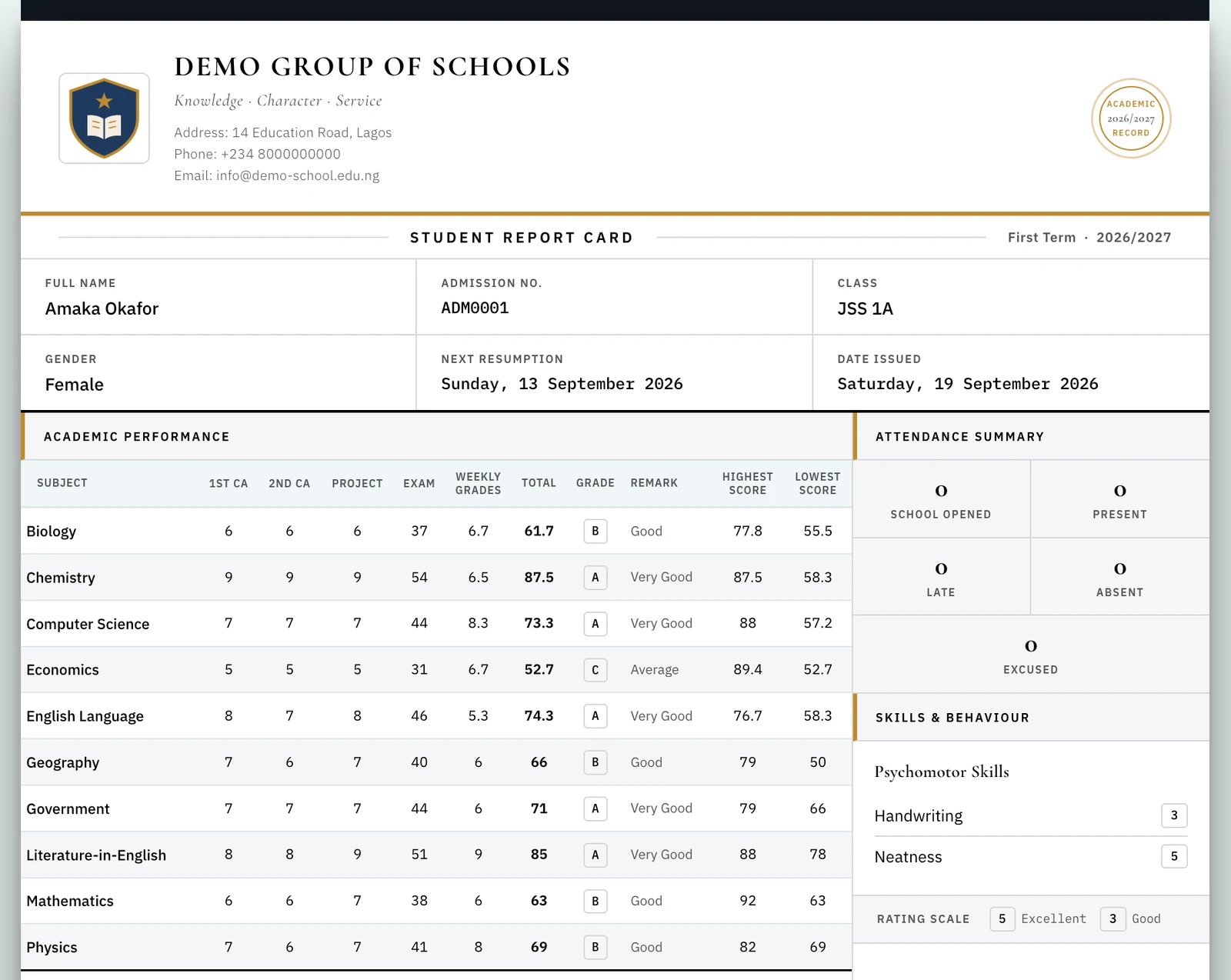
- A pupil with no published weekly mark in a subject is not given a nought. Their mark for that subject stays incomplete, with no letter, until a week is published.
- Until the term is released, the figure follows the published weeks, so publishing another week moves it. When you release the term's results, the figure is fixed in each mark, and a week withdrawn afterwards changes nothing a family holds. Withdrawing the release puts the term back on the published weeks until you release it again.
- A mark entered before the class's structure had the part is out of a different total. It is marked Old structure on the grades list and gets no weekly figure until a teacher saves it again.
Printed on its own line
A class whose structure has no Weekly marks part can still show weekly marks, on a line of their own below the subject table, added to nothing: not a subject's total, not the average, not the position. This is off until you switch it on, so enabling weekly grading changes nothing about your existing report cards. Under Settings → Weekly Grades on the Report Card, switch on Include weekly grades on the report card, set what the line is worth (20 marks by default), and give it whatever heading you use. The heading also names the Weekly marks part in your structures.
One switch, in one place. The Report Card Designer has no on/off control for this section. It still decides where the section prints and what it shows, and it says where the switch is.
On its own line, the figure is the average of the weeks actually recorded, converted to the marks you configured: four weeks averaging 7.5 out of 10 gives 15 out of 20. Weeks with no mark are left out of the average; a 0 a teacher entered is included. Each subject's own average is printed under the total, so the figure can be checked by hand.
The settings page reads what your subjects are actually marked out of and says, above the settings, what weekly marks will do to them. It names the structures that count weekly marks. Where none does, it warns a school whose subjects are marked out of 80 that the 20 weekly marks it left room for will never reach the total on their own line, and that adding weekly marks to its structure is how to count them.
If you counted weekly marks into each subject before
Schools could once count weekly marks into every subject with a setting. That setting is gone: weekly marks count only through a structure's Weekly marks part. If you used it, the Assessment structures tab and the Weekly setup tab say so, and Add weekly marks on the notice opens your default structure with the part already added at the figure you had, ready to confirm. Until you do, your classes print weekly marks on their own line. Report cards you have already released keep the totals they were issued with.
Changing your mind later
Three things are protected, and it is worth knowing why:
- Changing what a mark is out of never restates a mark already entered. Every weekly mark keeps the maximum it was recorded against, so moving Maths from 10 to 20 in January leaves December's 8/10 as 8/10 rather than silently turning it into 8/20. On the mark sheet, such a mark says Recorded out of 10 beneath it. If you change the mark itself, the new figure is out of today's maximum, like any mark entered today.
- Once you have issued a report card, its weekly-grades figure is fixed. Saving a card or generating a class's PDFs records the figure as it stood, so raising the contribution next term cannot change what a card you handed out last term said.
- So is a released term's weekly part. Releasing a term's results fixes the figure in each mark, so adding weekly marks to a structure, or changing what they count for, decides what your next results look like, never what a family is already holding.
On the phone
Both halves are on the mobile app. Staff record a week under More → Weekly Grades by picking a class, a subject and a week, narrowing to a stream where the class has them, and publish from the same screen. Because marking follows the school's current term, a school between terms is told so rather than shown an empty sheet. The class ranking is on the phone too: a Class ranking button on each class with marks on the publish screen, and a ranking icon at the top of the marking screen once a class and week are chosen, for the same people as on the web. Tap a pupil in it to see their week as their family will.
Families read the published weeks on their own side: a parent opens Weekly grades on a child's record, a pupil finds it in their own portal. Each week is a card giving the week's dates, the total out of what was available, and every subject with its mark, the previous week's mark, the movement and the teacher's comment between them. A subject with no mark that week is absent rather than counted as zero, which the screen says in as many words, and each week can be downloaded on its own. The printed week gives the week's percentage beside its total; the app's own card shows it from its next release.
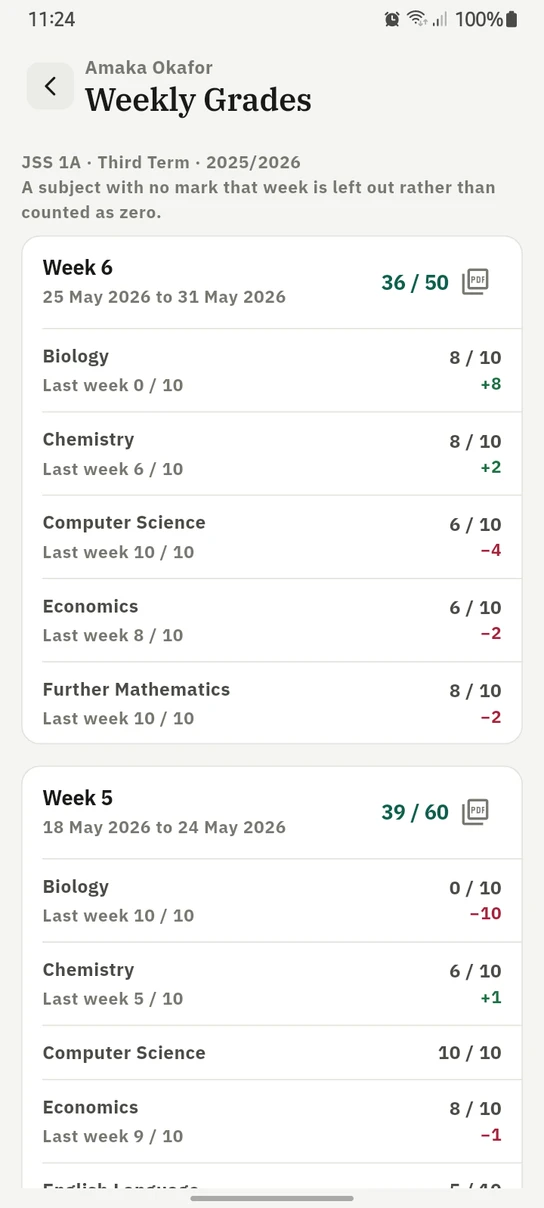
A published week as a family reads it, with each subject's movement since last week.
Who can do what
| Action | Permission |
|---|---|
| See weekly marks and how complete a week is | View weekly grades |
| Reach every class, not only your own | View/record weekly grades school-wide |
| Enter and correct marks | Record weekly grades |
| Publish or withdraw a week, one class or all of them | Publish a week |
| Lock or unlock a week | Lock a week |
| Choose what each class grades weekly | Manage weekly grading setup |
Publishing is separate from recording on purpose: releasing a week to every family in a class is not something the first teacher to finish marking should do on the school's behalf. The seeded Principal, Vice Principal and Academic Coordinator roles can publish; Teacher, Class Teacher and Subject Teacher record.
Ready to try it with your school?
Three-month Basic trial. No card required to register.