
School Setup
School Settings
One searchable page for grading scales, number prefixes, invoice currency, notification channels, bank accounts and brand colours, every change audited and exportable.
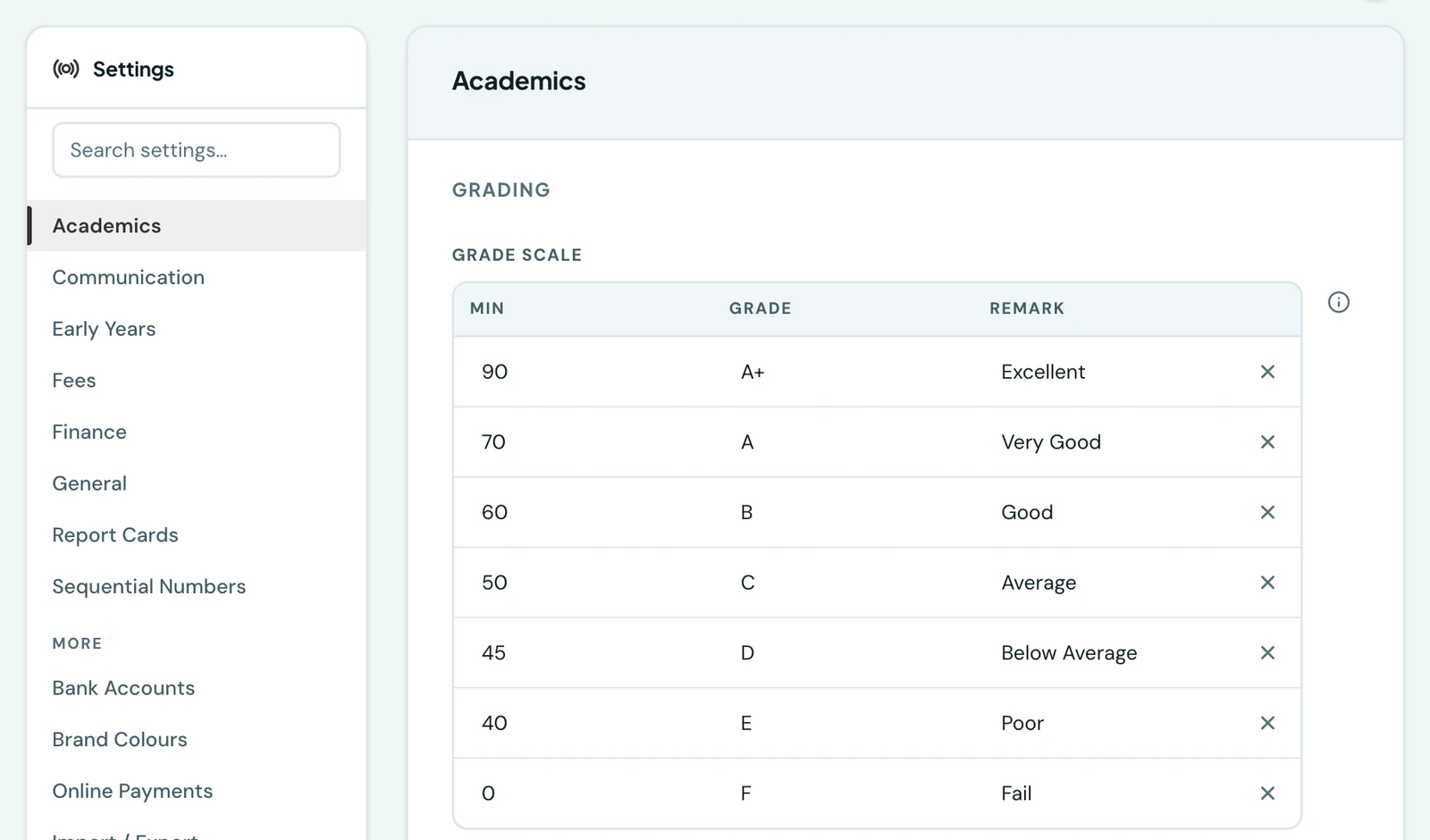
One page for every school-wide preference: your grading scale, admission, invoice and receipt number prefixes, invoice currency, notification channels, fee reminders, bank accounts and brand colours (primary, secondary and accent, which theme the portals and the branded emails). Sessions, terms and the current academic calendar are the exception and live on the separate Academic Setup page.
One settings engine, platform-wide
Every setting below is powered by one shared Configuration Engine rather than a separate mechanism per feature, and so is every setting added to the platform from here on, including grade-report rating scales, trait labels and notification-channel preferences. That gives every setting the same three things automatically: a searchable Settings page (grouped by module, with an in-page global search), a full audit history of who changed a value and when (with the before/after values), and a JSON export/import so a school's configuration can be backed up or copied. Who may view or edit a setting is decided by the same role permissions as the rest of the platform, so a school can hand settings to an Owner alone or to whichever roles it chooses.
What is on the page
The left rail groups settings by module, and every setting is searchable by name from the top of the page.
| Module | What it holds |
|---|---|
| Academics | The grade scale: the letter grade and remark for each score band (see below) |
| Attendance | Where and how a staff clock-in is checked, when a late arrival begins, and the daily absence digest. See Staff attendance |
| Calendar | The days your school teaches, its working hours, and how a term's weeks are counted. See Academic Calendar |
| Exams | The most papers a class may sit in one day, and what the exam generator prefers. See Exam timetable generation |
| Communication | The notification channels matrix, deciding which events notify parents and over which of email, WhatsApp and app push. See Notifications |
| Early Years | The rating scale used on developmental reports. See Early Years |
| Finance | The default invoice currency, any of the 162 ISO 4217 currencies (searchable by name or code, e.g. NGN, USD), overridable per invoice; the fee reminder day tiers and email message, each in an after-due and a before-due pair; and whether a recorded payment waits for a second person. See Fee reminders and Payment review |
| General | The head of school's name, printed on the report card signature line |
| Lesson Notes | Whether a filed note is reviewed, whether a teacher may copy a colleague's, and the headings a new note starts with. See Lesson notes |
| Report Cards | The rating scale for skills and traits, and the headings the two trait grids print under. See Report Cards |
| Sequential Numbers | The number length, and the admission, invoice, receipt and expense voucher prefixes, all four derived from your school's name at setup |
| Timetable | Period and teaching limits, how long the generator runs, next-lesson reminders, and what the generator prefers. See Weekly timetable |
| Weekly Grades | What a weekly mark is out of, whether it reaches the report card and what it is worth there. See Weekly grades |
You may not see every section. A section describing a phase your school does not run is left out: a school registered as Secondary is not shown Early Years, on the web or in the app. It is a tidier list rather than a restriction, and nothing is lost: record your school as Primary & Secondary under Profile & Branding and the section returns, with whatever you had set still in place.
Preferences are not rules
Two of these sections, Timetable and Exams, end in a group of numbered preferences: how much the generator should try to spread a subject across the week, keep a teacher in one room, sit papers in the morning, and so on. Each is a score from 0 to 100, and zero switches it off.
They rank the acceptable answers and nothing more. None of them can produce an illegal timetable or exam timetable: turn every one of them down to zero and you get an ugly week, never a double-booked teacher or a pupil sitting two papers at once, because those are hard rules in the generator rather than preferences expressed here.
The defaults suit most schools. Change one only when a generated week or exam timetable comes out a shape you do not want, and change one at a time: they are weighed against each other, so raising two together tells you less than raising one.
Some of these are also editable where the work is, rather than only here: the grade scale, the rating scale and the trait headings appear on the Scales tab of the Report Cards workspace, and the four calendar settings on the Settings tab of the Academic Calendar. Those are not copies. They are the same settings, with the same audit history and the same permissions, shown in a second place so you do not have to leave a workspace to change something it depends on.
Three further sections sit below the modules, because each manages records rather than a single value:
- Bank Accounts. Up to two accounts in any one currency, across up to five currencies, printed on the invoices in that currency. See Profile & Branding.
- Brand Colours. The primary, secondary and accent colours that theme the portals and emails.
- Online Payments. Settlement accounts, verified with the bank, and the switch that lets parents pay fees online. Shown only to roles granted it. See Online Payments.
Admission, invoice and receipt numbers each run on their own per-school sequence. Every school's numbering starts at 1 and runs independently, regardless of how many other schools exist on the platform, or how many historical records your own school already has.
The prefixes are set from your school's name when your account is provisioned, so "Bright Star
International School" starts with BSI-00001, BSI-INV-00001 and BSI-RCP-00001. The invoice and
receipt prefixes keep their INV and RCP marker rather than being the bare initials, so an invoice
number is never mistakable for the admission number of the pupil it was raised for. A prefix may be 2
to 10 characters (letters, numbers or hyphens, starting with a letter), and you can change any of
them at any time; existing records keep the numbers they were issued.
How long a number is
Number length sets how many digits follow the prefix, from 3 to 6. Five is the default, giving
ADM-00001; three gives ADM-001. It is one setting for all four sequences, because a school that
wants shorter numbers wants them shorter on the invoice as well as on the register, and four separate
lengths would be four ways for one school's own documents to disagree.
Two things are worth knowing before you change it:
- Nothing is renumbered. The length applies to numbers issued from that point on. A pupil, invoice or receipt already numbered keeps the number it was given, which is the only safe answer for a figure a family may already be holding on a printed receipt. A register that has run for a while will therefore show both lengths, and the change is visible at the point you made it.
- Running past the length is not an error. The digits are a minimum, never a maximum. A school
set to three digits that issues its thousandth invoice simply gets
INV-1000, and carries on. You never have to raise the setting to keep issuing numbers.
The current academic session and term are not settings keys. They are controlled from the Academic Setup page by marking a calendar as current.
Grading scale JSON format
The grade scale is a list of bands, each with a minimum score, a letter grade, and a remark.
Bands are evaluated highest-first, and the editor on the page writes this shape for you. This is the
default:
[
  { "min": 90, "grade": "A+", "remark": "Excellent" },
  { "min": 70, "grade": "A", "remark": "Very Good" },
  { "min": 60, "grade": "B", "remark": "Good" },
  { "min": 50, "grade": "C", "remark": "Average" },
  { "min": 45, "grade": "D", "remark": "Below Average" },
  { "min": 40, "grade": "E", "remark": "Poor" },
  { "min": 0, "grade": "F", "remark": "Fail" }
]
On the phone
Settings is in the mobile app under More → Settings, listing the same groups the web page does, each with the number of settings inside it. Opening one gives the same fields with the same explanations and the same audit trail, so a value changed from a phone is recorded exactly as one changed from a desk.
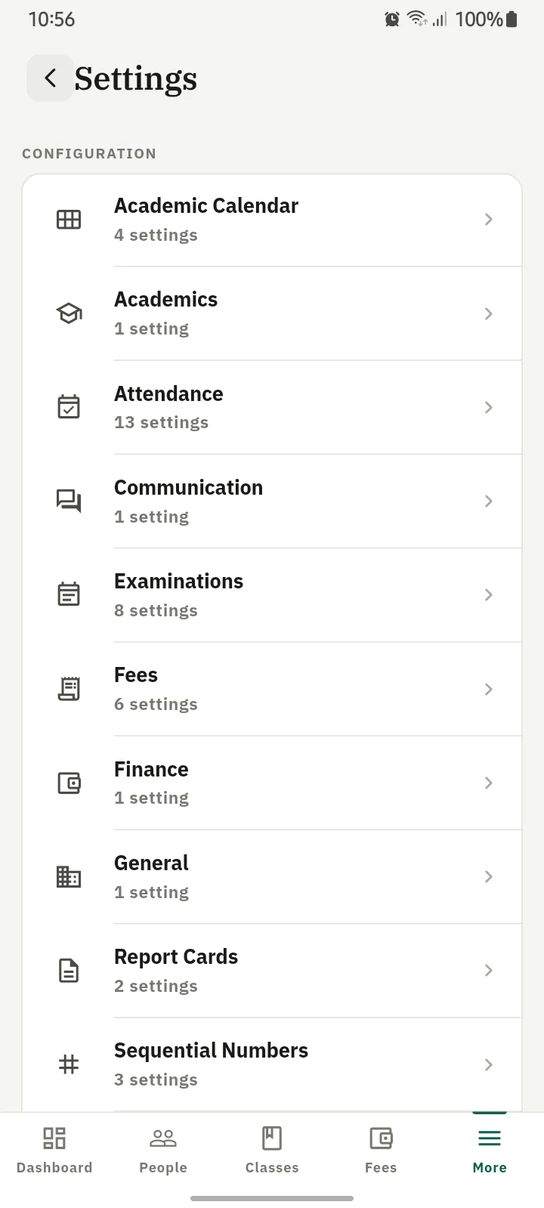
The same settings groups on the phone, each saying how much is inside it.
Ready to try it with your school?
Three-month Basic trial. No card required to register.