
School Setup
School Profile & Branding
Set your school's logo and motto on the School Profile page, and its brand colours and bank account details under Settings, so your portal and your invoices carry your identity.
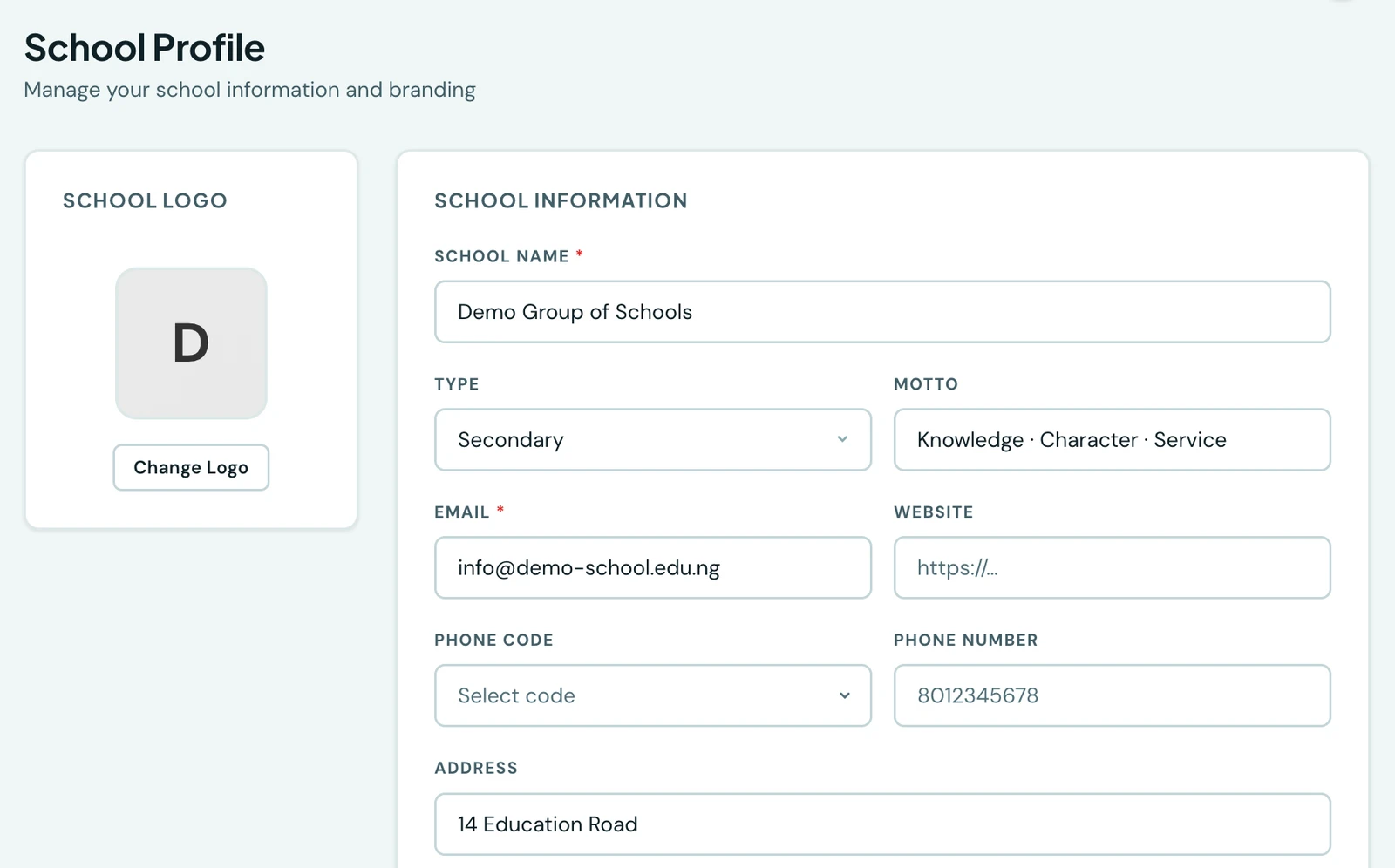
Customise your school's portal with your logo, colours, motto, and bank details. Custom domain setup has its own dedicated page. See Custom Domain, and School Settings for everything else configurable about your school.
Where each setting lives
Your school's identity is split across two pages, because one is about the school's own record and the other is configuration:
- School Profile holds the logo, the motto, and the school's name, type, email, website, phone and address. The logo appears in the portal header, on PDF invoices and beside your name on your sign-in pages, where the motto is displayed too. The email set here is the reply-to address on every message sent to parents, which is why it is required.
- Settings → Brand Colours holds the primary, secondary and accent colours that theme the portal UI and the branded emails, and the layout and photo of your sign-in pages (see Your Sign-in Page).
- Settings → Bank Accounts holds the bank details printed on invoices. See below.
Bank account details
Add bank accounts under Settings → Bank Accounts. Each needs a bank name, an account number of 8 to 12 digits, the currency it is held in, and the account name as your bank has it.
You may hold two accounts in any one currency, across up to five currencies, which is ten in total. Two per currency because a school often runs more than one: a fees account and a development-levy account, or one per campus. The currency picker only offers currencies you still have room for, so you never fill the form in to be told no.
The currency field is what determines which accounts appear on a given invoice. When a PDF is generated for an invoice, only the bank accounts whose currency matches the invoice's currency are included in the Bank Details section. This lets you collect fees in multiple currencies (e.g. NGN and USD) and have the correct account details shown automatically on each invoice.
The bank name field includes an autocomplete list of common Nigerian banks; you can also type any bank name that is not on the list. Write the account name as your bank has it rather than as you would abbreviate it, since that is what a parent checks against their transfer screen. An account is live on the next PDF generated; there is nothing to publish.
There is no edit. To change an account, remove the old one and add the replacement, which is the safest behaviour for a field where a half-finished edit is genuinely dangerous. Removing one stops it appearing on future PDFs and does not affect invoices that have already gone out, so a parent working from an old PDF can still pay into a closed account. That is why removing one is worth doing promptly rather than leaving both in place.
These accounts are printed instructions: they tell a parent where to send a transfer, and nothing is verified with the bank because no money is being routed anywhere by the platform. Letting parents pay by card or transfer through 1410SMS is online fee collection, which uses a separate settlement account that we do check with the bank first. The two can be the same account, and having one does not give you the other.
Bank accounts are managed in the mobile app under Settings → Bank accounts, with the same fields.
On the phone
The profile itself is on the mobile app too, under More → School profile: the logo with Change logo under it, then the school's name, email, motto, telephone number and address, saved with the same permission as on the web. Brand colours have their own screen beside it, under Settings.
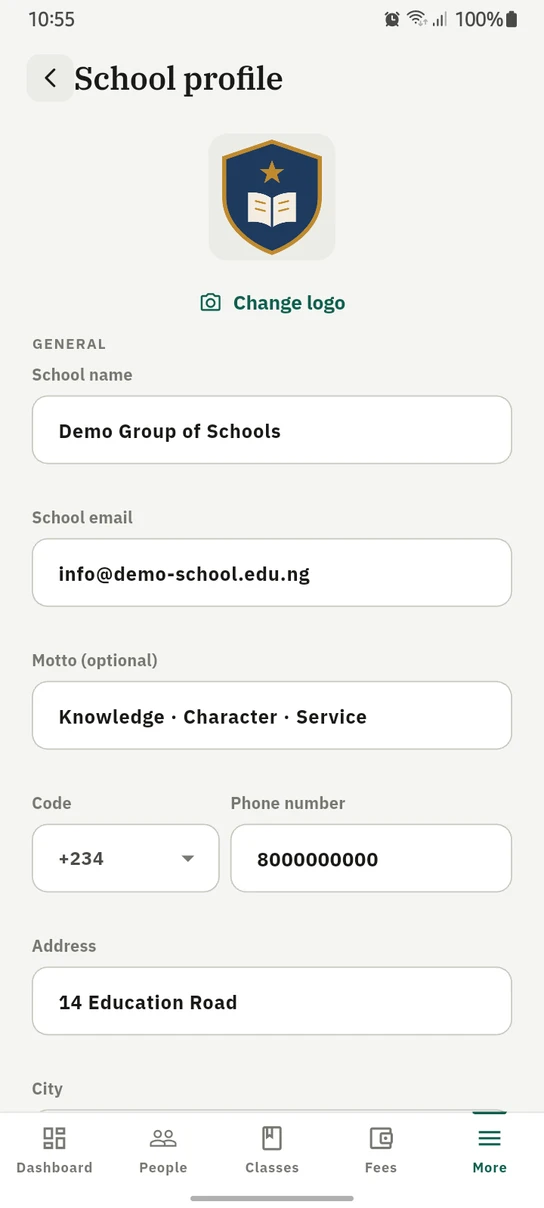
The same profile on the phone, logo included.
Ready to try it with your school?
Three-month Basic trial. No card required to register.