
Academics
Class Streams
Teach one class as several streams at once. Science, Commercial and Arts sit in the same period with different subjects and different teachers, each stream can take its own subjects, and the class stays one register, one report card and one fee cohort.
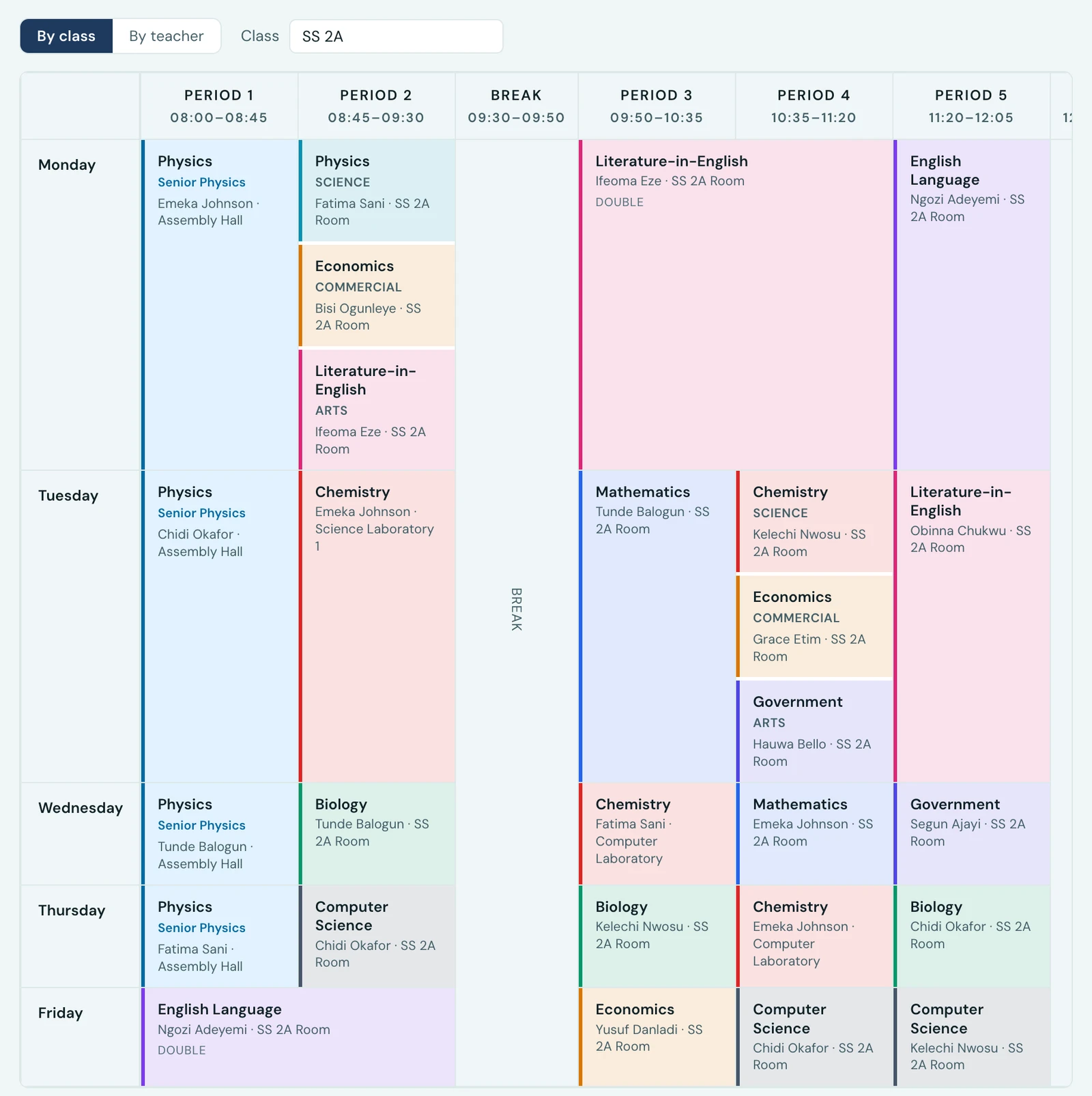
Plenty of schools run a year group as a single class that splits for part of the week. All of SS 2A is in SS 2A, but at half past eight on Monday the science pupils are in Physics, the commercial pupils are in Economics and the arts pupils are in Literature-in-English, each with a different teacher, all at the same time.
Streams are how you say that. A stream is a named group within one class. It changes the timetable and, once you list the subjects each stream takes, which pupils a mark sheet shows. Everything else about the class stays exactly as it is.
What a stream does not change
This is the important half, so it is worth stating plainly. A class taught in streams is still one class:
- One register. Attendance is marked for the class, not per stream
- One report card cohort. Positions are worked out across the whole class, so a pupil is fifteenth of thirty rather than fourth of eight
- One fee cohort. Invoicing knows nothing about streams
- One roster. The class list is the class list
If your streams need separate registers, separate positions or separate fees, they are separate classes rather than streams, and you should create them as classes.
Naming your streams
Streams live on the class's own page, under a Streams tab beside Students and Timetable. Add a stream, give it a name, and it appears in the list with the number of pupils currently in it. A class can have up to eight.
Underneath, Who is in which stream is the class roster with a stream against each pupil. Change as many as you like and save once. A pupil you leave on No stream is in every lesson the whole class is given, which is the right answer for anyone who has not been placed yet: nobody disappears from the timetable because an admin has not got round to them.
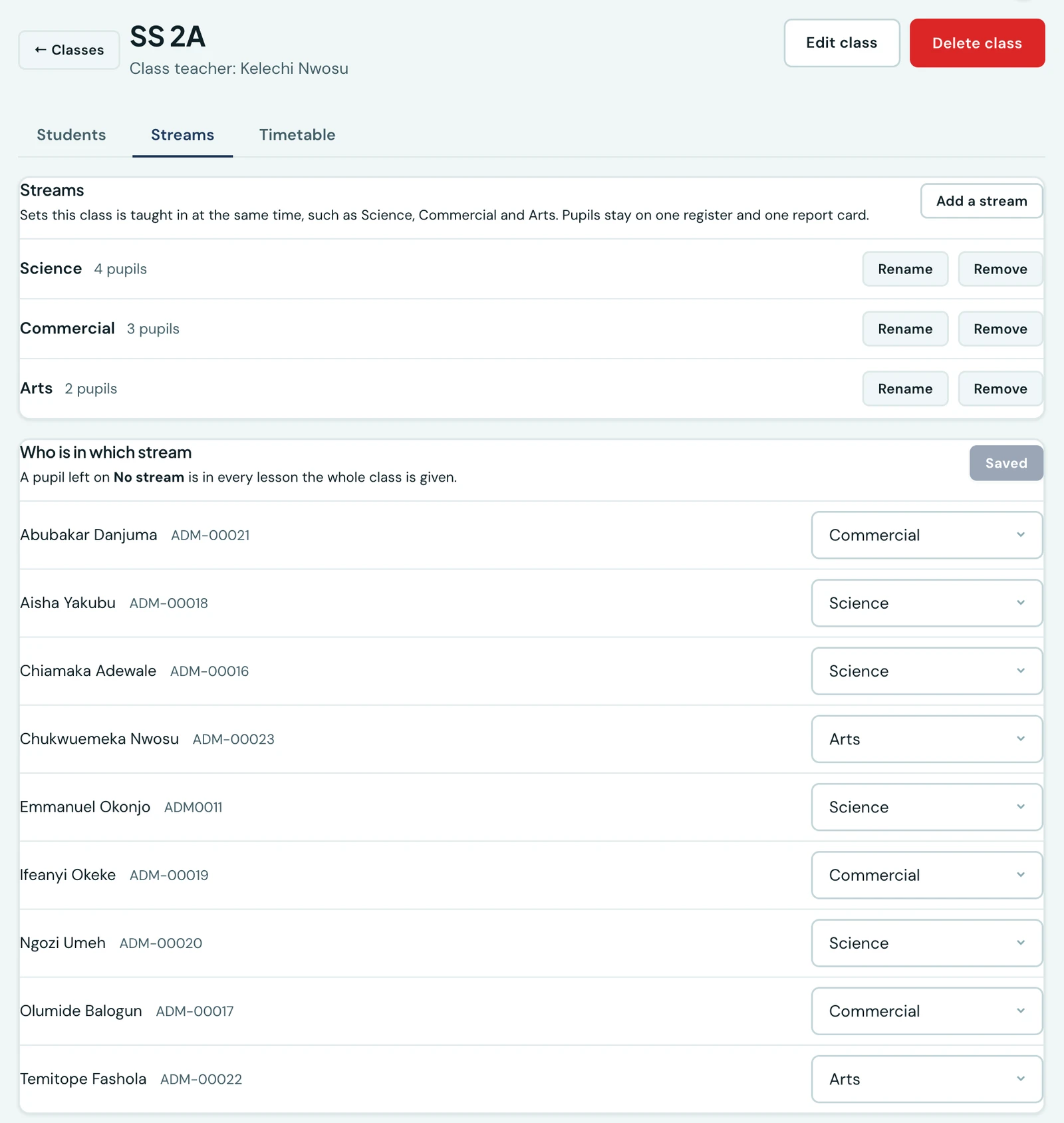
The streams, and who is in each. A pupil left on No stream is in every whole-class lesson.
Renaming a stream is safe at any time and carries through to every timetable that names it. Removing one is refused while lessons are still assigned to it, and you are told how many, so a stream never takes a term of timetabling down with it.
Moving a pupil to a different class clears their stream, since streams belong to the class they were named in.
Which subjects each stream takes
Each stream has a Subjects button on the class's Streams tab. Tick the subjects that stream takes and save. The list offers only the subjects the class itself takes, so add a subject to the class first if it is missing.
Tick nothing and the stream takes every subject, which is how every stream starts. So nothing changes until you list a stream's subjects, and you can list one stream and leave the others.
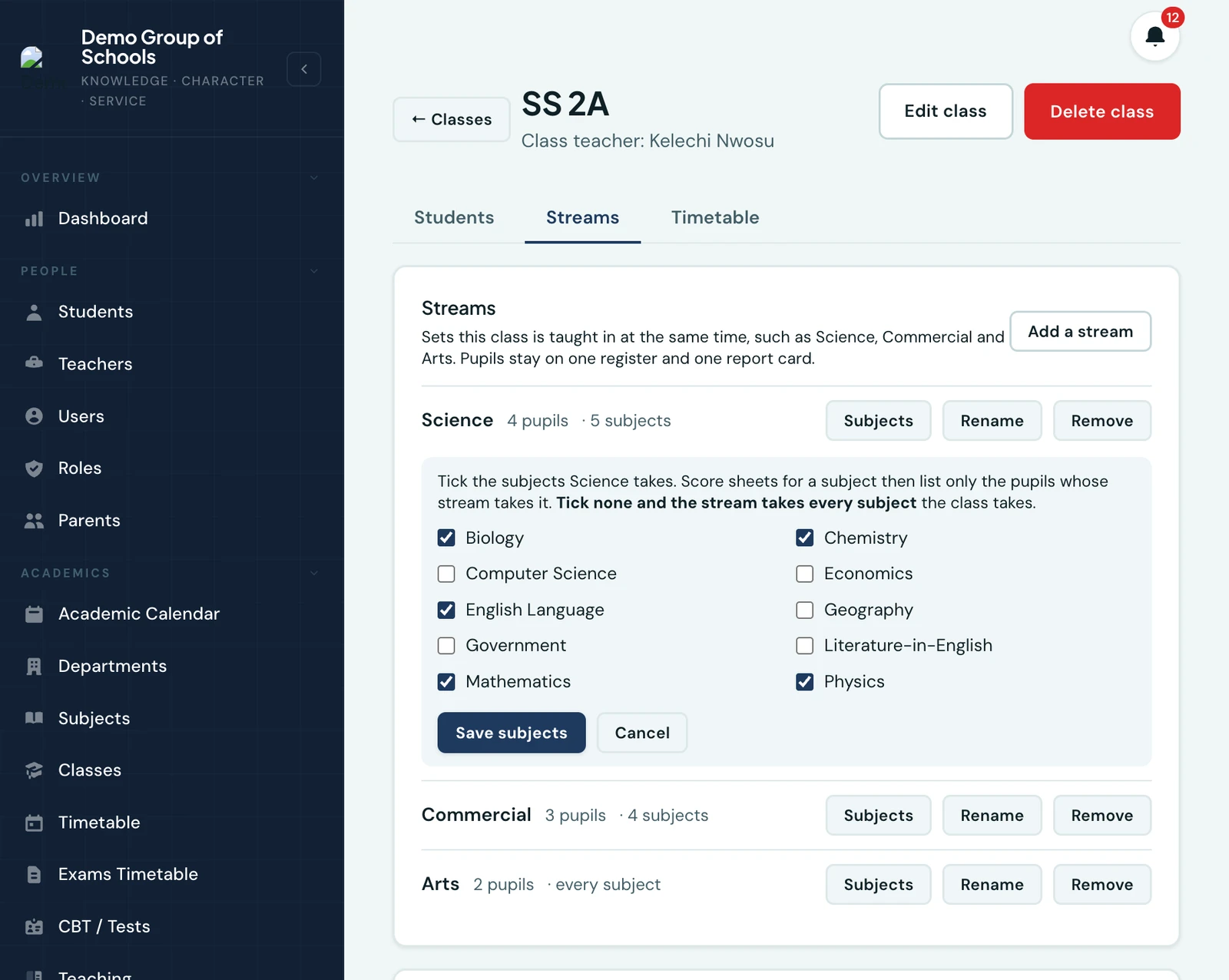
The science stream's subjects. A stream with nothing ticked takes every subject the class takes.
Once a stream has its list:
- Mark sheets show only the pupils who take the subject. The term score sheet and the weekly marks sheet for Physics list the science stream and nobody else, and Economics lists the commercial stream
- Pupils in no stream appear on every sheet, the same way they are in every whole-class lesson
- A pupil who already has a mark stays on the sheet, so a mark entered before the list was made can still be corrected or cleared
- A new mark for a pupil whose stream does not take the subject is refused, however it is entered: the sheets, Add Grades or a spreadsheet import. Add Grades only offers a pupil the subjects their stream takes
- Pupil lists follow the same rule. On Add Grades, which picks the pupil before the subject, a pupil whose stream takes none of the subjects you can grade is not listed; for a teacher, that is the subjects they teach. In the app's one-subject grade form, choose the subject first and only the pupils whose stream takes it are listed. An earlier term is not held to today's streams, and a mark already recorded can always be opened and corrected
- Subject positions on the report card are then worked out among the pupils who take the subject, since nobody else has a mark in it. The overall position is still across the whole class
Putting the streams on the timetable
In the Timetable workspace builder, a class with streams gains a Streams picker beside the class. Choose a stream and you are placing lessons for that stream; leave it empty and you are placing a lesson the whole class attends, exactly as before.
Choose several streams to teach them together. Science and Commercial may share one Mathematics lesson with one teacher while Arts has Literature-in-English in the same period. The lesson is one card on the grid, labelled with every stream it covers, and it counts towards each of those streams' weeks.
A period can hold one whole-class lesson, or lessons for streams that do not overlap, and each lesson has its own subject, its own teacher and its own room. Two lessons that share a stream cannot run at once, so Science + Commercial in a period leaves room for Arts and not for Commercial + Arts.
The subjects follow the stream. Once a stream has its subject list:
- Choosing a stream narrows the To place list to the subjects that stream takes. With several streams chosen, it lists the subjects all of them take
- A subject not every stream takes cannot be a whole-class lesson, because the streams that do not take it would be timetabled into it. With the whole class chosen, such a subject is shown dimmed with choose a stream, and hovering it names the streams that do not take it. Choose a stream and place it there, once for each stream that takes it
- Generating places them for each stream that takes them, side by side in the same periods where it can. A subject no stream takes is left out, and the Generate tab names it before you run it
- A subject not every stream takes cannot be taught as a merged lesson with another class. A merged lesson is taught to whole classes, so the streams that do not take it would be in it
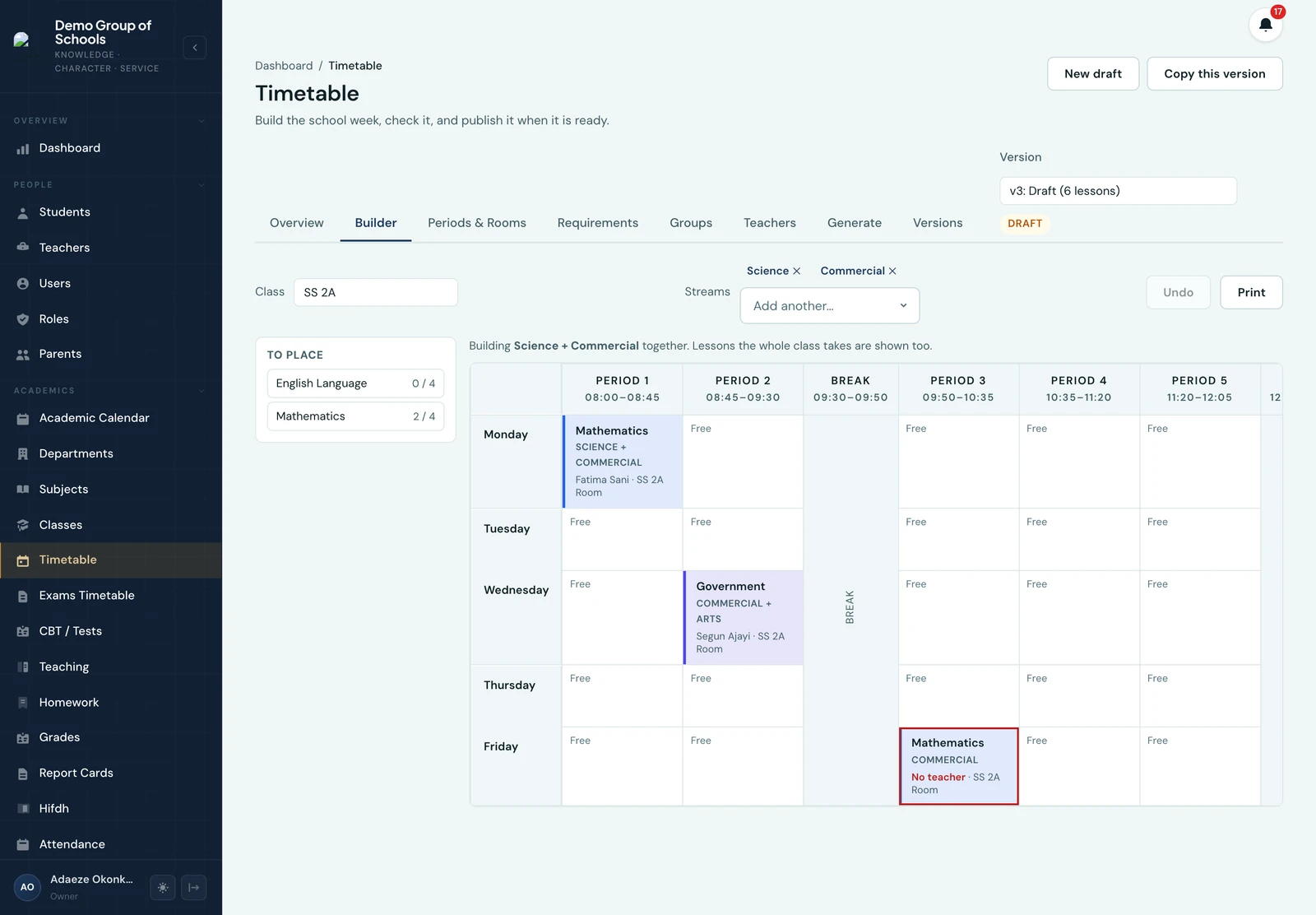
Building Science and Commercial together. The To place list narrows to what both streams take, and a joint lesson names every stream it covers.
A lesson's streams can be changed after it is placed. Click the lesson and its drawer has a Streams field. Add a stream to teach it to one more set, remove one to take that set out, or clear it to make the lesson the whole class's. It offers only the streams that take the subject, and the whole class only when every stream does. The lesson stays in its period, and a change that would put a stream in two lessons at once is refused on the drawer, naming the lesson in the way.
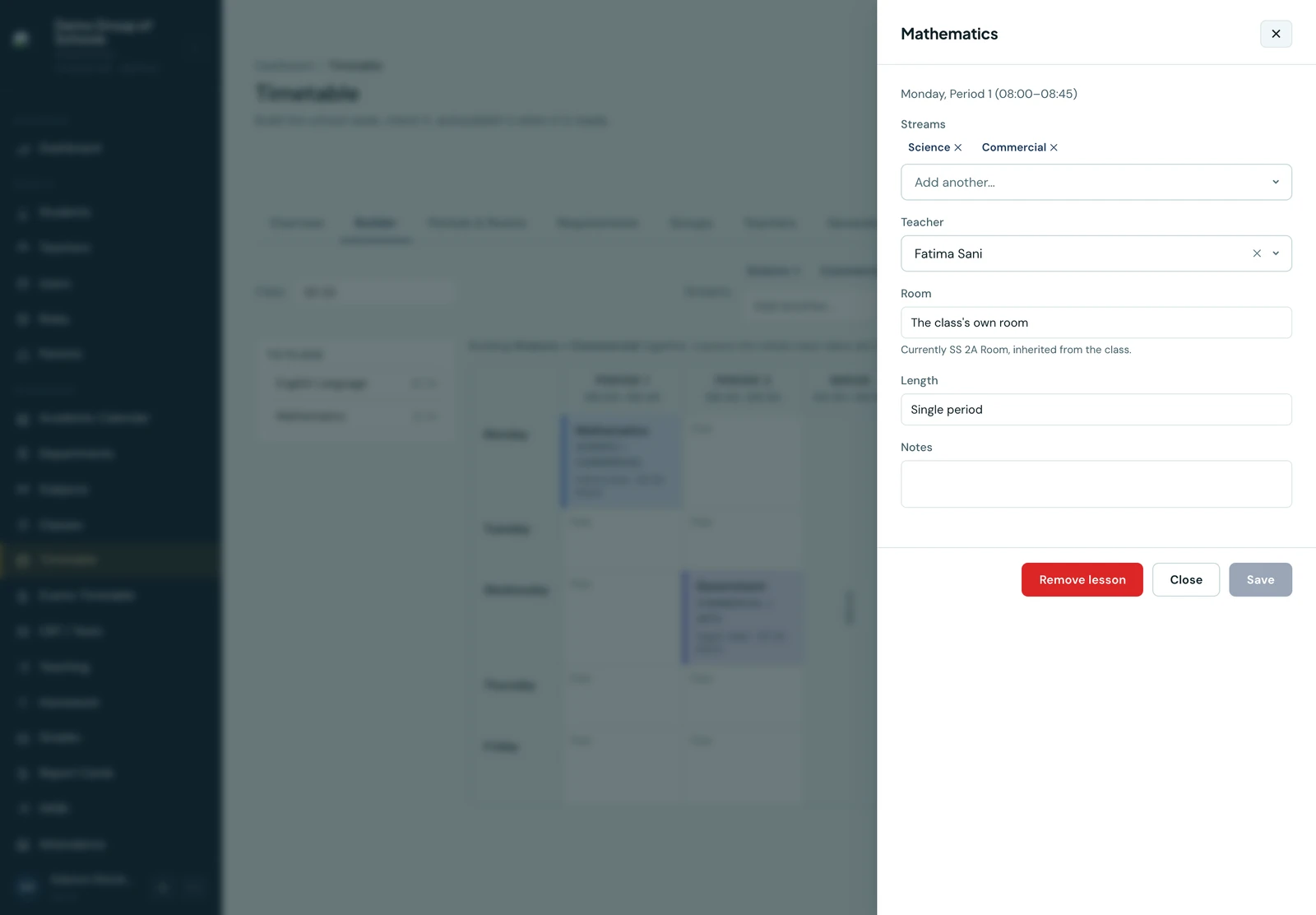
A lesson taught to Science and Commercial together. Streams that do not take the subject are not offered.
The clash engine understands the difference:
- Two different streams in the same period is not a clash. It is the point
- The same stream booked twice in one period is still a clash, including where two lessons for several streams each include it
- A whole-class lesson over a period that already has stream lessons is still a clash, because the whole class includes those pupils
- A teacher double-booked is still a clash, streams or no streams. One teacher cannot take Physics and Economics at half past eight, and the platform will not let you pretend otherwise
Rooms are only checked when you have chosen them. Most schools never fill a room in, and a lesson with no room chosen simply uses the class's own room, which two streams of the same class will often share quite deliberately. So two lessons collide on a room only when a room was explicitly picked for both of them. If you do book Lab 2 for the science stream and Lab 2 for the commercial stream at the same time, that is caught.
Reading a divided week
On the class's own Timetable tab, a period the class is divided for is a single cell naming the subjects running in it: Physics/Economics/Literature-in-English. One period, one cell, wrapping onto as many lines as the column needs.
The streams themselves are left off, and so are the teacher and the room. Anybody reading a divided period is in one of the streams and knows which, so what they want at a glance is what it is doing; naming all three streams beside all three subjects doubles the text in the cell to say it, and three full lesson cards stacked would make that one row of the week several times the height of every other and push the rest of the day off the screen. The stream, the teacher and the room are all on the lesson in the Timetable workspace, where the person who needs them is working.
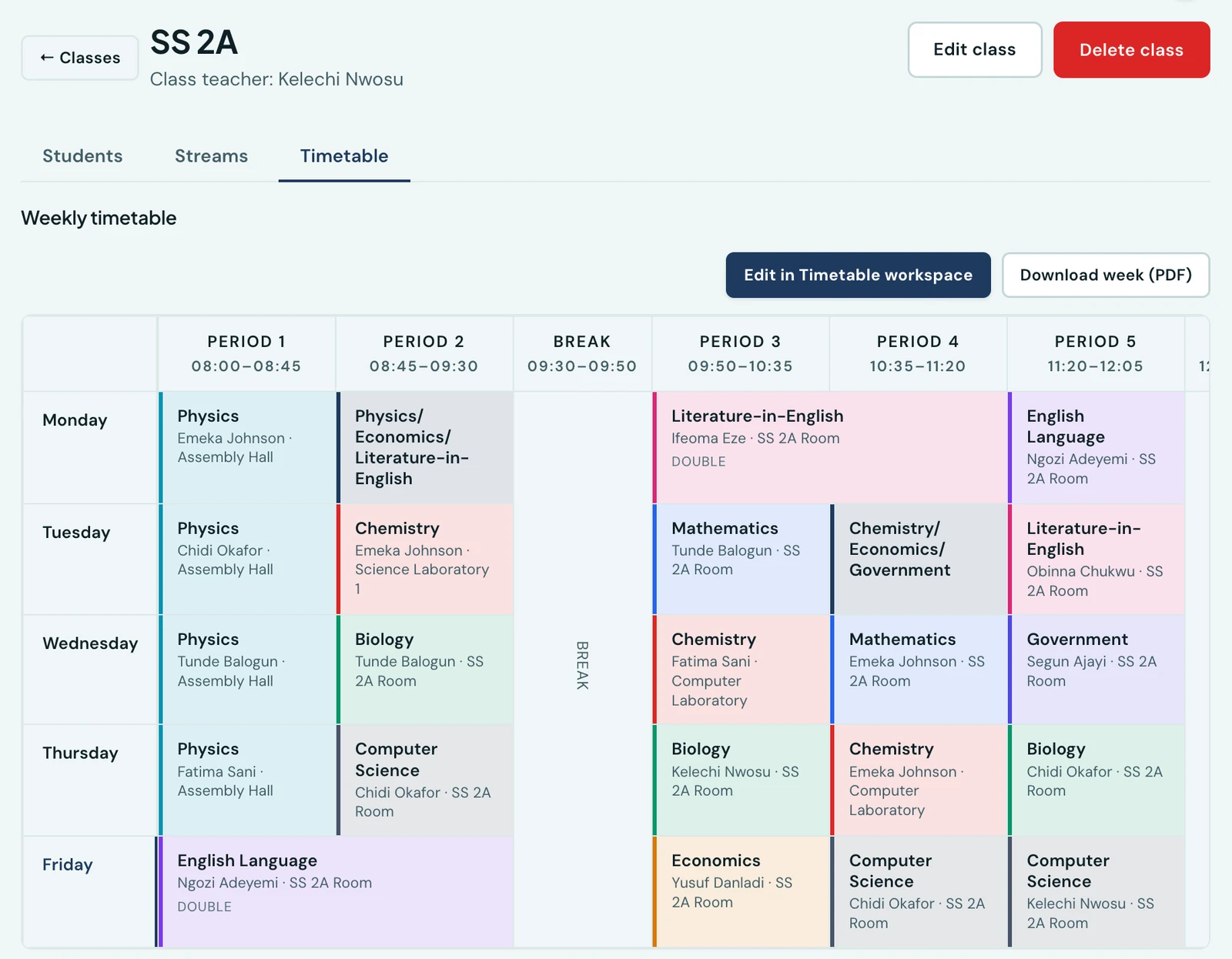
A divided week on the class's own tab: each divided period is one cell naming the subjects running in it.
Where every stream takes the same subject, which is what streaming a year group for Mathematics looks like, the cell says Mathematics once. Three streams, three teachers, three rooms, one subject, and repeating the name three times would tell you less than saying it once.
The printed week reads the same way, so the sheet on the staffroom wall matches the screen.
On the phone
A divided week reads differently in the mobile app. The app shows one day at a time rather than a grid, which leaves room a column does not have, so it says more: a divided period is one card reading Divided into 3 streams, then a line per stream naming the stream, its subject, its teacher and its room. The day's period count treats it as the one period it is.
The Timetable workspace is the exception, and deliberately so: it stacks a card per stream, each naming its stream, its teacher and its room, because that is where somebody is building the week rather than reading it.
What families and teachers see
A pupil's timetable is their own stream's. Open the student portal and the science pupil sees Physics on Monday morning; the arts pupil in the same class, at the same time, sees Literature-in-English. Parents see the same thing under each child's Timetable tab, and the printed sheet matches.
Whole-class lessons appear for everyone, which is what makes an undivided week look exactly as it always did. English Language taken by the whole of SS 2A is on every pupil's timetable regardless of their stream.
Teachers see their own week as they always have: they are teaching one stream, so they see that lesson.
Marking a stream
When several streams take the same subject, which is what English across the whole year group looks like, the score sheet and the weekly marks sheet offer a Show filter: everyone, one named stream, or the pupils in no stream. That lets a teacher who takes only the science stream's English see only their pupils.
The filter offers only the streams that take the subject and have pupils on the sheet, and it is not shown at all when there is nothing to choose between. It changes only which rows are drawn, and nothing you have already typed is lost by switching it.
When to use a stream, and when not to
Use a stream when the pupils are genuinely one class that separates for some lessons: subject arms in a senior year, a language split, ability groups for mathematics.
Do not use a stream to model two classes that happen to be timetabled together. That is a teaching group, which is the opposite arrangement: several classes in one lesson, rather than one class in several. Both exist, and a lesson may be one or the other but never both.
Availability
Streams are on every plan, and a class with no streams behaves exactly as it did before they existed. There is nothing to switch on.
Ready to try it with your school?
Three-month Basic trial. No card required to register.