
Bulk Operations
Bulk Import & Export (CSV/XLSX)
Upload students, teachers, grades, and attendance in bulk from CSV or XLSX, with per-row validation, dry-run preview, and one-click export.
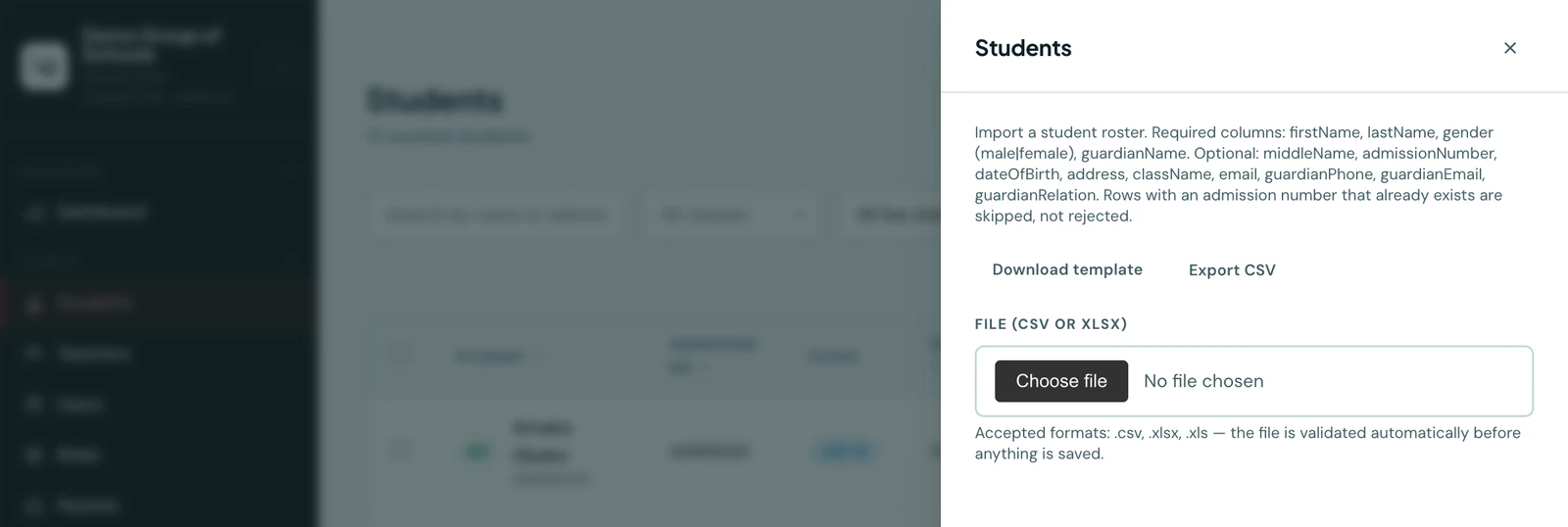
Every module has its own Import / Export button, whether that is Students, Teachers, Classes, Subjects, Grades, Attendance, Parents, Timetable or Hifdh baselines, and each opens a slide-over drawer with the same validate-then-import flow, template download, and one-click export, scoped to that module.
How to import
- Open the module's list page (e.g. Students, Classes) and click Import / Export (admin only).
- Download the template CSV from the drawer.
- Fill in your data. The required columns are listed in the drawer's description.
- Select your file. It is validated automatically the moment you choose it, and nothing is saved at this stage. Any errors are shown per row with the affected field; fix the file and choose it again to re-validate.
- If there are no errors, click Looks good, import to write the data to the database.
Imports are all-or-nothing: if any row in the file is invalid, the import is rejected and nothing is written, so you can never end up with half a file imported. Fix the reported rows and upload again.
Supported formats
CSV, XLSX, and XLS files are accepted, up to 5 MB and 5,000 rows each. A file over the size limit is refused as soon as you choose it rather than after it uploads; one over the row limit is refused when it is checked, and says how many rows it holds. Neither is ever trimmed to fit. Split a very large roster into a few files and load them one after another, which is safe to do because each import is checked on its own.
Column headers are matched to the names below however you write them: capitalisation, spaces,
underscores and hyphens are all ignored, so First Name, firstname, FIRSTNAME and first_name
all fill the firstName column. A spreadsheet your school already keeps usually needs no tidying up
at all. Every reference to another record, whether a class, subject, department, term, session or
teacher, is matched by name rather than by internal ID. Teachers are the exception and are matched
by email, since they have no unique display name.
Column specs
| Module | Required columns | Optional columns |
|---|---|---|
| Students | firstName, lastName, className | middleName, gender (male|female), admissionNumber, dateOfBirth, address, email, guardianName, guardianPhoneCode, guardianPhone, guardianEmail, guardianRelation |
| Teachers | firstName, lastName, email | middleName, phoneCode, phoneNumber, departmentName, qualification, dateJoined |
| Classes | name | level, section, classTeacherEmail, room, assessmentType (standard|early_years) |
| Subjects | name | code, departmentName, description, isActive |
| Grades | admissionNumber, subject, term, session, score, and class for a current-term row | class for an earlier term, maxScore (defaults to 100, up to two decimal places), fullMaxScore (export only, see below) |
| Attendance | admissionNumber, class, date (YYYY-MM-DD) | term, session, status (present|absent|late|excused; default present), note |
| Parents | name, admissionNumber, and an email address or a phone number | title, email, phoneCode, phoneNumber, relationship |
| Timetable | class or group, day, period, subject | teacherEmail, room, span, notes |
| Payments | invoiceNumber, amount, paymentMethod, paymentDate (YYYY-MM-DD) | receiptNumber, note |
| Hifdh baselines | admissionNumber, fromSurah | fromAyah, toSurah, toAyah, date (YYYY-MM-DD, defaults to today), comment |
A few module-specific notes:
- Students. Every guardian column is optional. A row carrying guardianName and guardianPhone
also creates the guardian's own parent account and invites them to set a password; a row carrying
neither of those records whatever it has as contact details and creates no account. So a roster
whose guardian phone numbers are missing imports fine. It simply does not invite anybody, and you
can add the accounts later. A row with a
guardianPhonemust also give itsguardianPhoneCode(for example+234). The country code is never guessed, so the preview flags a number without one and the import does not go ahead until it is filled in. - Teachers. An invite email is sent to each new teacher. A row with a
phoneNumbermust also give itsphoneCode, the same rule the guardian columns follow on the students import. - Grades. The preview checks every rule the import applies: a score above its maximum, a mark listed twice, and for the current term the pupil's class and the subjects that class offers. A mark already recorded is skipped, so you can add rows to a sheet and upload it again. A file that passes imports in batches of 500, and the result says which batches landed. Rows for an earlier term load freely, with or without a class.
- Grades and an incomplete mark. A mark saved as
incomplete exports with the paper's full total in
maxScoreand that same total repeated in a finalfullMaxScorecolumn, which marks the row as one still waiting for components. Uploading such a row is refused rather than imported, because a sheet carries a mark's total and not the components behind it, so the row would come back as a complete score for the whole paper and be lettered as the pupil's final result. Finish those marks on Grades → Add Grades. The rest of the sheet is unaffected, and a re-upload still adds every other new row. - Attendance. A row cannot be dated in the future. An imported row is allowed on a day your school recorded itself closed, unlike a register marked on the day: history brought across from somewhere else is a record of what happened, not a mark being made now.
- Classes and Subjects. Rows whose name already exists are skipped rather than rejected.
- Classes and
assessmentType. Left blank, a class is assessed the ordinary way: subject scores and letter grades. Set toearly_years, it is assessed on developmental ratings and comments instead, which replaces subject grades for that class rather than adding to them, so marks can no longer be recorded against it. It is the one column on this import that changes how a class works rather than what it is called, and the classes export carries it, so an exported file sets it on the way back in. - Parents. One row = one parent-student link, so a parent with several children needs one row per
child. The parent's name is a single column, and either an email address or a phone number will do,
since plenty of schools know only "Mrs. Okafor" and a number. A row whose contact is new creates the
parent and emails a set-password invite; one that matches a parent already on file links another
child to them without changing their details. A row with a
phoneNumbermust also give itsphoneCode, the same rule the guardian columns follow on the students import. - Timetable. The one import addressed to something smaller than the whole school: it fills a draft version, chosen in the Timetable workspace, and can never write into a published week. Its drawer is on the Versions tab rather than on a list page. Each row names either a class or a merged teaching group, never both, and the period column takes either the period's name ("Period 1") or its start time ("08:00"), matched inside the bell schedule that class runs to. Leave room blank for the class's own room. Rows are added to the draft, so start a new draft when you mean to replace a week rather than add to it. Every row is put through the same clash rules the builder enforces, so a file cannot import a week you could not have built by hand.
- Payments. Lives on the Payments tab of the Finance Workspace rather than on a list page, and has its own set of rules because it writes money. See Importing payments in bulk.
- Hifdh baselines. Where each pupil already was when the school started its
Hifdh Register, one row per portion. Its drawer is on the register's Settings tab.
A surah is its number or its name, and leaving the ayahs out means whole surahs, so
78to114is juz 30. A portion the register already holds for that pupil is skipped, and nothing is announced to families. Exporting needs the permission to read the whole school's register as well as the one to manage it.
How values are read
Columns are matched by name, and the values are read the way people write them:
- Capitalisation does not matter in a column with a fixed set of answers.
Male,maleandMALEare one gender;Father,fatherandFATHERare one relationship. The same holds for every such column: an attendancestatus, a payment'spaymentMethod, a class'sassessmentType, a timetabledayand a question'stype. - A two-word answer may be written with a space. The underscore in
bank_transfer,mobile_money,early_yearsandtrue_falseis there for the software, andBank Transfer,Mobile Money,Early YearsandTrue Falseare read as the same answers. - A title is the same with or without its full stop.
MrandMr.are the same honorific, and so are Mrs, Ms, Dr, Prof, Engr, Barr, Rev and Hon. - Phone numbers may be written in groups.
0810 790 7206,+234 (0)810 790 7206and08107907206are the same number, so a column pasted from a contacts export needs no tidying up.
What is not guessed at is anything that is not the word itself: M is not a gender and Dad is not
a relationship, and a row using one is reported by name rather than filed under something nobody
chose.
Exporting records
Click Export CSV in any drawer to download that module's records as a CSV file. An export is capped at 10,000 rows, and a selection larger than that is refused with the figure rather than handed to you cut short: a file that stops halfway looks complete, and this is the file you edit and import back. Narrow it by class, term or search and export in parts. Grades and Attendance exports respect the page's current class/term/session filters. Timetable exports the whole of the version you have open, in the same columns that import one back, so you can export a week, edit it in a spreadsheet and bring it in as a new draft. Parents export one row per parent-student link, matching the import shape exactly for a clean round trip.
On the phone
Import and export are on the phone too, on each module's own list: Students, Teachers, Parents, Classes, Subjects, Grades, Attendance, Payments and Hifdh baselines (on the Hifdh screen's Settings tab). Open the list and tap the import/export icon in the header, then Import from file or Export as CSV.
The flow is the browser's: choosing a file validates it first and writes nothing, the per-row errors are listed the same way, and the button that commits appears only once the file is clean. An export opens your phone's share sheet, so the file can go to Drive, email or a spreadsheet app, and covers the whole list rather than the filters on screen.
The import screen lists the columns the file needs, with a Download template button under them. It is the same blank file the browser drawer offers, a header row and an example or two, and it opens the share sheet the same way an export does. The templates come with the app, so the button works with no signal.
Each half is shown only to somebody who holds its permission, so a member of staff who may download the roster but not replace it sees Export as CSV on its own.
Ready to try it with your school?
Three-month Basic trial. No card required to register.