
Academics
Score Sheet
Enter one subject's marks for a whole class on one sheet, a row per pupil and a column per part of your assessment structure, with the total and grade worked out as you type and one Save for the lot.
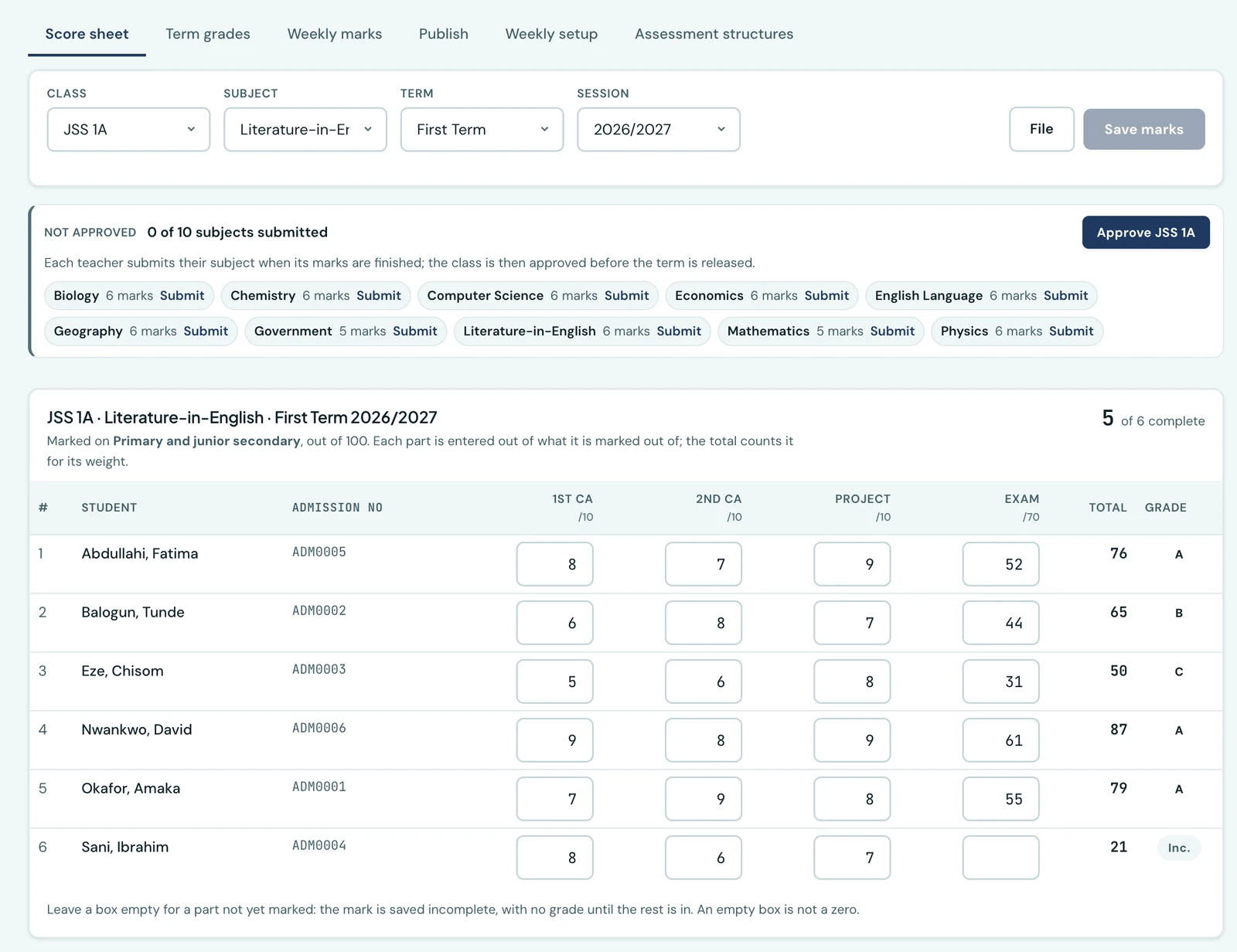
Most marks are entered a class at a time: the exam papers for one subject come back as a pile, and whoever marked them wants to type the pile in. The Score sheet is built for that. It is the first tab of Grades, one subject in one class for a term, with a row for every pupil and a box for every part of the mark.
Opening a sheet
Choose the class, the subject, the term and the session. The sheet lists every pupil in the class, and each pupil's marks already recorded for that subject and term.
A teacher is offered the classes and subjects they have been assigned to teach. A class teacher can also open the other subjects in their own class, to read them, but only a subject's own teacher records its marks.
Entering marks
The columns are the parts of the class's assessment structure, such as 1st CA, 2nd CA, Project and Exam, each headed with what it is marked out of. Type each part as it was marked: an exam marked out of 60 is typed out of 60, even when the structure counts it as 50, and the sheet does the scaling.
- The total and the grade are worked out as you type, on your own grading scale.
- Enter and the arrow keys move down a column, so a pile of papers goes in without the mouse.
- An empty box is not a zero. Leave a part empty until it is marked: the mark is saved incomplete, shown as Inc., and gets its grade once the rest is in.
- Where the structure counts weekly marks as a part, the sheet shows each pupil's weekly figure beside the others. It comes from weekly grades, and is not typed here.
- A figure above what a part is marked out of is refused on the row, before anything is sent.
The count beside Save marks says how many rows you have changed. Choosing another class or subject with changes unsaved asks first.
Saving
Save marks sends every changed row at once. Each is checked by the same rules as a mark entered on its own, and every row that passes is saved. A row that does not keeps what you typed, with the reason beside it, so you can correct it and save again rather than typing the class twice.
A pupil whose mark was recorded as a single score, before the class had a structure, is tagged Old structure. Enter their parts and the parts replace the single score.
Working on paper, or in a spreadsheet
The File menu:
- Export sheet downloads the sheet as a CSV with a column for each part, and Export blank sheet the same with the marks left out.
- Print sheet and Print blank sheet print just the sheet, for a teacher who marks on paper.
- Fill in from a file reads a filled-in sheet back. The marks go into the boxes unsaved, so
you can look them over before pressing Save, and any line that could not be read is listed with
the reason. A file whose columns say
Admission Numberoradmission_numberis read as readily as one exported from the sheet.
This file is the sheet's own. The school-wide grades import still records one total per mark.
Finishing the subject
The class's status panel sits above the sheet, so a teacher who has finished can Submit the subject from the same page. Once the term's results are released the sheet is locked, and changing a mark needs the Amend released results permission and a reason, asked once above the sheet for everything saved with it. Approving and locking results explains both.
A term that is not the current one is corrected the same way, and the sheet shows it with a single score box for each pupil rather than the parts.
On the phone
Choose Record, then Score sheet, on the grades screen. The phone shows one pupil at a time as a card with a field for each part, and you swipe or tap Next pupil to move through the class. The total, grade and the rules for saving are the same as on the web. The file menu is on the web only.
Who can use it
| Action | Permission |
|---|---|
| Open a sheet and enter marks | Record grades. A teacher records the subjects they teach in that class; an administrator, any |
| Read the other subjects in your own class | Being its class teacher |
| Change marks in a released or earlier term | Amend released results |
Ready to try it with your school?
Three-month Basic trial. No card required to register.