
Communication
Bulk Messaging for Schools
Send email and WhatsApp messages to all parents, to a class, or to named individuals, under your school's name, with delivery tracked and retried automatically.
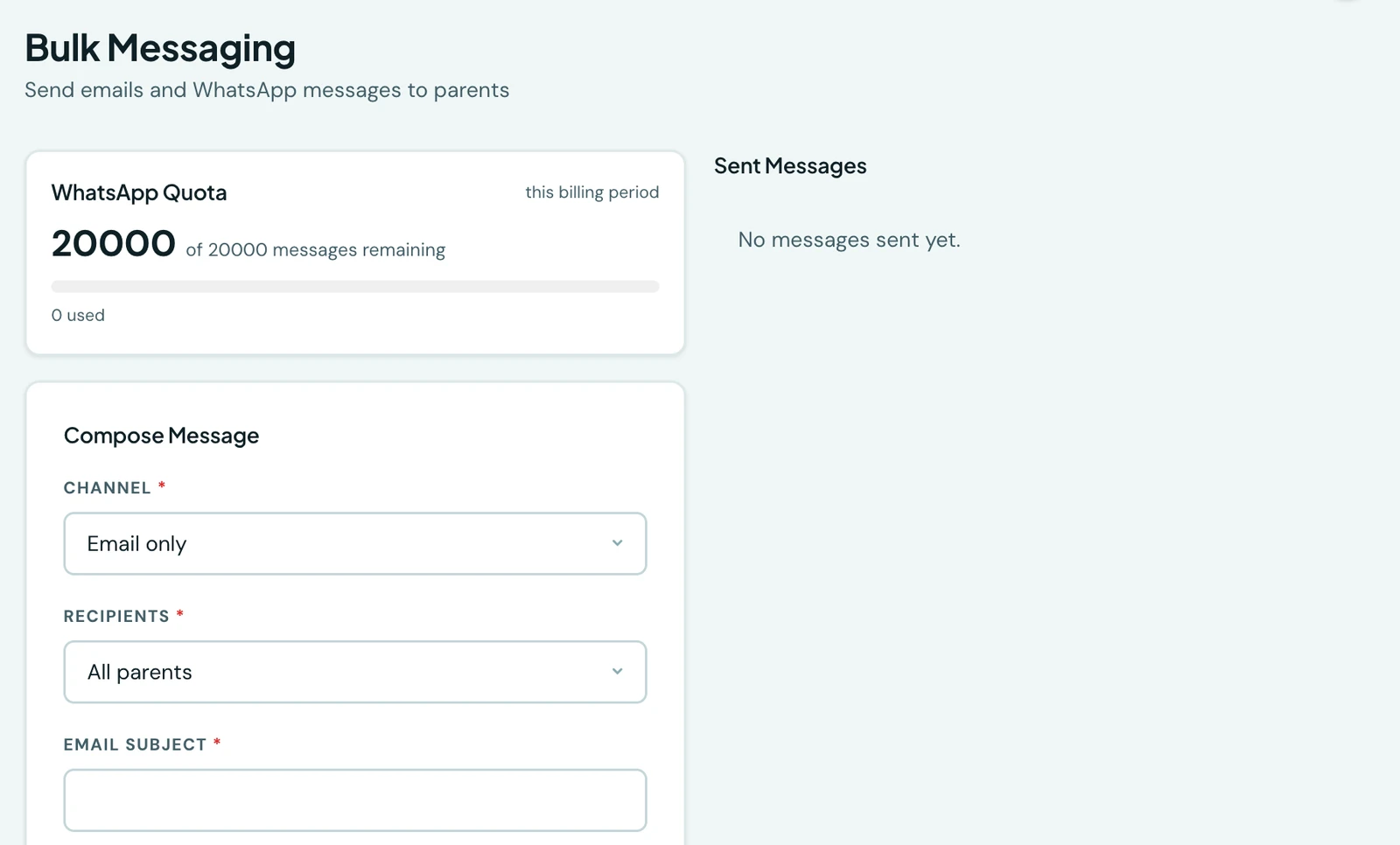
Send emails and WhatsApp messages to parents at scale. Target all parents, a specific class, or individual parents. Delivery is asynchronous and retried automatically on failure.
Messaging is gated on the Send messages permission rather than on being an administrator. Your Owner and School Administrator hold it out of the box, and so does the Receptionist role, since telling families about a change of date is front-desk work. Teaching roles hold none of it unless you grant it. See Roles & Permissions.
Sending a message
- Go to Messaging → Send Message
- Choose channel: Email, WhatsApp, or Both
- Choose recipients: All Parents, By Class, or Individual Parents
- Enter subject (email only) and message body
- Optionally tick Also send a mobile push to alert recipients who have the mobile app installed, in addition to the channel above
- Click Send. Messages are queued and delivered in the background
When you target All Parents or By Class, a student with no linked parent still gets the announcement. It falls back to the guardian contact on the student's record, or to the student themselves. Individual Parents sends only to the parents you explicitly pick.
For a class send on WhatsApp, 1410SMS sends separate messages to the class contacts rather than posting to a group. The composer explains this before you send. Contacts without a usable number or who have stopped WhatsApp messages cannot be reached through that channel; notification preferences also apply.
WhatsApp quota
The Messaging page shows your school's remaining WhatsApp allowance for the current period, alongside how many messages you have used and your total allowance. The allowance comes from your plan's per-term WhatsApp quota and is charged only for messages that are successfully sent. When the allowance is exhausted the counter reaches zero and WhatsApp sends are skipped until it comes back.
The card says when that is. On a plan you pay for, the allowance is renewed with your subscription, and the card reads resets when you renew. During a complimentary Basic period, the card gives the reset date. Unused messages do not carry across either way: each period starts at the full allowance.
Delivery tracking
Message history shows the status of each send: Sent (all queued deliveries sent), Partial (some failed), or Failed. Sent and failed counts are shown per message.
Open a class message sent through WhatsApp to see WhatsApp delivery by class, on web or mobile. Each class shows delivered and read counts, plus failed and skipped records where present. Read is included in delivered, while a sent message is still awaiting delivery confirmation. Read counts depend on WhatsApp receipts and may be incomplete. Use Refresh counts to check for updated outcomes.
Class membership is captured when the message is sent, so moving a pupil later does not change the old breakdown. A recipient belonging to multiple selected classes appears in each class's counts but receives one message. Older messages without captured membership show that class counts are unavailable.
The history is paged, so it reaches back through everything you have ever sent rather than stopping at the most recent handful. On the mobile app the older messages load as you scroll.
Reading a message back
Each entry in the history opens. Click a message (or tap it on the phone) and the whole of it is shown: the subject, the body exactly as it was composed with its line breaks intact, which channel it went on, who it was addressed to, when it went out, and how many recipients it reached and failed. The list itself shows the first couple of lines, which is enough to recognise a send and never enough to check what was actually said.
Below the message, Recipients lists everyone it went to, twenty at a time: their name, whether it went by email or WhatsApp, and whether it was sent, delivered, read or failed. Staff who can view parents' details also see the address or number each one went to. Where a message was not sent because the person deleted their 1410SMS account, the row says so; nothing is ever sent to an address whose owner deleted their account.
Parents can do the same with the notices they have received, under More → Messaging in the mobile app, and the platform's own broadcasts to schools open the same way in the super-admin console.
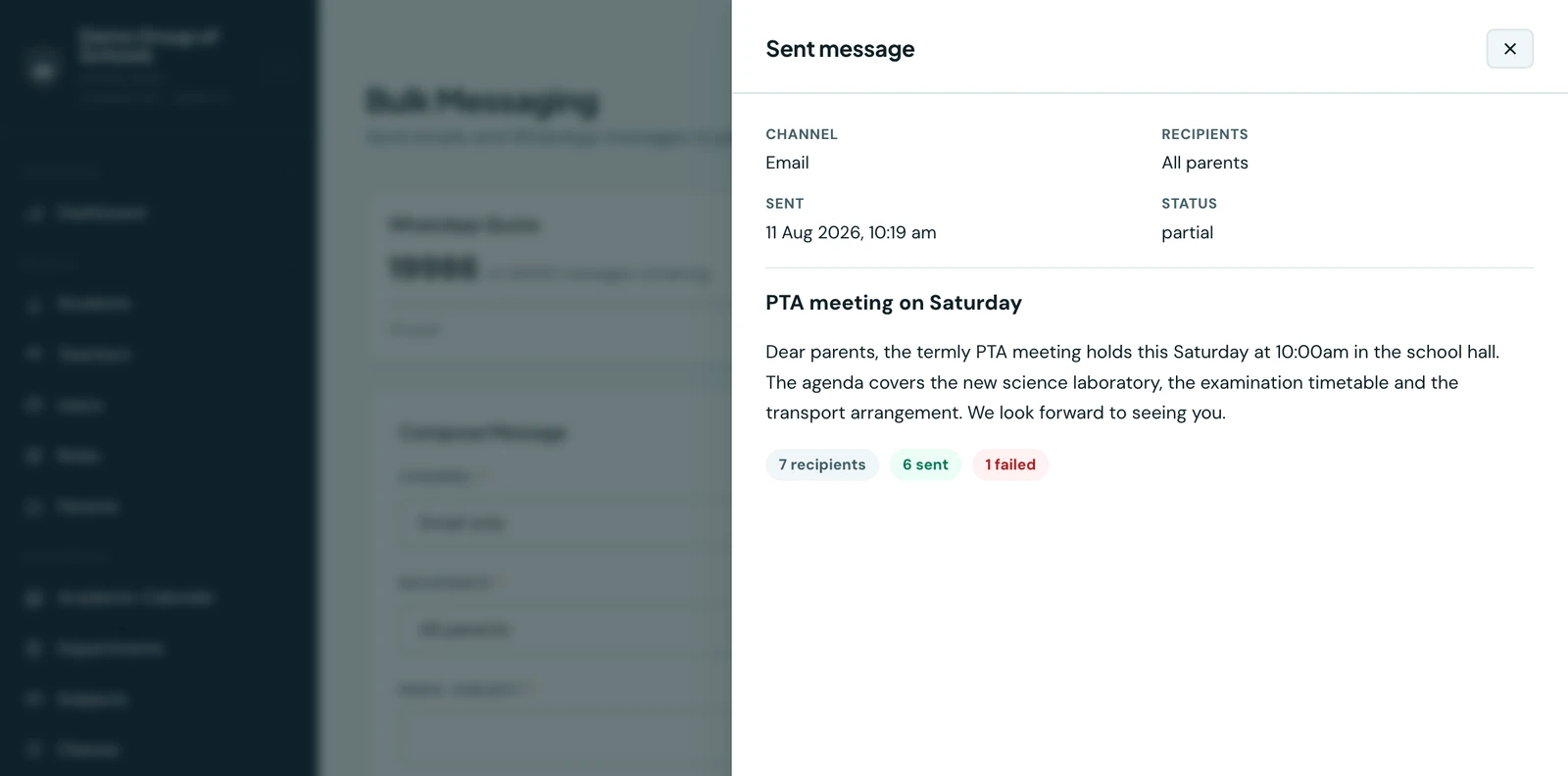
The full text of a send, with what it reached, alongside the history it was opened from.
Share a notice to a WhatsApp group
Open a sent school or class announcement and choose Share to WhatsApp. The web opens WhatsApp with its words prepared; the phone opens the native share sheet. You choose the group and send from your own account. It does not use your school's WhatsApp allowance or change its delivery counts. Individual-parent messages cannot be shared through this action.
See WhatsApp Sharing for homework and published exam timetables too.
Who the email comes from
Emails to parents (bulk messages, fee invoices/receipts, and exam timetables) are sent with your school's name as the sender, and replies go to your school's email address, so a parent can simply hit reply to reach you. This is why your school email is a required field on your profile. (Messages are delivered through the platform's secure mail servers to keep them out of spam folders.)
On the phone
The whole of Messaging is in the mobile app, under More → Messaging: your WhatsApp allowance across the top, then every send you have made, newest first. Each entry carries what it went out on, how many of its recipients it reached, and when, so a send that only partly landed is marked Partial on the list rather than only inside it. New message opens the same compose form, with the same three audiences.
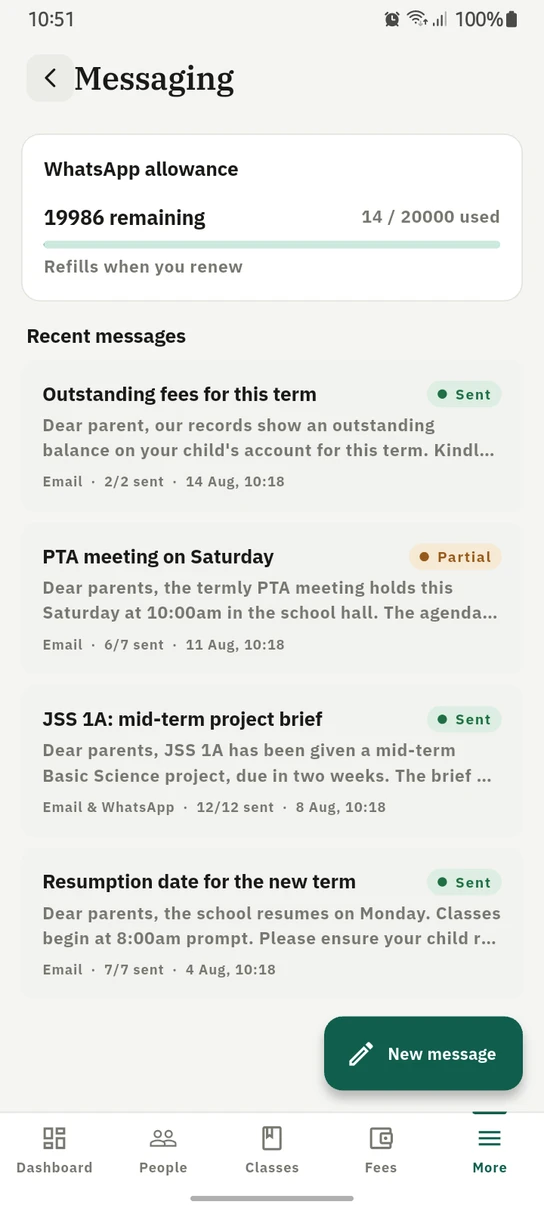
Every send with what it reached, and one marked Partial where a delivery failed.
Ready to try it with your school?
Three-month Basic trial. No card required to register.