
Billing & Compliance
Plans, Pricing & Subscriptions
Upgrade or manage your plan with Paystack-powered payments, in naira or US dollars by your school's country. Pay per term or per session (save 5%).
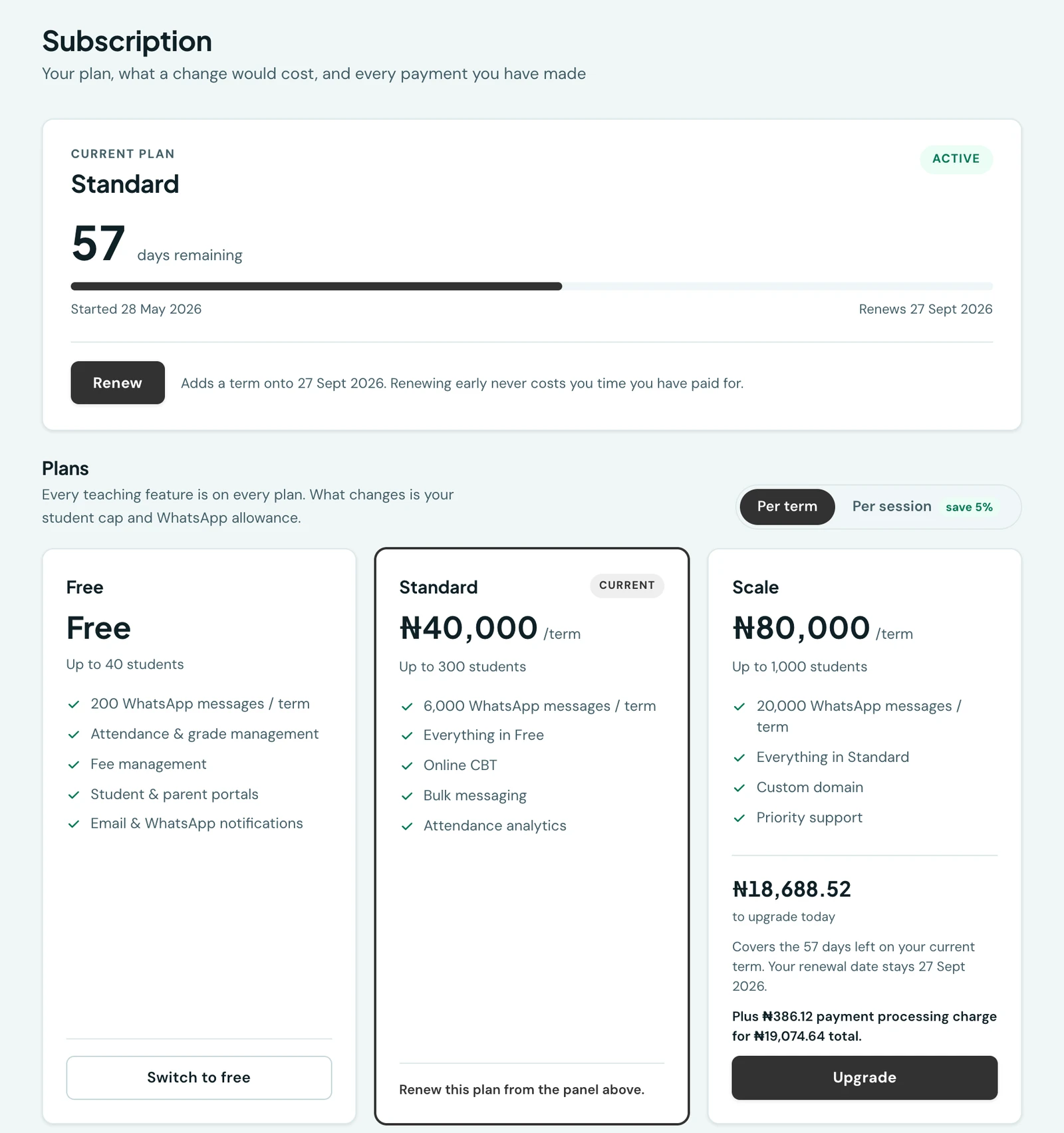
New schools start with a three-month Basic trial. After the trial, Basic costs ₦10,000 or $15 per term. No card is required to register. Plans are billed per school term (one term grants four months of access), in Nigerian Naira or US dollars. You can also pay for a full session (all three terms) up front and save 5%.
Plans
See the pricing page for current plans and prices.
A plan priced as Custom is arranged with us rather than bought from the page. Its card carries a Contact us button that opens your own mail app with the message already addressed, so nothing has to be copied down.
Basic trial
The Basic trial lasts three calendar months for newly registered schools. Afterward, Basic is ₦10,000 or $15 per term. Existing schools moved from the former Free plan keep their existing subscription expiry date.
Payment
Paid plans are processed via Paystack. Go to Subscription in your admin portal, choose a plan, and pick how to pay: per term, or per session (all three terms at once for a 5% discount). Complete payment on the Paystack checkout page and your subscription is applied as soon as the payment is confirmed, usually within seconds, for one term or for the full session.
Paying in US dollars
Which currency your school pays in is set by your school's country: schools in Nigeria pay in naira (NGN) and schools elsewhere in US dollars (USD). It is not a choice on the Subscription page. If your school needs the other currency, contact support and we can change it for your school. The two are independent list prices, with no exchange-rate conversion.
A full session costs three terms less the 5% discount, calculated from the current termly price. A period you have already paid for keeps its currency: renewing it, or upgrading before it ends, is charged in the currency it was paid in, so a prorated difference is always worked out within one currency. Checkout shows the currency, the plan charge and any processing fee before you pay, and receipts and payment history keep the currency of each payment.
If a payment is not applied straight away
- Payment received, not yet applied. The money has arrived and your plan is being updated. The Subscription page updates itself; if it does not within a minute, use Check status on the payment in your history, which applies it.
- Payment received but held for a refund review. Occasionally a payment cannot be applied, most often because the subscription changed while you were paying (for example, someone else at your school paid for a different plan at the same time). The money is not lost: it is held for a refund review. Contact support with the payment's reference.
- A checkout is already in progress. While one checkout is open for your school, another cannot be started for 30 minutes, so the same plan is never paid for twice. Finish or check the first payment, or wait.
Renewing
Your current plan has a Renew button on its own card under Subscription, so renewing never means switching plans. Renewing adds a full term (or session) to the end of your current period, so paying early costs you nothing: if you renew with three weeks left, those three weeks are still yours and the new term starts after them.
We email a reminder 7 days, 3 days, and 1 day before a subscription ends, so there is time to renew before anything is interrupted. See Who receives billing emails for who those go to.
Your WhatsApp allowance follows the same principle. Renewing early adds the new period's messages to what you have left rather than starting the count again, so nothing you have already sent is double-counted and nothing you have paid for is lost. A period that genuinely begins fresh (your first activation, an upgrade, or renewing after a subscription has lapsed) starts the allowance over, and unused messages from the finished period do not carry across.
During a complimentary Basic period, the allowance follows the period dates shown on the Messaging page. No payment method is collected during registration.
Upgrading part-way through a period
Upgrading takes effect immediately, and you only pay the difference. If you move up while a period you have already paid for is still running, you are charged the difference in price for the days you have left, not the new plan's full price. Your renewal date does not change. Upgrade with 62 days left on a ₦40,000 term and a ₦80,000 plan costs you ₦20,327.87 today, your renewal date stays where it was, and the new price applies from your next renewal. Only whole days you have yet to use are counted, so the rest of the day you upgrade on is not charged for.
Because an upgrade tops up the period you are already in rather than buying a new one, the per term / per session choice does not change what it costs. Switching to per-session while upgrading sets how you are billed from your next renewal; the upgrade itself still covers the days left on the period you bought. The Subscription page says so on the plan card.
The Subscription page shows the exact amount before you commit, alongside how many days it covers and the renewal date it keeps. Your WhatsApp allowance is topped up the same way, by the extra the new plan carries, for the part of the period still to run, and messages you have already sent still count, exactly as with an early renewal.
A few cases are charged as a normal full period instead, because there is nothing to prorate against: moving up from a complimentary Basic trial, restarting after a subscription has expired, a plan granted to you by our team rather than paid for, and upgrading in the last day or two of a period (where you get a whole fresh period rather than paying a token amount for the remainder).
Downgrading
Downgrading is scheduled rather than immediate: your current plan runs to the end of the period you have already paid for, then switches automatically. A downgrade is refused if your enrolment is above the smaller plan's student cap, or if the files your school is storing are above its storage allowance. Reduce enrolment or delete some files first, or stay on your current plan. Either way you are told on the plan card itself, before you pay: a plan you cannot move to has its button disabled and the reason printed under it.
The same two checks apply to buying a plan outright, which is what happens when your subscription has already lapsed. A plan has to fit the school that is moving onto it, whether you are coming down from a larger one or starting again from none. Renewing the plan you are already on is never refused, whatever your school has outgrown since, and neither is upgrading.
On the day the change takes effect we email everyone at your school who handles billing, naming the new plan, its student cap, its WhatsApp allowance and when the period runs to. Nothing is charged that day: the period was paid for when the change was scheduled, and the receipt was sent then.
While a downgrade is waiting to take effect, the other plan actions are unavailable, and a banner on the Subscription page says so. Any other change would replace the scheduled one, so the choice is made explicitly rather than as a side effect of renewing or upgrading. Cancel scheduled downgrade on that banner releases the other actions and keeps you on your current plan.
Cancelling a downgrade you paid for does not refund it automatically, because sending money back is a decision rather than a side effect of a button. What it does do is record the payment as owed back to you, so it stays visible on our side rather than quietly becoming a payment that bought nothing. Contact us and we will issue it against the original payment. The same applies if a plan change is replaced before it takes effect, whether by a later payment of your own or by a plan our team grants you directly.
Payment history
Subscription lists every payment your school has ever started, whatever became of it: paid, failed, or never completed, with the plan it was for, the amount, and the date. A payment that never succeeded shows the date it was started, so nothing reads as blank. A mid-period upgrade is labelled Upgrade, rest of period, so its smaller amount reads as what it is rather than as a shortfall.
Occasionally a payment sits at Awaiting confirmation: the bank took it, but confirmation arrived after you had already left the payment page. Those rows carry a Check status button that asks your payment provider again. If the money did go through, your subscription is applied there and then, and you do not need to pay a second time or contact us.
Check status is also offered on a row reading Not completed or Failed, and that is deliberate rather than an oversight. A checkout you closed is a statement about the browser window rather than about the money: the same payment is often finished from a banking app minutes later, and re-checking is the only way that reaches us. Whatever comes back, the row is updated to say it, and the message you are shown is that outcome rather than an error.
Who receives billing emails
Three emails come from us about your subscription: the receipt when a payment succeeds, the expiry reminders before a period ends, and a refund notice if money is ever sent back. All three go to the same people, so the school can never be warned by one list and receipted by another.
They go to every staff account holding the Manage billing permission, plus your school's own contact address. Each address is written to once, so an administrator whose address is also the school's address gets one email rather than two.
Because it follows the permission rather than a job title, this tracks whatever your school has actually decided. Out of the box that is the Owner and School Administrator roles. Grant Manage billing to a custom role, say a Bursar, and they start receiving receipts; take it away and they stop. Staff who merely work in the office, such as a receptionist or a librarian, do not receive them.
Changes take effect within a few minutes of granting or removing the permission.
Refunds
If a subscription payment needs to be reversed, for example a duplicate charge or a scheduled plan change that was cancelled before it took effect, the 1410SMS team issues the refund through the same payment provider that took the money. It goes back to the account or card it came from, and your bank usually takes a few working days to show it. You will get an email when it is issued, naming the amount, the original payment reference and the reason.
The refunded amount then appears under that payment in your Payment history, so the row still shows what was charged and separately shows what came back. While the money is still on its way the row reads refund on its way rather than showing an amount, because until it lands there is nothing in your account to find.
Refunds are issued by the 1410SMS team rather than from your own portal, because the payment was made to us. This is the opposite of the school fees your own parents pay you online, which settle straight into your school's bank account and never pass through 1410SMS. Those are recorded in the platform but repaid by your school directly, since we never hold that money. See Online payments for how that side works.
On the phone
Subscription is on the mobile app too, under More → School, for any staff account holding View billing. It carries the same period panel, the same plan comparison priced for your school, the same scheduled-change notice with its cancel action, and the same payment history with Check status on a payment that never settled.
On Android it also takes the payment. Choosing a plan opens your payment provider's page in a browser tab, with the address bar visible so you can see who you are paying, and returns you to the app when you are done. The app then confirms the payment and updates your plan, and if you close it mid-way the payment still applies itself: the confirmation is a courtesy, not the mechanism.
On iPhone and iPad the page is read-only, and says so. Apple requires digital subscriptions sold inside an iOS app to go through Apple's own purchase system, so the plan is changed from the web portal instead. Everything else, including the history and how long you have left, is on the phone.
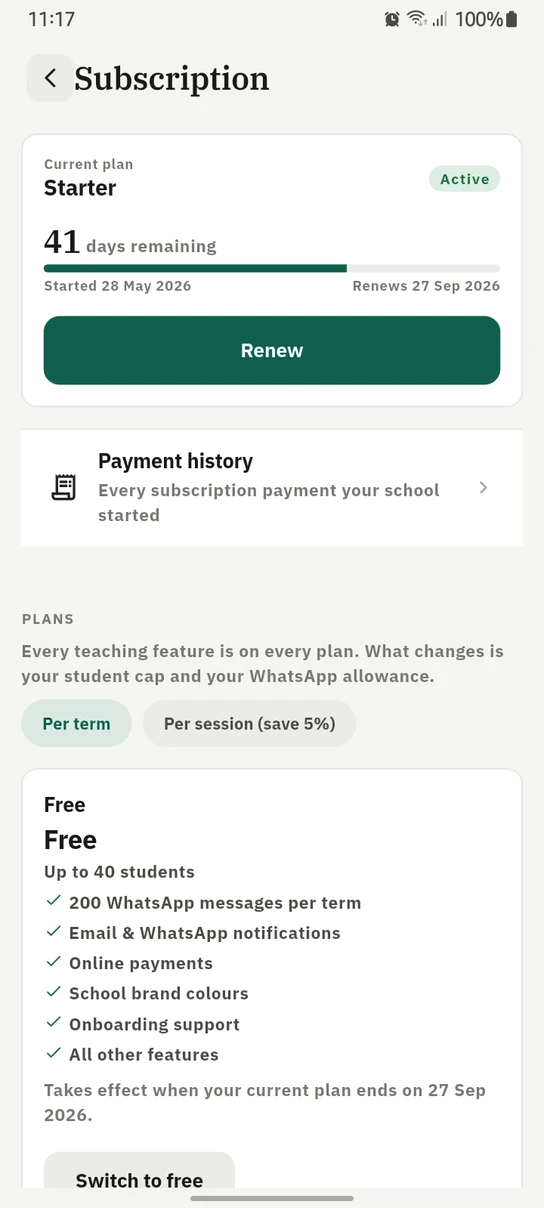
The plan, what is left of it and the whole comparison, on the phone.
If a subscription expires
Access is suspended for everyone at the school (staff, students and parents) until it is renewed. Signing in still works, and administrators can still reach the Subscription and payment pages, so a lapsed school can always get back in by renewing. Nothing is deleted; all your data is exactly as you left it and returns the moment payment completes.
Ready to try it with your school?
Three-month Basic trial. No card required to register.