
Billing & Compliance
Audit Logs
Every create, update and delete action is recorded with the actor, a timestamp and an IP address, giving your school a full compliance trail.
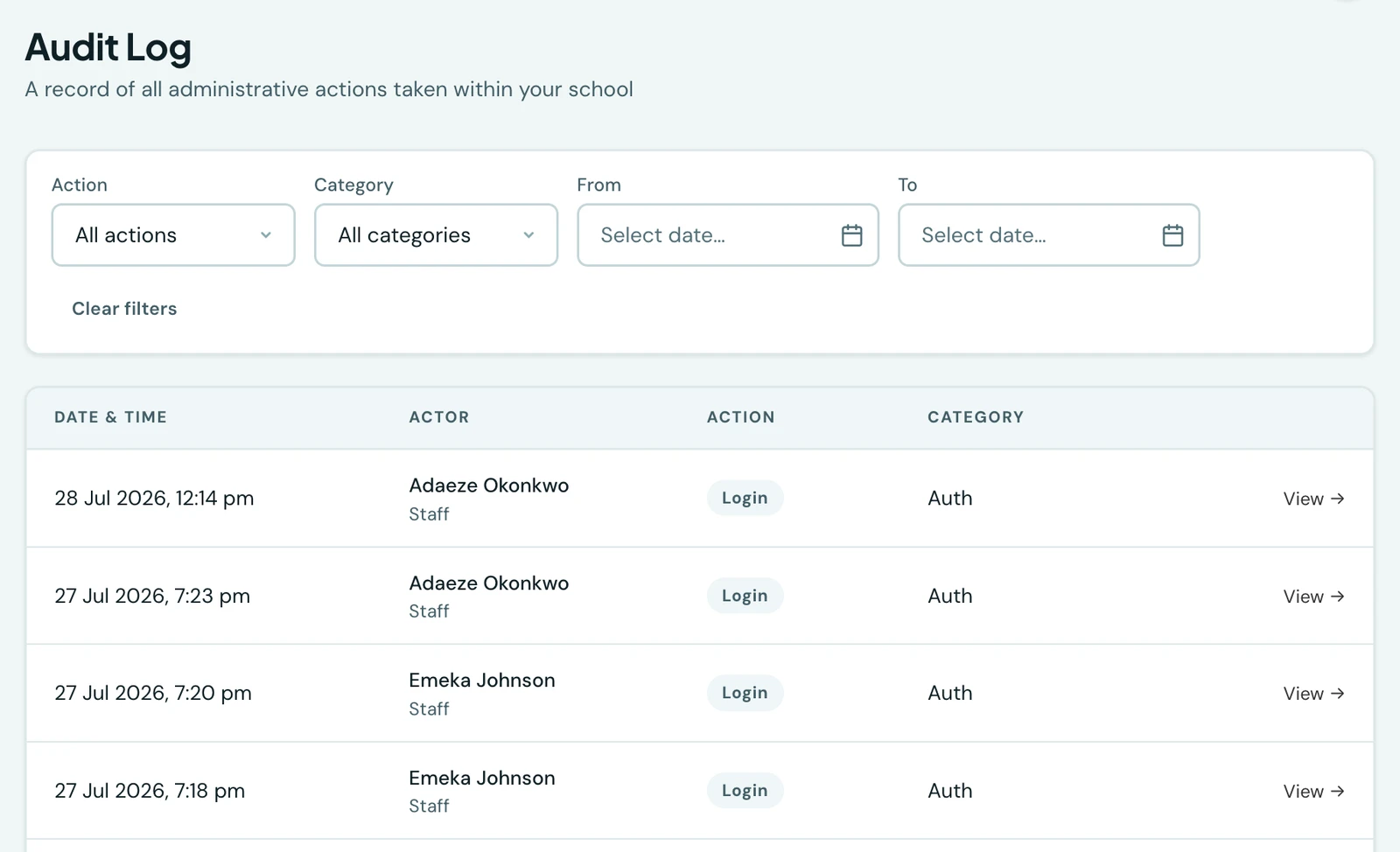
Every create, update, delete, and deactivate action on your platform is recorded with a full audit trail.
Logged actions
The audit trail captures the following actions across the platform:
- Create. A new record is added (student, teacher, invoice, class, etc.)
- Update. An existing record is edited
- Delete. A record is permanently removed
- Deactivate / Activate. A record (e.g., a student) is soft-disabled, or restored
- Link / Unlink. A parent is linked to a student, or that link is removed
- Login. A successful sign-in
- Login Failed. A sign-in attempt rejected for bad credentials
- Reset Password. An admin resets a student's (or another user's) password
- Reset. A setting is returned to its default
- Upload. A file is uploaded (e.g., a fee receipt)
- Publish / Unpublish. Something is released to families or withdrawn again: an exam timetable, a week of marks, a term's report cards
- Lock / Unlock. A week of marks is frozen against further change, or reopened
- Send. An invoice or receipt is sent, or re-sent, to parents
- Void. A receipt is voided, reversing the payment against its invoice
- Cancel. Something is called off rather than deleted, so the record stays and says so
- Refund. Money is returned against a payment
- Revoke. Access is withdrawn, e.g. an entrance-exam candidate's test link
- Submit. A candidate submits an online test, or a teacher files a lesson note
- Approve / Reject. A filed lesson note is signed off, or sent back for changes
- Graduate. A pupil is recorded as having completed their schooling and left, as distinct from being deactivated
- Impersonate / End impersonation. The 1410SMS support team opens, or closes, a session inside your school to help with a problem. Both ends are recorded, so support access is never invisible to you.
What each entry records
- The action taken (one of the actions above)
- The entity type and ID (e.g., Student #42)
- The record's name, where there is one to give: the class's name, the pupil's, the invoice number. See below.
- The actor, meaning the staff member who made the change, named in full
- The timestamp
- The client it was done from: the mobile app or a web browser, on which operating system, and which release of the app. See below.
- The IP address of the request
- Metadata (e.g., old and new values where relevant)
Naming the record, not just numbering it
An entry reading "Class #41" tells you an action happened and nothing about what it happened to, so each entry also records what the affected record was called at the time.
The name is captured when the entry is written, never looked up afterwards. That is deliberate, and it is what makes the trail trustworthy in the two cases that matter most:
- A deleted record still has a name. Its deletion is exactly the entry you are most likely to be reading, and by then there is nothing left to look the name up from.
- A rename does not rewrite history. If a class is renamed in September, the entries from August still show what it was called in August.
Some entries carry no name, and that is correct rather than missing data: a sign-in is about a person, not a record, and a bulk action covers many records at once, so no single name would be honest. Entries recorded before this feature was added are also blank, since any name filled in now would be a guess presented as a record.
Naming the client, not just the person
Two members of staff on the school's own Wi-Fi share an IP address, so knowing where a request came from rarely settles anything. Each entry therefore also records what it was done with:
- The mobile app or a web browser. An entry reads "Chrome on Windows" or "1410SMS app on Android".
- The operating system, so an action can be matched against the device somebody actually has.
- The app's release, for the mobile app only. An installed app can be several versions behind, which is the first thing worth knowing when an entry describes something the current release does not do. A browser has no equivalent, being always the version served on its last load.
Some entries were not made by a person sitting at a device at all: an overnight reminder run, a payment confirmation arriving from the bank, a scheduled report. Those record no client, and say so rather than guessing at one. Entries recorded before this feature was added are blank for the same reason a renamed record's history is: anything filled in now would be invented.
The client is shown to your own administrators. The IP address is not: it stays with the 1410SMS support team, since an address can identify a household while a browser name cannot.
Filtering logs
Filter by action type, entity type, actor, date range, or entity ID to trace any specific change. Logs are paginated and sorted by most recent first.
Done on narrows the log to one kind of client: the mobile app, a web browser, or neither. It answers the question the client column raises but cannot settle by itself. A page of entries reading "Chrome on Android" and "Opera on Android" looks like app traffic labelled wrongly until you filter to Mobile app and see that those entries are not in it. They are parents and students opening the web portal on their phones, which on most phone-first schools is the larger half of the traffic.
Automated is the third option and not a fault: it selects the entries no person was sitting at a device for: the overnight reminder runs, the payment confirmations arriving from the bank, the scheduled reports. Entries recorded before the client was captured at all match none of the three, since a blank there means nothing was looked for rather than nothing was found.
On the phone
The full audit log, with its filters, is on the web only. The mobile app can show the five most recent entries as a Recent activity card on the dashboard, hidden until you switch it on: tap the Customise dashboard button at the top of the dashboard and turn on Recent activity under Widgets. The card needs the permission to view the audit log. To trace a particular change, open Audit Log in the web portal.
Ready to try it with your school?
Three-month Basic trial. No card required to register.