
Portals
Parent Account Management
Parent accounts are managed by staff, and need only a name and a phone number. Create or link them automatically on enrolment or by hand, then invite, resend, unlink and search from one page.
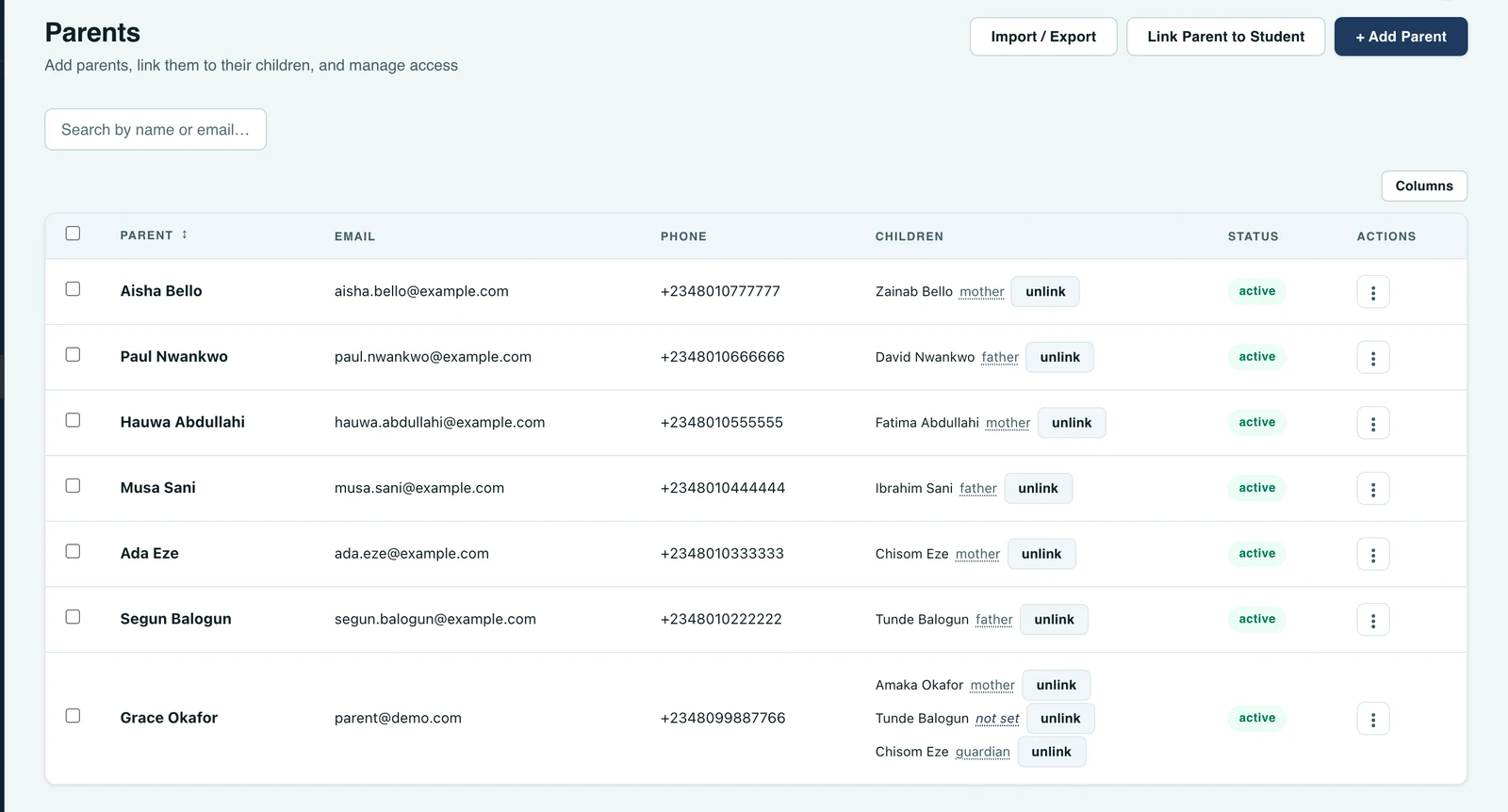
Parent accounts are managed by staff, and parents cannot self-register. Admins create, link, and manage parent accounts from the People → Parents page (or automatically when enrolling a student with a complete guardian details).
Creating and linking a parent
There are two paths:
- Auto on enrolment. When enrolling or editing a student, fill in the guardian's name and phone number. A parent account is automatically created and linked to the child. Every guardian field is optional, so a pupil can be enrolled without them; a row with only one of the two records contact details and creates no account. The email address and the relationship are not needed for the account. The guardian's country code sits beside the number and starts on your school's, so you can see it and change it; a number is never saved without one. See Student management for why the line is drawn there.
- Manual on the Parents page. Go to People → Parents, click Add Parent, fill in the optional title, the parent's name, their phone number, an email address if you have one, and pick the children to link and their relationship. The dialling code starts on your school's, so most numbers need nothing chosen at all.
If a parent with the given email or phone number already exists (e.g. they have a child at another school, or a sibling in the same school), you are told before anything is saved, and the button becomes Link existing parent (or Link parent & enrol when enrolling a pupil). Linking uses that existing account without creating a duplicate or touching their name, phone, or password. To add a different person instead, change the email or phone number.
For a parent your school is not already linked to, the account belongs to other schools' families, so you see only enough to recognise it: their name masked to its initials (Mrs. A***** B****) and a masked copy of the contact you typed. Their other details are not shown. A parent deactivated at your school cannot be linked to another child until you reactivate them.
Where you already know the parent is on file, Select existing parent (web) or Existing parent (mobile app) skips the typing entirely: search for them by name, email or phone number, pick the children, and only those children are added to the account. Their own details are left exactly as they are. This is the safer of the two paths for a second or third child, since a name retyped with a character out of place is how a school ends up with the same parent twice.
Linking several children at once
Siblings go on in one go. Pick a class, tick every child of that parent in it, then switch class and carry on: what you have already ticked stays ticked, which matters because siblings are usually in different classes. On the phone, add them one at a time and each appears as a chip you can remove.
Doing it in one go is not only quicker. A brand-new parent is sent one set-password invite covering all of their children, and each new invite cancels the one before it, so adding three children as three separate entries used to email the family three links of which only the last one worked. A parent already on file is told once, in a single message naming all the children added.
You are told exactly what happened, by name: which children were linked, and which were already on the account.
What a parent record needs
- Name. One field, not two. Schools very often know a mother only as "Mrs. Okafor", and a form
demanding a first name and a surname separately is a form that gets answered with whatever fits.
Write the name the way you would say it:
John,Mrs. Adeola,Mr. Ibrahim Musa,Adebayo Johnson. - Phone number. This is what the parent signs in with, and how they are reached where there is no email address.
- Email address. Optional.
You need one of the two contacts, or both, but not neither: a parent with no email and no phone can be neither invited nor notified about anything.
One number, however it is written
A phone number is stored in its full international form whatever you type. 08012345678,
0801 234 5678, 0801-234-5678, +2348012345678 and 2348012345678 are all the same number, and
the system treats them as the same parent: entering one of them for a parent already recorded under
another links the child to that existing account instead of creating a second one.
This is not a rule about leading zeroes. Every country's numbering is applied properly, so an Italian number keeps the zero that is genuinely part of it, and an Argentinian mobile gains the digit it needs. The number is read against the country code chosen beside it, and a number is never saved without one: no code is ever assumed for it.
The country code is its own field beside the number, and pasting a number that already carries one
fills it in for you: paste +234 810 790 7206 into the number box and the code moves across on its
own, leaving the rest behind. That holds on the browser and on the phone, and in every form that
takes a number, not only this one.
The country code list can be searched by country name or by code. Nigeria is always at the top,
both before you type anything and whenever your search matches it. After that, a country whose name
matches what you typed comes before one that only matches on its code, so typing Ghana gives
Ghana, and typing +1 lists the countries on +1 before the longer codes that start with 1.
Password invite
A brand-new parent account is sent a set-password invite: a secure, time-limited link, valid for three days, that lets the parent choose their own password. It goes by email where there is an email address, and over WhatsApp where there is not. The school never sets the password and never sees it. From the Parents page you can resend the invite at any time, which doubles as a password reset when a parent has forgotten theirs.
While the account is still pending, the same link can also be handed over directly:
- Copy invite link. Generates the link and shows it once, for you to pass on however you already reach that parent
- Send invite via WhatsApp. Sends the link straight to the phone number on their record
Each one generates a fresh link, so any earlier link, including one already sitting in the parent's inbox, stops working.
Neither is offered for a parent whose account is also used at another school, pending or not: the link would be a sign-in for children at both schools, so only a school that alone holds the account can be handed one. Resend invite still works, since it goes to the parent's own contacts.
Once a parent has set their own password, neither is offered any more, and both are refused if asked for. A parent account is shared across every school their children attend, so a set-password link for an account the parent has already claimed is that parent's sign-in everywhere, in the hands of whoever generated it. From that point the way to help a parent back into their account is Reset password, which sends a fresh link to the parent's own email address or phone number and never shows it to the school.
Active
A parent can be deactivated at your school from the Parents page. They stop receiving your school's notifications immediately, and nothing else changes: their account stays open, and their children at any other school carry on exactly as before. Reactivate them the same way.
While a parent is deactivated here, your school can no longer edit their details, resend their invite or generate a link for them. A parent account is shared across every school their children attend, and the link to your school is what made it yours to manage at all, so a school that has stepped away from a parent no longer holds their sign-in details. Reactivate them first and the actions come back.
Notifications only ever go to parents who have accepted their invite and set a password. Until then, messages fall back to the guardian contact recorded on the student, so nothing is lost while a parent is still getting set up.
Editing and unlinking
- Edit details. Update a parent's title, name, email address and phone number from the Parents page, on the web or in the app. A number saved without its country code (an older record) opens with the country code empty rather than filled in with your school's, and the form will not save until you choose one, since filling it in would be guessing the family's country. Where another school also uses the parent's account the contacts are read-only, so this does not stop you correcting their name. The same screen lists the children already linked and lets you link more, so adding a second or third child to a parent you are already looking at does not send you back to the Add Parent form to search for them again. Both contacts are editable and either can be cleared, but not both: a parent with neither can be neither invited nor notified
- Changing what a parent signs in with. The email address and the phone number are both login identities, and the account is shared across every school the parent's children attend, so a change applies everywhere. Only a school that alone holds the account can change them. Where the parent's account is also used at another school, the two fields are read-only with a note saying so, and the parent or 1410SMS support makes the change; their name can still be corrected. You are asked to confirm it, naming what moves, and the parent is emailed at both the old address and the new one saying what changed and that their password has not changed. A parent with no email address at all is sent the same notice over WhatsApp, at the number they had before the change, since otherwise the one person whose only sign-in detail just moved would be the one person not told. A parent who has not yet accepted their invite is not asked about and not notified, since that is usually the school putting a typo right
- Correcting a contact re-sends the invite. If the parent still has a set-password invite outstanding, changing their email or phone sends them a fresh one at the corrected contact and stops the earlier link working, so a mistyped address does not leave a live invite sitting in somebody else's inbox
- Change how a parent is related to a child. On the web, click the relationship beside the child's name in the Parents table, which reads not set where nothing was recorded. In the app, open the parent's children and choose Change relationship from the menu beside the child. Not recorded is an answer you can go back to, for a relationship your school is no longer sure of. It is your school's own record of the link and nothing on the parent's account changes, so it can be corrected even for a parent you have deactivated here
- Unlink a child. Removes the link for this school only; the parent's account and links in other schools are unaffected
- Search parents. The Parents page is searchable and paginated; each parent shows their linked children for the current school
- Filter by class. Narrow the page to the parents of one class, from the picker beside the search box on the web or the filter button in the app. It matches a parent through their children, so a parent with children in several classes appears under each of them, and every row still lists all of that parent's children. It follows the current roster, so a pupil who has left or graduated no longer puts their family under that class, though the family stays on the unfiltered list. Useful for a class list of contacts, or for chasing the families who have not set their password yet in one class at a time
- Move a contact. A phone number and an email address each belong to one parent account. If you enter one that another parent already holds, the save is refused rather than quietly moving it, so the two records can be looked at first
How they're reached
A parent's record has a How they're reached panel: for each kind of notice, the channels it reaches them on at your school, after their own choices (see Choosing how you are told). It shows only your school, and needs the same permission as the rest of a family's contact details: a teacher who holds it sees the panel only for families in their own classes, and nobody sees it for a parent deactivated at your school.
A parent without a smartphone can ask the office to change their choices. Staff who can manage parents can do it from the same panel. Because a parent's choices apply at every school their children attend, the parent is told each time, in the app and by email, with your school's name, and the change is recorded in your audit log. A row the parent never changed starts from every channel, so switching one off here does not quietly drop a channel another of their schools uses. One thing the office cannot do is restart WhatsApp after the parent replied STOP: only the parent can, by replying START or from their own settings.
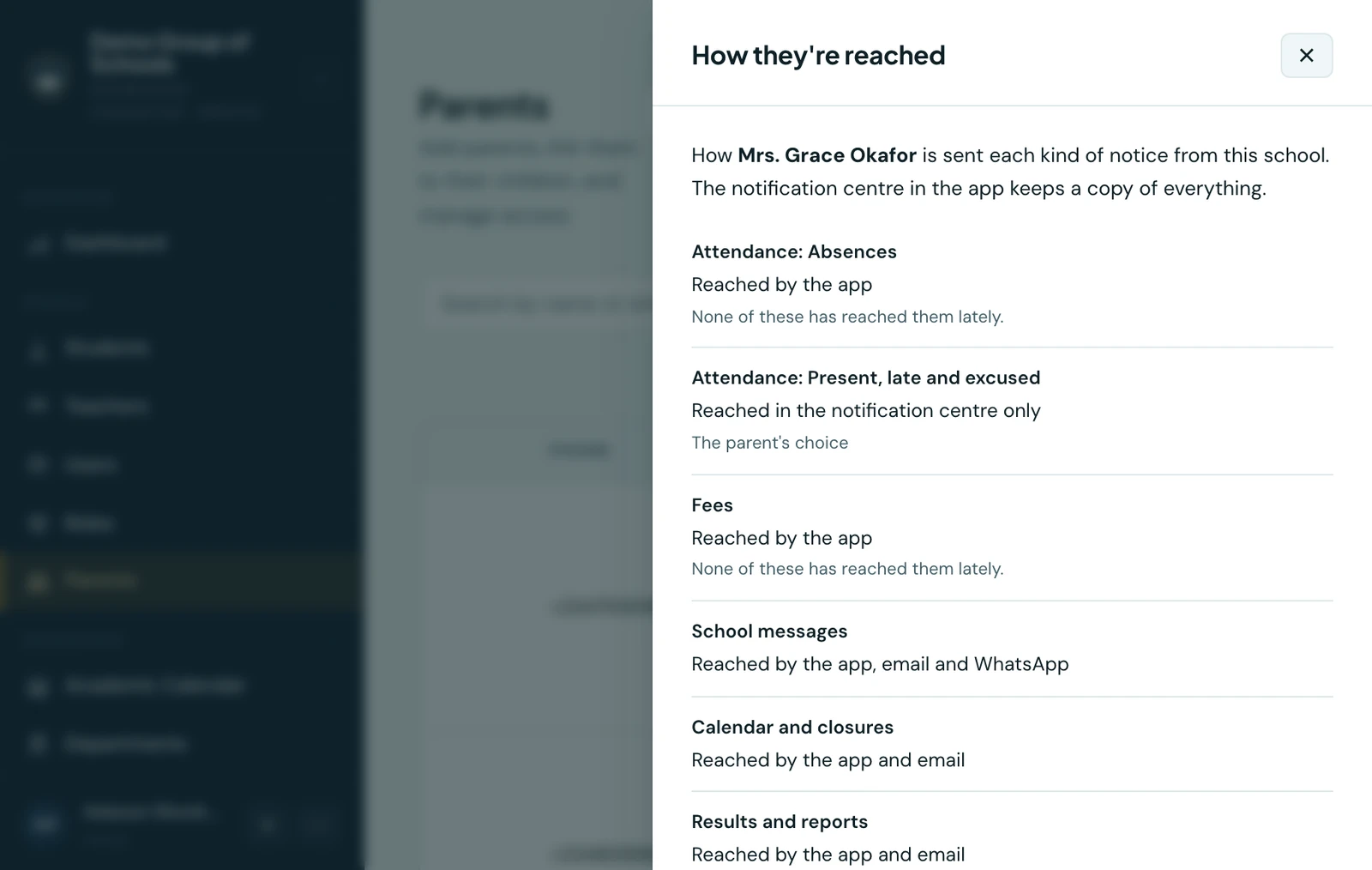
How a parent is reached at your school, kind by kind, with the parent's own choices marked as theirs.
On the phone
Parents are managed from the mobile app under People → Parents, which you can search or narrow to one class with the filter button. Add parent opens a form with two modes: Existing parent finds a parent already on file and adds only the children you pick, and New parent takes the title, name, phone number and an optional email address. Children are added one at a time, each shown as a chip you can remove.
The menu beside each parent holds Edit (which also lists their children and offers Link more children), resending the invite or resetting the password by email or WhatsApp, Copy invite link and Send invite via WhatsApp while the account is pending, and Deactivate or Reactivate. Tap a parent to see their children, then use the menu beside a child to Change relationship or Unlink. The same rules apply as on the web, including which details you may change for a parent another school also uses.
Ready to try it with your school?
Three-month Basic trial. No card required to register.