
Academics
Assessment Structures
Say once what a term mark is made of, such as CA 30 and Exam 70, and which classes each split is for. Once confirmed, the grade forms lay out its parts and nobody types a maximum.
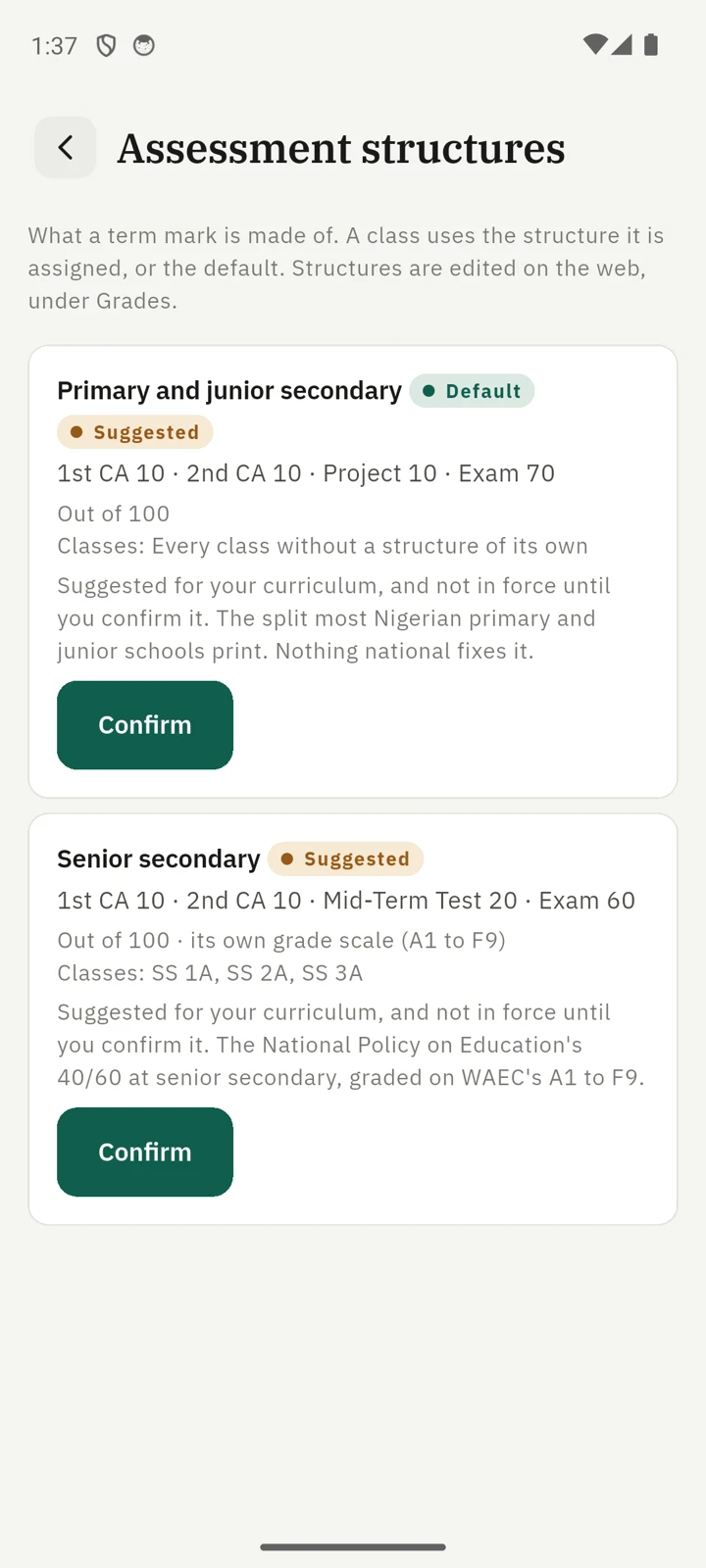
An assessment structure says what a term mark is made of: for example 1st CA 10, 2nd CA 10, Mid-Term Test 20 and Exam 60. You set it up once, and it stays in force until you change it. It is not copied term by term.
What a structure holds
- Its parts, in order. Each part is one of your grade types, such as CA, Test or Exam, in the order its column reads on the report card. See naming parts and ordering columns below.
- What each part is marked out of, and what it counts for. Most schools set the two the same. A school that marks exercises out of 60 but counts them as 30 sets them apart.
- Its classes. One structure is the default, used by every class without a structure of its own. You can give a group of classes their own, for example a senior secondary structure for SS 1 to SS 3.
- Its own grade scale, if you want one. A senior structure can grade on WAEC's A1 to F9 while the junior classes keep A to F. Without its own scale a structure uses the school's.
- Weekly marks, if you count them. A structure can include a Weekly marks part, worked out from the weekly grades you publish. See below.
A structure may add up to more than 100. The editor warns you, and pupils' totals and percentages are then worked out of that figure.
Your suggested structures
Every school starts with structures suggested for its curriculum, one for each stage that splits its marks differently:
| Curriculum | Suggested |
|---|---|
| Nigerian | Primary and junior secondary: 1st CA 10, 2nd CA 10, Project 10, Exam 70. Senior secondary: 1st CA 10, 2nd CA 10, Mid-Term Test 20, Exam 60, graded A1 to F9 |
| Ghanaian | Class Score 70, End-of-Term Test 30 |
| British | Coursework 40, End-of-Term Examination 60 |
| Madrasah | CA 30, Exam 70 for academic subjects |
| Your own curriculum | CA 40, Exam 60 |
Each suggestion says where its split comes from, or that nothing official sets one. The editor also offers other common splits to start from, such as CA 30 and Exam 70, the formula WAEC uses for continuous assessment.
A suggestion applies to nothing until you confirm it. Grade entry carries on exactly as before, and nothing is blocked. Confirming is a step on your setup checklist, Confirm how your marks are split, which is done once every structure is confirmed.
Confirming or changing a structure
Open Grades and the Assessment structures tab. Each structure shows its parts, what it adds up to and its classes. A suggestion says so.
- Confirm accepts a suggestion as it stands.
- Review and edit opens the editor. Saving a suggestion from there confirms it.
- Classes chooses the classes marked on it. A class can be on one structure at a time, and ticking one moves it from wherever it was.
- Make default makes it the structure every other class uses.
In the editor you type each part's name. A name that matches none of your grade types says New grade type, and saving creates it. Counts for follows Marked out of until you set it differently. Add weekly marks adds the Weekly marks part, of which you set only what it counts for.
Naming parts and ordering columns
Your structures are where you manage your grade types; there is no separate list of them to keep.
- A new name creates a grade type. Type a part's name that matches none of your grade types and saving creates it.
- Renaming a part renames that grade type everywhere. Change "CA" to "Continuous Assessment" and every report card, and every past mark recorded against it, follows.
- Typing the name of another grade type switches the part to it. Change a part named "Test" to "Exam", where Exam already exists, and the part becomes your Exam rather than a second one.
- The order of a structure's parts is the order of the columns on the report card, so "1st CA, 2nd CA, Exam" reads the way your school teaches it rather than alphabetically. Where two structures share a part, such as Exam, the default structure's order wins, and a part only one other structure has is placed beside its neighbours. A grade type no structure uses keeps its place.
Grade types cannot be deleted or given a description in the app. The same rules apply in the phone's structure editor.
On the phone
On the phone, open Grades and tap the structures icon. Everything above works there too: confirm a suggestion, add or edit a structure, choose its classes, make it the default or delete it, from each structure's menu.
Who can do what
| Action | Permission |
|---|---|
| See the structures | Any grades permission |
| Confirm, edit, assign classes, delete | Manage assessment structures |
Every change is recorded in the audit log.
Entering marks on a structure
Once a structure is confirmed, its classes' marks for the current term follow it. On Add Grades, the grade drawer and both grade forms on the phone, a subject shows the structure's parts, each with what it is marked out of. Nobody types a maximum: the teacher enters a score for each part.
- Leave a part blank until it is marked. A mark with the CA and no exam yet is saved incomplete, with no letter, and completed when the exam is entered.
- A part counted for less or more than it is marked out of is worked out for you. Exercises marked 45 out of 60 and counted as 30 count as 22.5 of 30 in the pupil's total, and the list still shows the 45 of 60 as marked.
- Letters use the structure's own grade scale, where it has one, so a senior class's marks and report cards grade A1 to F9.
- Marks in earlier terms are not changed, and are entered as they always were.
A mark entered before the structure changed, on a different split or as a single score, is tagged Old structure in the grade list. Open it, enter the parts and save to put it on the structure. Released terms are never tagged.
A part can also be filled from an online test: link the test to the part and send its scores. See CBT marks into term grades.
Weekly marks as a part
Add weekly marks to a structure and its classes' weekly marks count towards every subject's total: for example 1st CA 10, 2nd CA 20, Exam 60 and Weekly marks 10, which is 100. This is the only way weekly marks count towards a term mark. A class whose structure has no Weekly marks part can still print them on a line of their own, which adds to nothing.
- Nobody types it. Each pupil's figure is the average of their published weeks in the subject, converted to what the part counts for. The grade forms show it beside the parts teachers type, as "Weekly marks 7.3 / 10 (4 weeks published)", and the total includes it.
- A pupil with no published weekly mark in a subject is not given a nought. The mark stays incomplete, with no letter, until a week is published. A subject you have switched off in a class's weekly setup has no weekly part at all, and its mark is complete on the parts teachers type.
- Terms that ended before you set it up are left as they were marked, even if you never released them.
- It follows the published weeks until you release the term's results, then is fixed in each mark, so a week withdrawn later changes nothing a family holds. Withdrawing the release lets it follow the weeks again.
- It is named with the heading you give weekly grades under Settings → Weekly Grades on the Report Card.
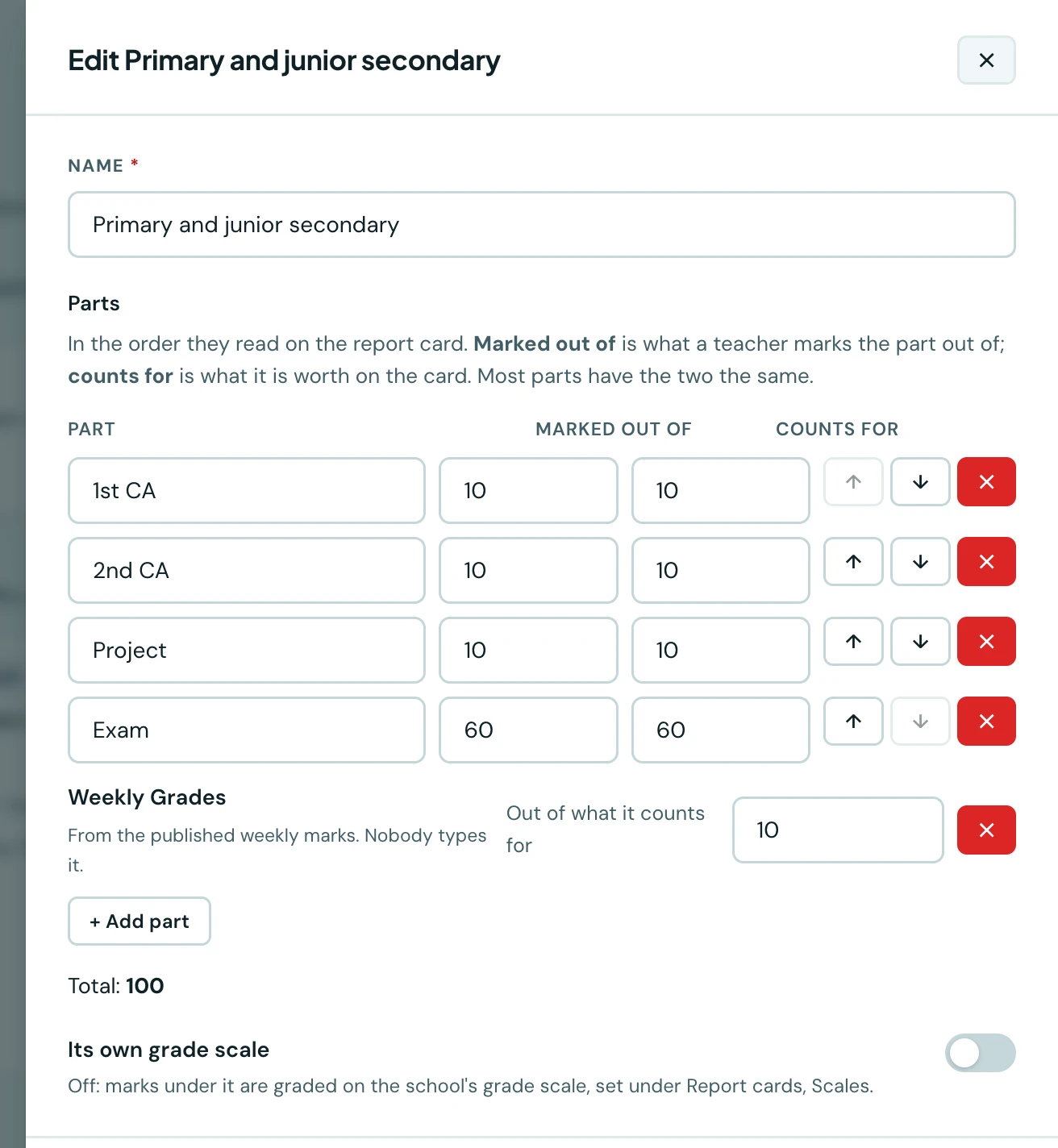
If your school used to count weekly marks into every subject with a setting, the tab tells you so, and Add weekly marks on that notice opens your default structure with the part added at the figure you had.
Changing a structure during a term
Before you confirm a suggestion, or save different parts to a confirmed structure (adding, removing or reweighting weekly marks included), you are told how many marks have already been entered this term in its classes. Any of those that do not follow the new split are tagged Old structure until a teacher corrects them. Nothing is recalculated behind anyone's back, and marks in released terms are not affected.
Ready to try it with your school?
Three-month Basic trial. No card required to register.