
School Setup
Academic Calendar, Terms & Sessions
Set out your school year (sessions, terms, term dates, holidays and events) and let 1410SMS work out the teaching days behind it.
1410SMS uses a three-level academic structure: sessions (school years), terms (the periods within a year), and calendars (one session paired with one term). Grades, attendance and invoices are always attached to a calendar, so a figure stays with the term it belongs to no matter how many years pass.
Everything on this page lives in one place: Academic Calendar in the sidebar.
Overview
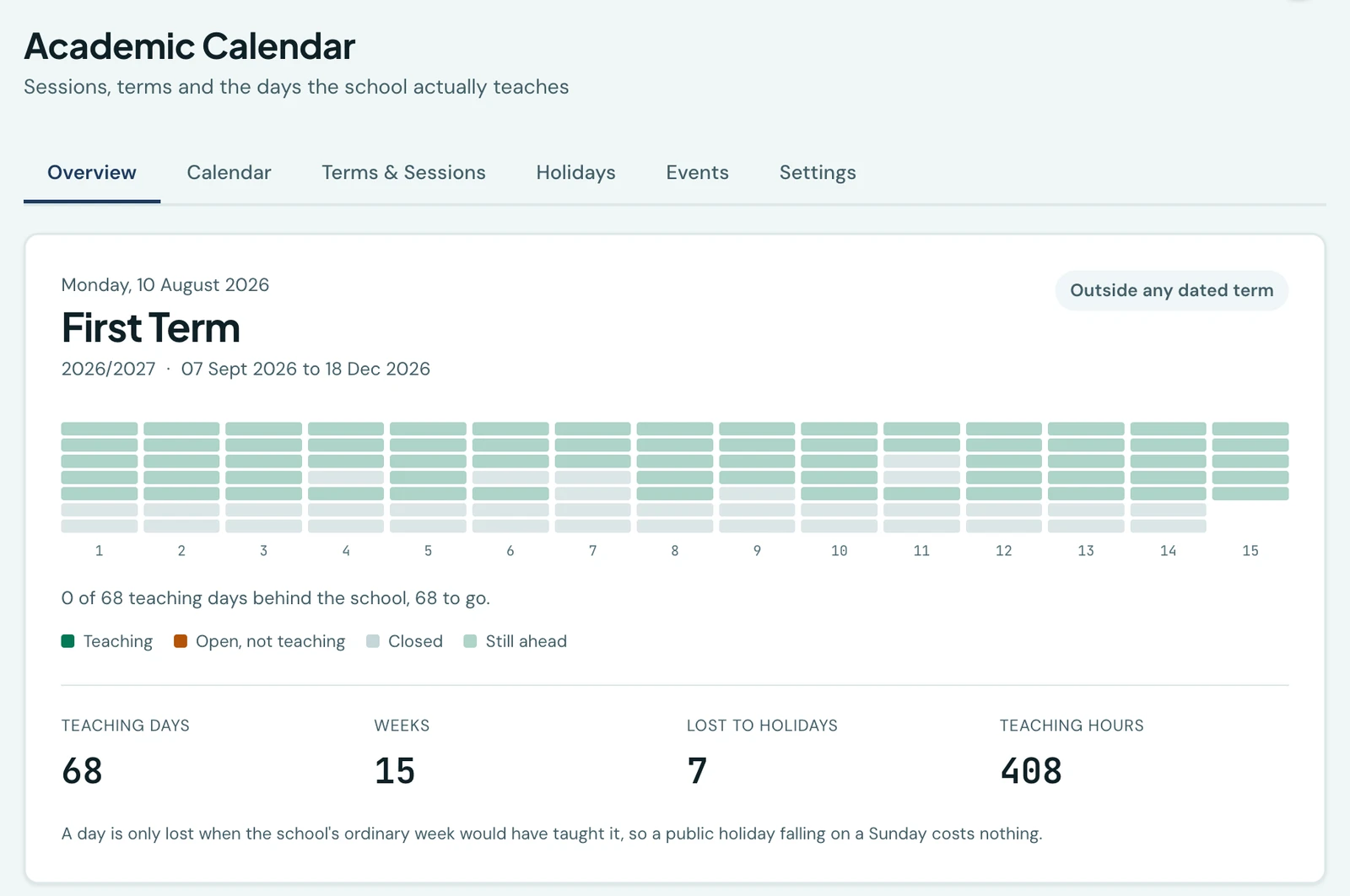
Opens on the term you are in, with a ribbon showing every day of it: one column per teaching week, each day drawn as a block. Days already taught are filled, days lost to a holiday are punched out, and days still ahead are pale, so you can see at a glance how much of the term is behind you.
The four figures below the ribbon are worked out, never typed in: teaching days, weeks, days lost to holidays, and teaching hours. Change a term's dates or record a holiday and they change with it.
A day is only counted as lost when your ordinary school week would have taught it, so a public holiday falling on a Sunday costs nothing.
Sessions
A session is a school year, such as 2026/2027. You add one once a year, under Terms &
Sessions.
When you add one, 1410SMS suggests what to call it by continuing the naming you already use. If your
last session was 2025/2026 it offers 2026/2027; if you write 2026-27 it offers 2027-28. It
is only a suggestion. Type over it if your school names its years differently.
A session cannot be renamed or deleted once it has calendars attached, because grades and fees are already pointing at them.
Terms
Every school starts with First, Second and Third Term. These three are permanent, because the platform orders a report card's term history by them, but you can give any of them an alias, and the alias is what everyone sees. A school running Michaelmas, Lent and Trinity sets three aliases and never sees the default names again.
You may also add terms of your own. Those stay fully editable and deletable.
Calendars and term dates
A calendar pairs a session with a term. One is marked current, and that is the term new grades, invoices and registers are filed against.
Give a calendar a first and last day and the rest of this page comes to life: teaching weeks, day counts, the month grid, and the check that stops a register being marked on a day the school was shut. Without dates, a calendar still works exactly as it always did. Nothing here is required.
Two labels sit beside each term, and they answer different questions:
- Not started / Running now / Finished is where the term sits in time, worked out from its dates.
- Current term is your own choice of which term work is recorded against.
They are allowed to disagree. Pointing at the term about to start, during the holidays, is the normal state for most of August. The one combination worth acting on is a Current, ended term, where work is still being filed against a term that has finished, and the badge says so plainly.
Holidays
A holiday is any run of days the school is shut: a public holiday, a mid-term break, a founder's day, an emergency closure. Recording one subtracts its days from the term it falls in, so the teaching-day count stays honest.
Each holiday has a category (public, school, mid-term break, emergency, weather or other) and a name you choose yourself. A holiday can be set to repeat every year, so Independence Day is recorded once and applies to every year that follows without being re-entered. A school keeping the Islamic calendar can repeat it on that reckoning instead, so Eid moves through the Gregorian year the way it actually does rather than being re-entered every summer.
Recording a holiday also stops a register being marked on those days. Attendance refuses and names the holiday in the way, so you know exactly which record to change if it was entered by mistake. Registers already marked are never altered: a register states what happened, and declaring a past day closed does not make the pupils counted that morning absent.
Events
An event is something happening on a day: a sports day, an open day, a parents' meeting, an excursion. Events can carry a start and end time and a venue.
An event is deliberately not a holiday: a sports day is still a teaching day. If the school is taking the day off for it, record a holiday alongside.
Events that repeat
A weekly assembly, a monthly PTA meeting, a founder's day: set Repeats on the event and record it once instead of typing it out every week. Choose weekly, monthly or yearly, and optionally a date to repeat until. Leave that blank and it keeps going.
The event shows once in your Events list, marked with how often it repeats, and appears on every day it falls on in the calendar. Editing the one event moves every repetition with it.
If you pick a day of the month that some months do not have (the 31st, say), those months are skipped rather than moved to the nearest day. You asked for the 31st.
Cancelling an event
If something is called off, cancel it rather than deleting it. A cancelled event stays on the calendar, struck through and marked cancelled, so anyone who had it in their diary can see what happened. Deleting is for a mistake: an event recorded on the wrong date, or twice.
You can add a reason, which parents and students see word for word, and by default they are sent a notification straight away. Untick that for something nobody has been told about yet. An event you have kept staff-only sends nothing, because there is nobody outside the school to tell.
Changed your mind? Put back on reinstates it. Nobody is notified when you do, so tell families yourself if they need to know.
Calendar view
The Calendar tab shows a month at a time, colour-coded by what each day is, with holidays and events marked. Switch to Agenda for a plain list of what is on. Click any day to see everything that applies to it, and to add a holiday or an event on that date.
Days outside every dated term are hatched rather than shown as closed. A day no term covers is not a day anyone has declared shut.
The tab opens on the term you are in. Out of term, it opens on the nearest one instead: in the August vacation that is September's opening, and in the week after a session ends it is the term just finished. If no term has dates yet, it says so and points you at the Terms & Sessions tab rather than showing an empty grid.
Calendar settings
The Settings tab holds the four facts everything else is derived from: the timezone your school keeps, the school week (what you do on each weekday: teaching, open but not teaching, or closed), the day an academic week is numbered from, and your working hours. Teaching weeks, academic days and instructional hours are these four applied to your term dates, with closures subtracted, which is why the tab sits here rather than only on the Settings page. It is the answer to "why is that Friday greyed out", one click from the month grid that raised the question.
These are the same settings you will find under Settings → Calendar, not a second copy. Change one in either place and it is changed in both, with one audit history between them.
Under them, Family reminders decides whether families are sent an evening reminder of the events and closures coming up, and how many days ahead (one to three, two by default). It is on unless you turn it off. What it sends, and what it leaves out, is on Family Calendar.
It is administrator-only, and it is the only tab gated on being an administrator rather than on a permission. Terms & Sessions is withheld too, but by the permission that changes the year, so a role you have granted that permission to opens it without being an administrator.
Who can see and change this
Every member of staff can open the Academic Calendar. When term ends, which days the school is shut and when the sports day is are things a teacher plans around, so reading it needs no permission. It sits under Academics in the sidebar.
One tab is the exception. Terms & Sessions is where the year itself is set up, and it goes with the permission that changes it, since setting up the year is not the same thing as knowing where you are in it. A teacher opening the workspace gets everything else, and the year panel on Overview shows the session they are teaching rather than every session your school has ever run.
Changing it splits three ways, so you can hand out as much or as little as you mean to:
| Permission | Covers |
|---|---|
| Manage academic periods | Sessions, terms, term dates, and which term is current |
| Manage school closures | The days the school is shut |
| Manage school events | Parent meetings, sports days, anything arranged |
The Settings tab is separate again: it is administrator-only, the same as everywhere else those settings appear.
They are separate because a mistake in each costs something different. Re-dating a term moves every teaching day, week number and register in the school. Shutting the school stops a register being marked that morning. Putting the wrong date on a parent meeting puts a wrong line on a page.
So the front desk can be trusted with events without also being able to redefine the academic year, and a deputy head can shut the school for a storm without it. The Owner, School Administrator and Academic Coordinator roles hold all three by default, and if your school already had someone managing the calendar, they keep everything they had. Principal and Vice Principal read the calendar like everyone else and do not change it unless you grant them one of the three. See Roles & Permissions to grant them to a role of your own.
Everything is recorded
Every change here is written to the audit log with who made it and when: a term dated or re-dated (with the dates it replaced), the current term moved, a closure recorded, amended or removed, an event arranged.
The closure trail is the one you are most likely to come back to. A register cannot be marked on a closed day, so a closure recorded in March is what explains a gap in an attendance record read in July, and "who decided the school was shut that Tuesday" has no other answer.
On the phone
The calendar is on the mobile app under More → Academic Calendar, with three tabs: the current term's progress and totals, holidays, and events. The header names the term the day falls in and which teaching week it is, and nothing on the screen re-derives any of that: the kind of day, the week number and the covering closure all come from the server, so the phone and the web can never disagree about when term ends.
Both holidays and events can be added and edited from the phone, which is rather the point: shutting the school for a storm is a decision taken away from a desk. Term dates are set from the phone too, under Academic Setup → Calendars, where each term shows its dates or reads "Not dated". The month grid and the year ribbon are web-only: they are comparison views, and they need the width.
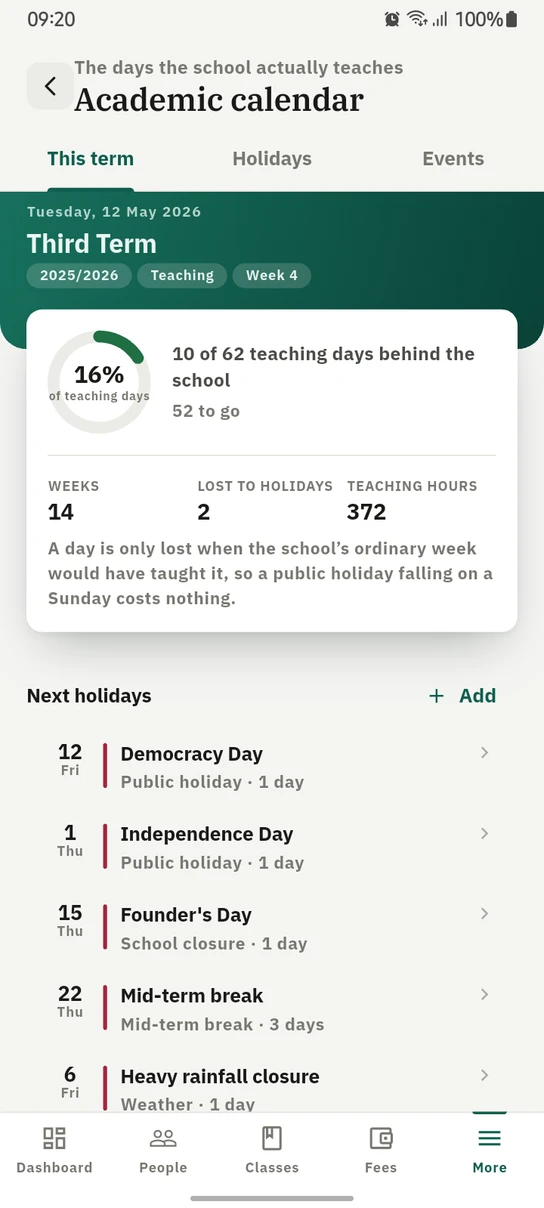
The term on the phone: how far through it the school is, and what closes it next.
Ready to try it with your school?
Three-month Basic trial. No card required to register.