
Finance
The Income and Expenditure Statement
What your school received in fees and what it spent, by your own categories, over any window you choose, with the period before it beside every figure. Known to most schools as a profit and loss account, and downloadable as a spreadsheet or as a branded PDF.
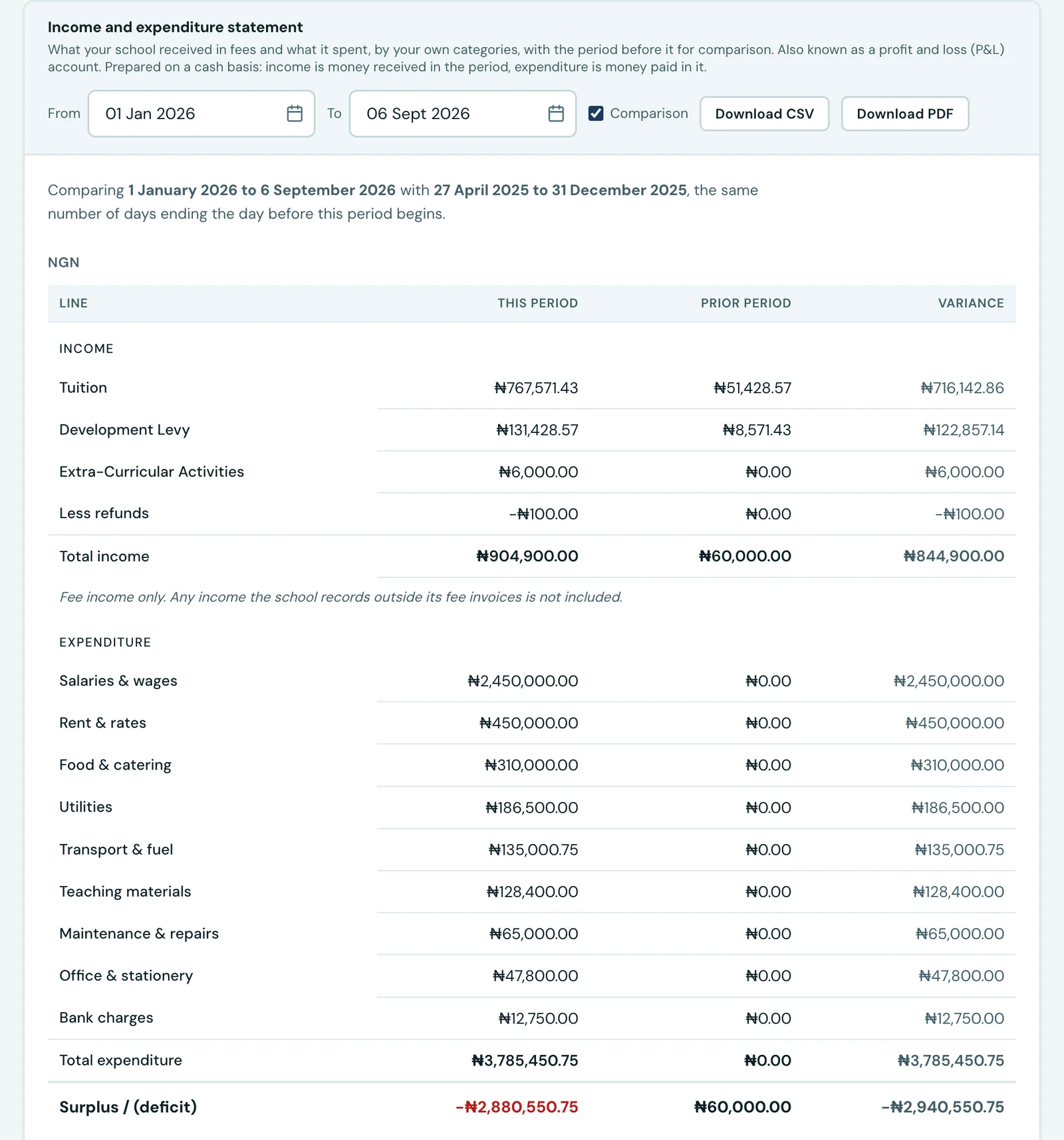
A school asked us for a profit and loss account. This is it, under the name a school, a board and an auditor all use for it: over these dates, what came in, what went out, and what is left.
It leads the Reports tab of the Finance Workspace, above the cash flow statement it is built from, and it is on the phone too, under Fees → Statements.
Reading it
Pick a window with the From and To dates. It opens on the year so far.
The Income half lists what you actually received, broken down by your own fee categories. The Expenditure half lists what you paid, by your own expense categories. Underneath both sits the figure the statement exists for: Surplus / (deficit).
Every line carries the period before it and the difference between the two. That comparative period is the same number of days, ending the day before your window begins, and both its dates are printed above the table so you can check what is being compared rather than work it out. April to June is 91 days and January to March is 90, so an equal-length comparison reaches back into December rather than lining up with the quarter. That is the point of it: a period is compared with one of the same length, not with one that happens to share a name.
Untick Comparison to put the statement down to a single column.
What it counts
Money received, not money billed. An invoice raised in March and paid in June is June's income. This is a cash statement, which is how a school in this market prepares an income and expenditure account, and it is what makes the bottom line answer the question a proprietor is actually asking. Money still awaiting confirmation is not counted until somebody confirms it.
Fee income only. Fee invoices are the only income the platform records, so hall hire, uniform sales, a grant or a donation are not in this statement. That sentence sits under the income total on the screen, in the downloaded spreadsheet and on the printed sheet, because a statement that quietly left out a third of a school's income would be worse than one that says what it covers.
Refunds are one line, deducted from income and counted on the date the refund was sent rather than the date of the payment it reverses. Reducing an earlier period would restate books you have already reported.
A fee filed under no category still counts, as Uncategorised. Dropping it would leave this statement short of what the cash flow statement shows for the same dates, with nothing on either report to explain the gap.
Currencies are never added together. Each gets its own statement, largest income first, and a currency you have only ever spent in still gets one: an outflow with no matching income is exactly the thing worth seeing.
Downloading it
Download CSV gives you the figures as a spreadsheet, one row per printed line, with refunds and expenditure signed negative so the column adds up to the surplus printed in the file.
Download PDF gives you the same statement on your school's own letterhead, in your colours, with your crest: the version to send to a board, a bank or an auditor. Both cover exactly the window on screen.
Reading the statement needs the View finance permission. Either download needs Export finance data as well, so seeing your figures and taking a copy of them away stay separate levels of trust.
On the phone
On the mobile app, open Fees, tap the ⋮ menu and choose Statements. The income and expenditure statement leads the screen, above the cash flow statement, the bank settlement and the ledger integrity check, and one From and To pair at the top sets the window for all of them. It opens on the year so far.
Each figure carries the prior period on a second line beneath it rather than in extra columns, and on the phone the comparison cannot be turned off. The PDF and CSV buttons beside the heading download exactly the window on screen, under the same permissions as the web.
Ready to try it with your school?
Three-month Basic trial. No card required to register.