
Billing & Compliance
File Storage and the File Manager
See what your school's storage allowance is being spent on, and delete files you no longer need to make room.
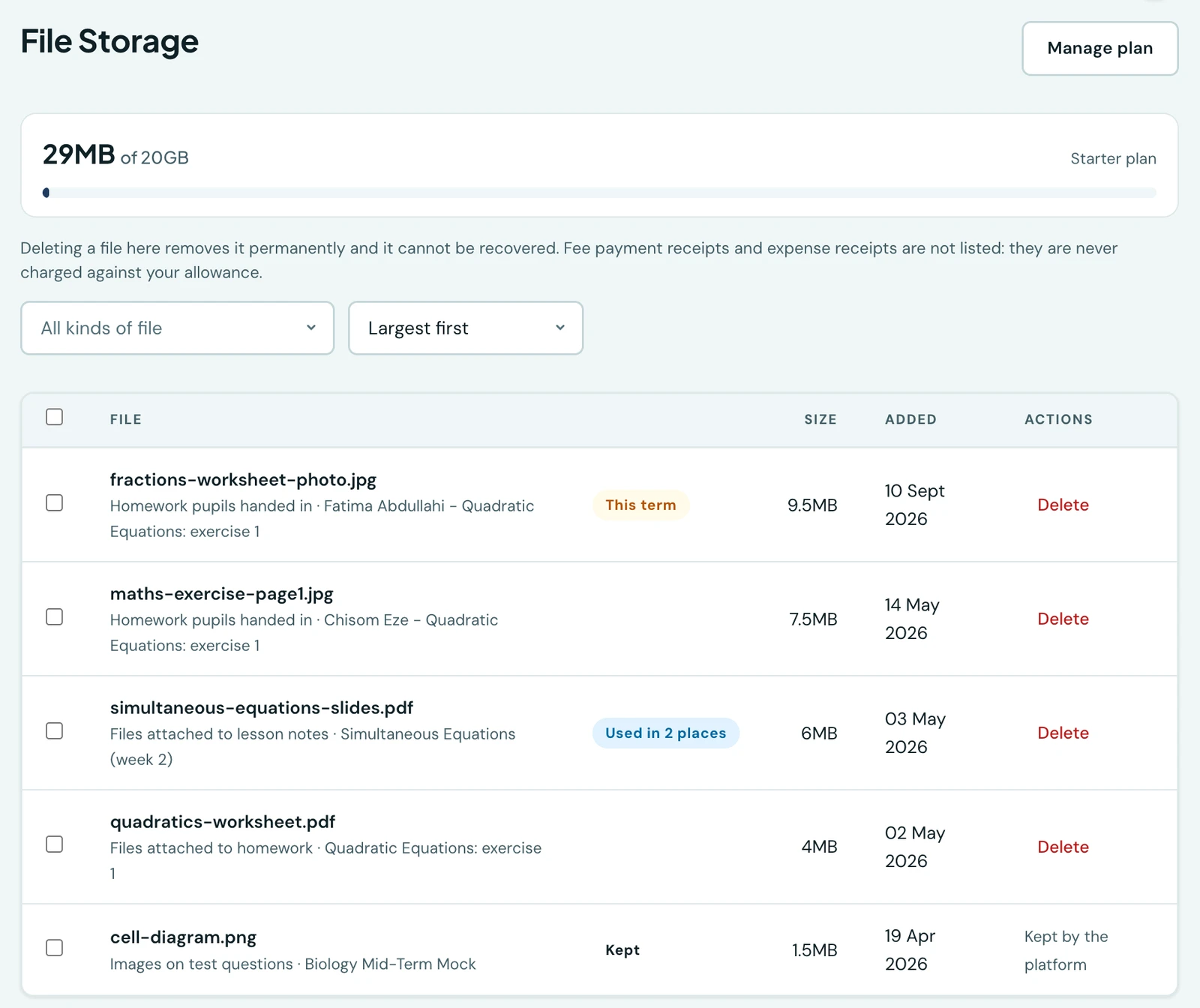
Your plan includes an allowance for the files your school stores: photographs of work pupils have submitted, files attached to homework and lesson notes, and images on test questions. File Storage shows what that allowance is being spent on, and is where you delete files you no longer need.
Where to find it
Configuration → File Storage in the sidebar. The same figure appears on the admin dashboard's File Storage card, which links here.
What is listed, and what is not
The list shows every file that counts towards your allowance. Two kinds of file are deliberately left out because they are never charged against it:
- Fee payment receipts, the proof-of-payment files attached to a payment.
- Expense receipts, the same thing for money the school spends.
Neither costs you any of your allowance, so a school at its limit can still file a bank slip for a payment it has just received. Neither can be deleted here either: they are the evidence half of a money record.
Images on test questions are listed, because they do count, but they cannot be deleted here. Removing one would silently change a paper pupils may already have sat. To remove one, edit the question in the test itself.
Reading a row
Each row names the file, what it belongs to, its size and when it was added. Two labels are worth knowing:
- This term marks a file uploaded during the term you are teaching now. It is a warning and not a block. Sorting by size puts the largest files at the top, and those are often this week's photographs.
- Used in 2 places means several records share the file. A lesson note copied to another class shares its attachment, so deleting it removes it from every copy.
Opening a file
Every row opens. On the web, Open shows the file in place: a photograph or a PDF is drawn on the page, and a Word or Excel document is downloaded, since no browser draws one. On the phone, tap the row.
This is worth doing before you delete anything. The row tells you which pupil and which piece of work a file belongs to, which is enough to know who loses something, but not enough to know whether the photograph is the finished essay or the first blurred attempt. Files a school may not delete here, like an image on a test question, still open.
Opening a file needs only the permission that opens this page. Anyone who can see the list can already read the same file through the homework or lesson note it belongs to.
Deleting files
Tick the files you want to remove and choose Delete selected, or use the Delete action on a single row. You will be asked to confirm, and told how many of the files are from the current term.
Deleted files cannot be recovered. Nothing is ever deleted for you: if you reach your allowance, uploads are refused until you make room or move to a larger plan, but nothing already stored is removed on your behalf.
When you delete a file a pupil submitted, the record of the submission and the mark it was given both survive. The submission is kept and marked as having had its files cleared, so a teacher looking at it later can see what happened rather than finding an empty submission.
Every deletion is recorded in your school's audit log, naming who deleted what and what it belonged to.
Running out of room
You are warned once you pass 80% of your allowance, on the dashboard card and in your notifications. Once you are full, new uploads are refused with a message naming your plan and your figures. The two ways out are deleting files here, and moving to a plan with a larger allowance. Every plan's allowance is on the pricing page, beside its student limit, so you can see what moving up would give you before you decide.
On the phone
File Storage is on the mobile app as well, under More → School → File Storage, and it does everything the web page does. The allowance sits at the top, the files under it, and the filter button opens the kinds your school actually holds along with the same three orders.
Picking files works the way it does elsewhere on the phone: press and hold a file to start picking, tap the rest, and the bar at the bottom says how many will go. A file the platform keeps cannot be ticked and shows why. The confirmation names what is at stake before anything is deleted, and what came back is read out afterwards: how much was freed, and anything that was skipped because somebody else had already deleted it.
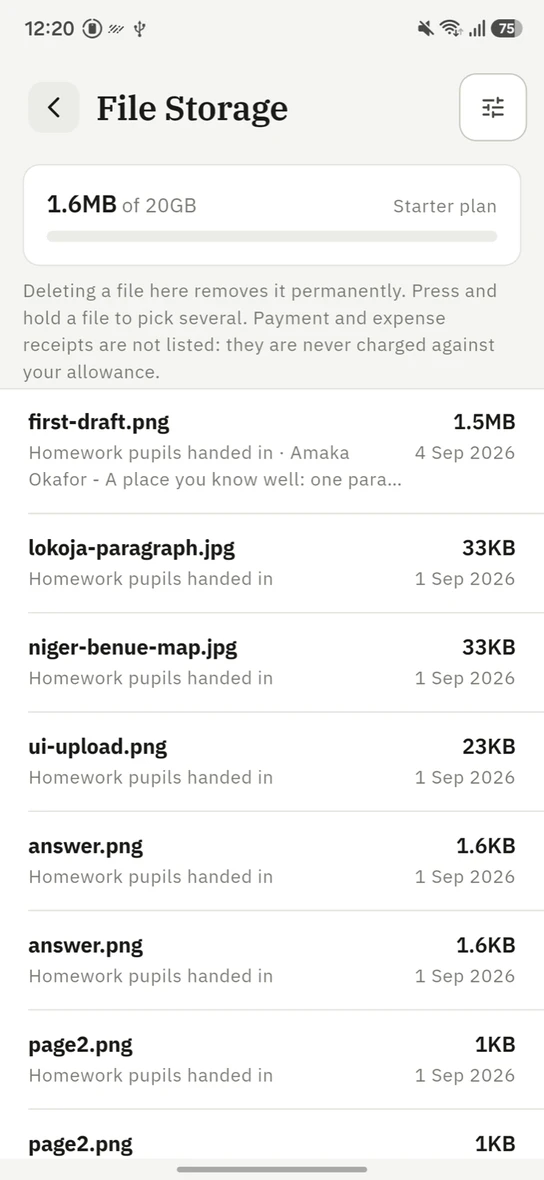
The same allowance and the same list, on the phone.
Permissions
Two separate permissions, because seeing the list and destroying a pupil's work are different acts:
- View stored files (
storage.files.view) opens the page. - Delete stored files (
storage.files.manage) enables the delete actions.
Both are held by the Owner and the School Administrator by default.
Ready to try it with your school?
Three-month Basic trial. No card required to register.