
Finance
School Fee Management
Bundle tuition, uniform, PTA and other fees into one invoice with a single balance, for a whole class in one click or for a single student. Track payments in your chosen currency.
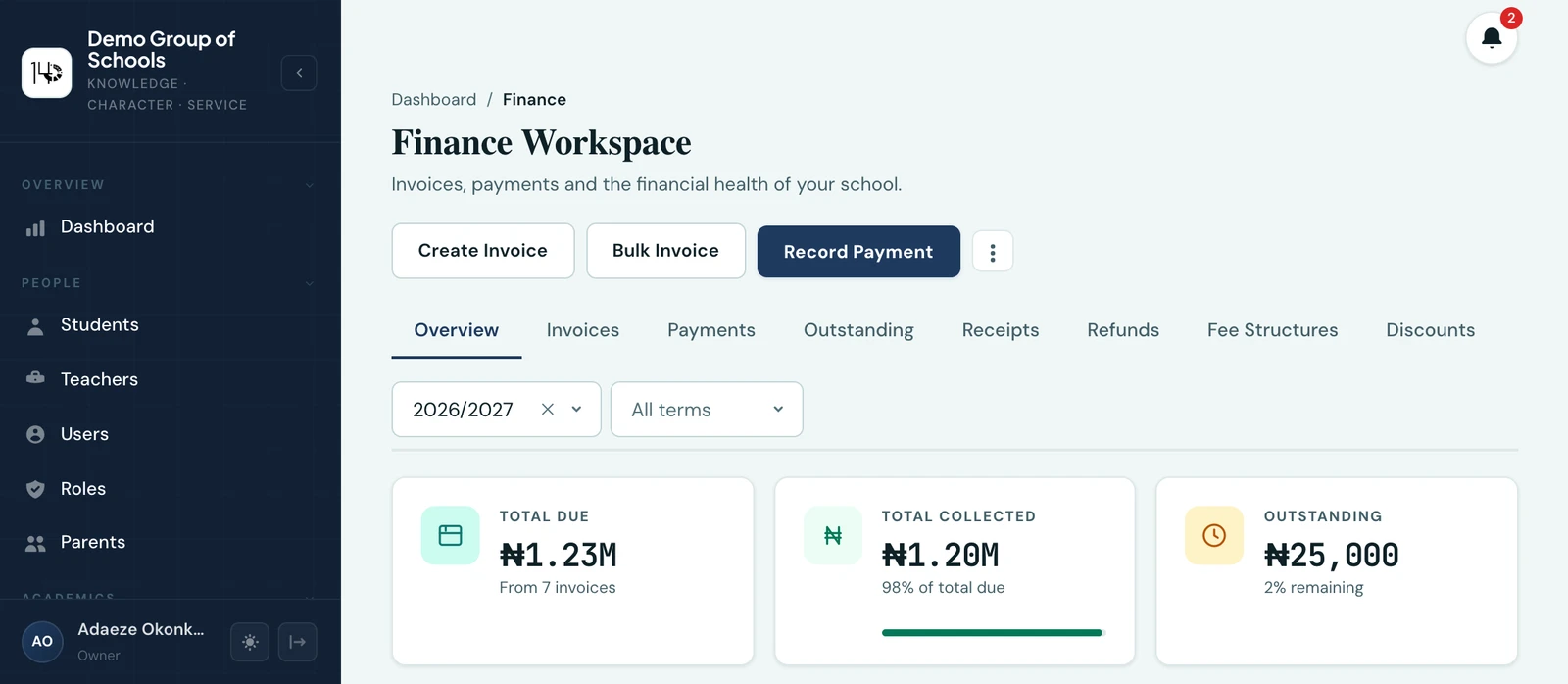
Create fee invoices for students, record payments, and track balances in real time. Know exactly who has paid, who is outstanding, and what has been collected.
The Finance Workspace
Fees live in a single Finance Workspace, a tabbed console built around the questions you actually open the page to ask: how much revenue is expected, how much has been collected, how much is outstanding, who owes money, which invoices are overdue, and which classes collect poorly. Ten tabs keep each job in its own space while your filters, search, session and term carry across them:
- Overview. A dashboard of finance widgets (expected/collected/outstanding revenue, collection rate, revenue trend, collection by class, recent payments, upcoming due invoices and more). It is fully customisable: reorder, resize, hide or restore widgets exactly as you do on your main dashboard.
- Invoices. Every invoice with progress bars, status chips and per-row actions (record a payment, view, download the PDF, send a reminder, cancel). Need to chase several at once? Tick the invoices (filter to Unpaid first, then use the header checkbox to select the whole page) and click Send reminders to notify every selected parent in one go. Cancelling asks whether to tell the family, and leaves that off by default, since most cancellations are corrections followed straight away by a corrected invoice. A cancelled invoice then drops out of the list, so what you are reading is what the school is still owed; it is not deleted, and Show cancelled invoices under Filters brings it back when you need to see why one was withdrawn.
- Payments. The payment history, with evidence upload, receipt downloads, bulk import, and a verification queue: review each payment (verify or reject, with a reason) so you can confirm money that came in against evidence. Verifying is only a review flag: it records who checked it and when, and never changes the balance. Recorded a payment in error? Void the receipt (with a reason). Unlike rejecting, voiding reverses the payment, so the invoice balance is restored and it reopens for payment. It is not a refund; no money moves, and voided receipts stop counting towards your collected totals. Voiding is silent by default, but you can tick Notify parent to let the parent/guardian know the receipt was voided over your school's configured notification channels. Need to get a receipt back to a parent who mislaid it? Resend receipt re-sends it over your school's configured channels at any time.
- Outstanding. Your debt-collection view: largest debtors and overdue invoices, ranked within the selected currency, with an Export list button to download the debtors as a CSV. It also holds the Reminder Queue, where overdue reminders wait for a member of staff to release them if your school has chosen to review them before they send (see Fee reminders), and Who to chase first, which ranks the same debtors by how hard the money looks to get in rather than by how much of it there is.
- Receipts. Search, download, print or resend any receipt, void one recorded in error, or record a refund against it.
- Refunds. Every refund your school has given back to a family, searchable and exportable. A refund is the one correction here that moves real money, which is what separates it from cancelling an invoice or voiding a receipt. See Refunds.
- Fee Structures. Manage your fee types (see below).
- Discounts. Sibling discounts, staff-child waivers and any reduction you define (see below).
- Reports. Revenue, collection trends and class/fee-type performance charts, above the cash flow statement, the bank settlement reconciliation and the ledger integrity check.
- Settings. Currency, invoice/receipt numbering and reminder schedules.
Every figure respects the academic session and term and the currency you pick at the top, and each is shown per currency, because amounts in different currencies are never added together. What you can see and do in the workspace follows your role's permissions.
Saved filters
The Filter button on Invoices and on Payments can remember a set. Set the filters the way you want them, give the set a name, and reapply it in one click next time. The mobile app has the same sets, in its invoice filter sheet and behind the bookmark on its Payments screen.
Saved sets are yours alone: nobody else at the school sees them, and nobody else can change them. They are also kept per list, because the two lists filter on different things. An invoice has a status and a fee type; a payment has a method and a review state. One shared pool would offer you filters that do nothing on the list you are looking at.
A set stores what is in the filter form, not what is currently applied, so you can arrange it and save it without applying it first. Sets are shared between the web app and the mobile app, and each applies the parts it has a control for: a set naming a fee type, for instance, keeps it for the web even after you re-save the set from your phone. Applying one only touches the fields that list uses, leaving the other list's filters alone, exactly as Clear all does. Re-using a name updates that set rather than making a second one with the same name.
Fee Structures (fee types)
Before creating invoices, define your fee categories on the Fee Structures tab. Examples: Tuition Fee, Exam Fee, Lab Fee, PTA Levy. Give each a category and an optional default amount that pre-fills the invoice builder, and reuse them across terms. The name is what a parent reads on the invoice and on the PDF, so write it the way you would write it in a letter home: "Examination Fee", not "exam".
A default amount is a typing shortcut, not a price list. The figure that matters is the one on the invoice, fixed the moment the invoice is raised. So putting next term's tuition in as the default moves nothing already invoiced: you are changing what gets typed for you next, not rewriting what a family was told they owed.
Keep the list short. The most common mistake we see is a fee type list grown to forty entries, most of them variants: "Tuition JSS", "Tuition SSS", "Tuition JSS 2026". A fee type is what the charge is for. How much varies by class and by term, and that belongs on the invoice. One "Tuition" line at the right amount for that class does everything three class-specific tuition types do, and it keeps your revenue reporting readable, because "Tuition" then means tuition across the whole school rather than three rows somebody has to add up. A trip that happens once does not need a permanent fee type if an existing one covers it.
Renaming a fee type changes what future invoices say; invoices already issued keep the wording they were raised with, for the same reason their amounts do not move. A fee type already used on an invoice cannot be deleted, since that would leave those invoices referring to nothing. Leave it in place, an unused fee type costs nothing.
Fee types are fully editable in the mobile app from the overflow menu on the Fees screen, on the same permission as the web.
Discounts, sibling reductions and staff-child waivers
Reductions your school offers (a sibling discount, a staff-child waiver, a bursary) are defined on the Discounts tab and awarded to the students they apply to, after which every invoice you raise applies them automatically. See Fee discounts and waivers for the full guide.
Creating an invoice
Click Create Invoice in the Finance Workspace header. The page opens on One student, with Whole class and Family (by parent) beside it as the other two ways to invoice. Select the student, academic term and session, and the currency. Then build the invoice from one or more fee line items. Add a row for each fee (Tuition, Uniform, PTA Levy and so on) with its amount, and the invoice shows a single running total that the parent pays as one balance. Then either Save as draft or Save & issue.
Drafts and issuing
Every invoice starts life as a draft. A draft has no number yet, the family cannot see it, and it counts towards nothing: not the outstanding figure, not the debtors list, not a reminder. It is the school thinking out loud, and it can be changed or thrown away as often as you like from the Drafts tab of the Finance Workspace.
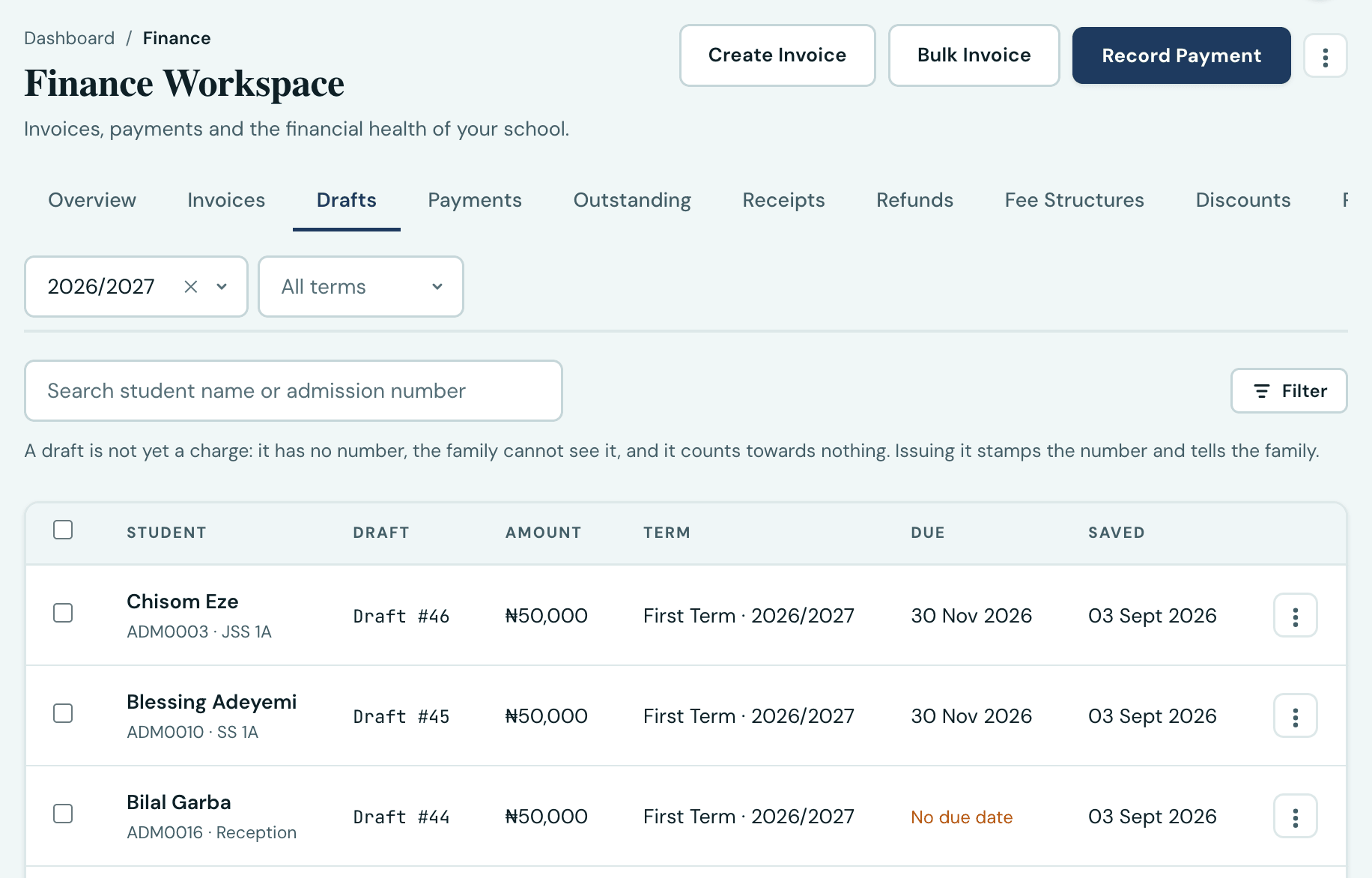
Issuing is the moment an invoice becomes real. It is stamped with the next reference number in
your school's sequence (e.g. INV-00001; see Settings to change the prefix), it
appears on the family's portal, and the family is told, over the channels set under
Settings → Communication. Issue one draft from its row, or tick several and issue them together.
Either way you are asked two things first:
- The due date, if the draft has none. The field opens already filled with the end of the term, and the prompt says what you forgo by leaving it empty: no payment reminders will be sent, and the invoice will never count as overdue. You can still issue without one, since some charges are genuinely open-ended.
- A new due date, if the draft's own date has already passed. An invoice never goes to a family already overdue, so the draft can't be issued until you choose today or a later day. A due date can't be set before today anywhere, on a draft or at issue.
- Whether to tell the family now. On by default. Turn it off when you are putting a backlog on the system, invoices already handed out on paper, so that nobody is messaged about a bill they have had for a term. An invoice issued quietly can be sent later from its row.
An issued invoice can't be edited, apart from its due date. To give a family more time, use Change due date on the invoice, from the Invoices tab or from the Overdue Invoices list on the Outstanding tab: choose today or a later day, and the family is sent the invoice again with the new date unless you turn that off. It isn't offered on a paid or cancelled invoice, and the change is kept in the audit log with the old and new dates. For anything else that is wrong, cancel the invoice (available while nothing has been paid, and you'll be asked why) and raise a new one. This is what keeps the financial record trustworthy. Cancelled invoices are excluded from balances and summaries and can no longer take payments. Because a draft can be corrected before anyone sees it, most mistakes never get that far.
Bulk invoicing a class
Since a class usually pays the same fees, you can invoice everyone at once. Use the Bulk Invoice button, or the Whole class tab on the same page, then choose a class (all its students are pre-selected, so untick anyone you want to exclude), set the term, session and currency, build the same line items, and save every draft in one click. Each student gets their own itemised draft and you'll see a summary like "38 drafts saved"; Save & issue issues them all straight away, after the due-date prompt, which names how many have no date and lets you set one for all of them at once.
Invoicing a family
When a parent has more than one child at your school, switch to the Family (by parent) tab. Pick the parent, whose linked children are all pre-selected, then build a separate set of fee line items for each child, since siblings often owe different amounts (different classes or fee plans, say). Then choose how the family is billed:
- One family invoice (the default). One invoice, billed to the parent rather than to any one child, itemised per child, with one number, one due date and one balance. The parent pays it once, online or at the school, and gets one receipt. This is what a family with three children means by "the school fees", and it is the reason the tab exists: before it, three children meant three invoices, three checkouts and three receipts.
- One invoice per child. Separate invoices with separate balances, exactly as if you had invoiced the children one at a time, sent to the parent together in one message with a combined PDF. For a school that files by pupil.
A family invoice is a draft like any other: edit it per child, delete it, or issue it. Once issued it appears on the parent's own Family Fees page in the portal and under Family on the app's Fees tab, and it is also listed under each child on it, marked as the family's, so a parent looking at one child still sees what that child has been billed for. A part payment applies to the whole bill, because a family paying half does not designate which child's half. The duplicate-billing check runs per child, and on a family invoice it refuses the whole bill rather than leaving a child out, since there is one invoice and nobody to skip. Children billed in different currencies cannot share one invoice. See Family invoices for what the parent sees.
Recording payments
On a student's fee record, click Record Payment. Enter the amount, the payment method (Cash, Bank
transfer, POS, Cheque, Card, Mobile money, USSD or Other) and the payment date, which defaults to
today. That is the same list the expense and refund forms offer, because how money
moved is one question wherever it is asked. Payments taken through
online fee collection are recorded as Online by the platform itself and
are not something anybody types. Change
that date when the money came in earlier, which is usual for cash taken on a Friday and entered on
the Monday: your cash flow statement, bank reconciliation and collection trend all
read it, so a payment dated the day it was typed puts the money in the wrong month. A date in the
future is not accepted. You can optionally attach a receipt document
(image or PDF, up to 2 MB) to the payment. Leave the receipt number blank to have one generated
automatically (e.g. RCP-00001, sequential per school), or enter your own, which is handy when you
are matching an external receipt book. The invoice status updates automatically:
- Unpaid. No payments recorded
- Partial. Some payments made, balance remaining
- Paid. Full amount settled
Payments taken online, where your school has set that up, arrive here the same way. See Online Payments.
If a payment looks like it did not go through, it is safe to try again. Each attempt to record a payment carries a marker 1410SMS recognises, so submitting a second time after a timeout or a dropped connection returns the payment that was already recorded rather than charging the family twice. This matters most on a phone on a weak signal, where a request that in fact succeeded can still look like a failure. Recording a genuine second payment, by opening the form again, is unaffected.
Got a term's takings to bring across, or a reconciled bank statement to enter? Import payments on the Payments tab takes the whole lot in one upload, each row keeping its own payment date. See Importing payments in bulk.
Fee summaries
The Fees summary view shows total invoiced, total collected, total outstanding, and a breakdown by status for any term or session.
Currency
Each school sets a default invoice currency in Settings → Finance → Invoice Currency (the Naira by default). Every currency in the ISO 4217 standard is supported, all 162 of them, and every field that offers the list is searchable: type "ghana" or "GHS" and you are there, on the web and in the mobile app alike. When creating an invoice you can keep the default or pick a different currency for that specific invoice; receipts always use their invoice's currency. Note that platform subscription billing uses NGN or USD independently of this setting.
Parent notifications
A draft is never sent: nobody is told about an invoice until you issue it. Issuing emails a branded, itemised PDF (and sends the WhatsApp copy, if that channel is on) unless you switch Tell the family now off on the issue prompt, which is for invoices already handed out on paper. You can send any issued invoice at any time afterwards with the Send invoice action in the fee list, and the list shows whether each invoice has been sent yet. If the student has no linked parent account, the notification goes to the guardian email on the student's record instead.
Recording a payment notifies the parent with a receipt PDF, over the channels set under Settings → Communication → Notification Channels (email, WhatsApp, or both). WhatsApp delivery uses your plan's per-term WhatsApp allowance, charged only for messages that are successfully sent; if your allowance is exhausted the WhatsApp copy is skipped while email still goes out. All sending happens in the background, so saving is never delayed.
Downloading invoices & receipts
Beyond notifications, both admins and parents can view and download any invoice or receipt as a branded PDF on demand, from the web app and the mobile app. Admins use the Download action on each row of the Fees list (invoices) and the Recent Payments list (receipts). Parents open a child's Fees tab, where every invoice and every recorded payment carries its own Download button. The PDF is generated fresh each time from the live figures, so it always reflects the current balance. Nobody has to wait for, or go digging for, the original email. Cancelled invoices have no downloadable PDF, and parents only ever see their own children's documents.
On the phone
Fees are on the mobile app, and not read-only: a bursar raises an invoice, records a payment and sends a receipt from the phone. The outstanding card is per currency, since balances are never added across currencies, and each invoice row names the pupil, the fee items and what is still owed. A school that invoices in more than one currency gets a Currency filter beside term, session and status, which narrows both the list and the outstanding card to that currency.
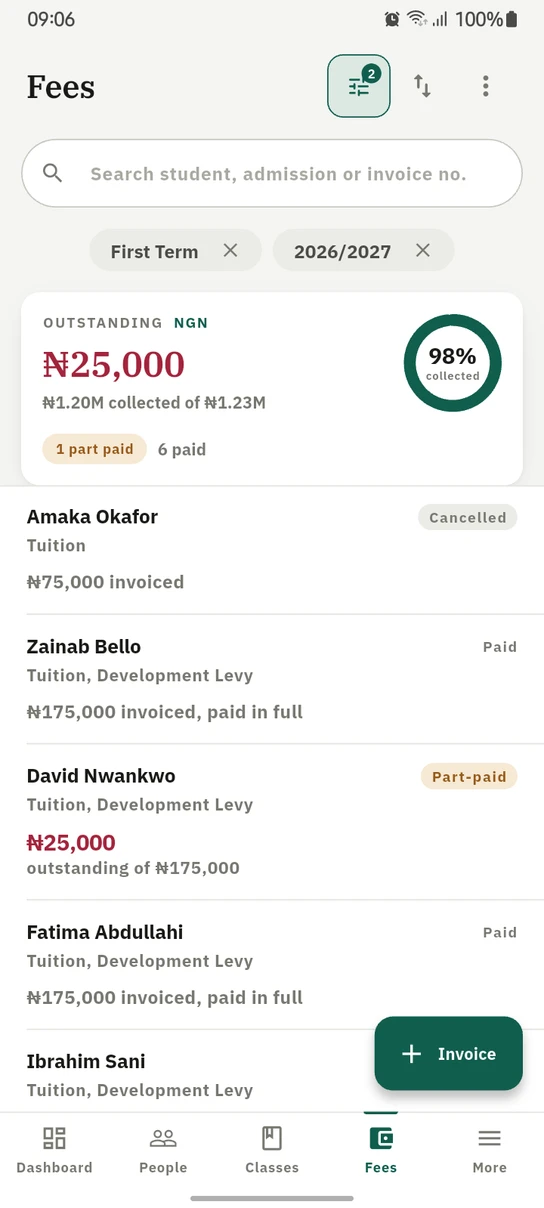
Fees on the phone. Each currency gets its own card, because balances are never summed across them.
Ready to try it with your school?
Three-month Basic trial. No card required to register.