
Academics
Submitting homework online
Pupils and linked parents submit typed work, photographs and audio recordings. Teachers listen privately on the marking sheet, and work stays editable until it is marked.
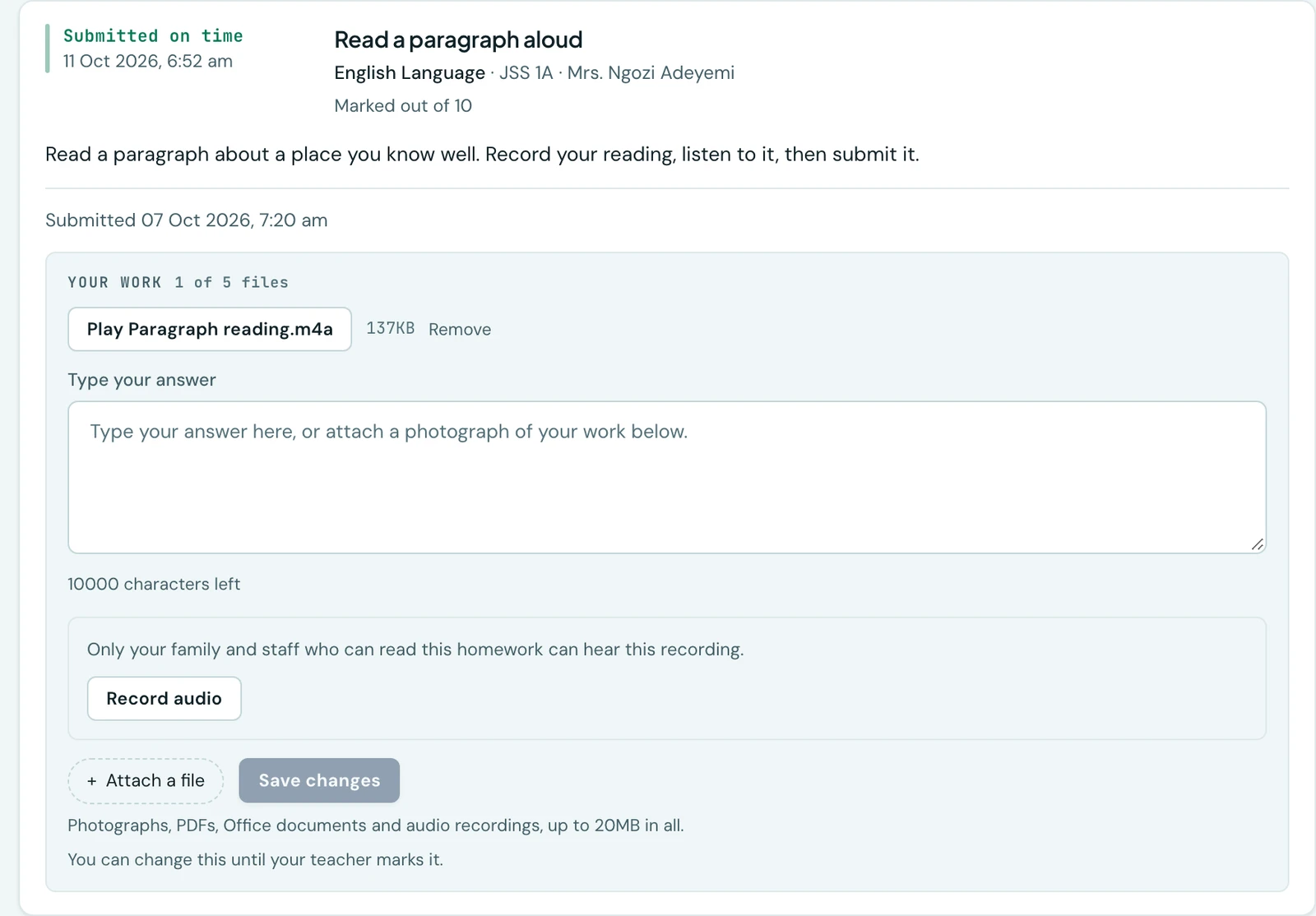
Most homework in this market comes back in an exercise book, and the platform is built on that assumption: a teacher ticks a class off and the outstanding board fills itself in. This page is about the other case. A school whose pupils have a handset can set work to come back through the platform instead, and then the answer to did this child submit it? is not a teacher's memory of a pile of books. It is the work itself.
Nothing changes for the schools that do not want it. Paper stays the default, and a school that never picks this mode never sees any of what follows.
Setting work to be submitted here
On the Assignments tab, set homework as you always would. In How it comes back, choose Submitted here, as typed work or photographs.
That is the whole of the change. The deadline, the classes, the mark it is out of and whether late work is accepted all behave exactly as they do for an exercise book.
What the pupil gets
The pupil opens Homework in their own portal and finds the piece with a panel under it. They can reply with:
- A typed answer. Up to ten thousand characters, which is the room the instructions themselves are allowed.
- Photographs or files. Up to five, and twenty megabytes in all. Photographs, PDFs and Office documents are accepted. A photograph taken on a handset is compressed before it is sent, so a pupil on a shared data allowance is not paying to upload eight megapixels of an exercise book.
- Both, which is the ordinary case: a photograph of the working and a sentence explaining it.
They can submit either one of those or both, and never neither. Clearing the answer on work with no files, or removing the last file from work with no answer, withdraws the submission altogether and puts the pupil back on the outstanding board. The platform says so before it happens rather than after.
It can be changed until it is marked
A pupil may replace what they submitted for as long as it is unmarked. The moment a teacher records a mark, the submission is frozen.
That is deliberate and it is the one rule worth stating plainly to a class: work edited after it was marked would make the mark dishonest. Until then, a photograph that came out blurred is a mistake a pupil can fix themselves rather than a conversation with the teacher.
Submitting again moves the time it was submitted to the moment of the change, which is what keeps late work honest. A pupil cannot submit an empty answer on Thursday, replace it with the real work on Sunday, and read as punctual.
After the deadline
If the teacher allowed late work, the panel stays open and what comes in is marked late. If they did not, it closes and says why. Closed work says why as well. A panel that simply vanished would leave a pupil looking for something that was there yesterday, so the reason is always on the card.
A spoken answer
For online work, turn on Accepts a recording when setting the assignment. Pupils and linked parents can record in the browser or the app, listen before attaching it, or upload an existing audio file. The recorder stops at 10 minutes. The existing limits still apply: 5MB per file, five files, and 20MB per submission. Nothing is sent until Submit is pressed.
The phone keeps a recording in its own storage until its upload succeeds. Closing the sheet or a failed upload leaves a recording waiting to send message on the homework card. Open the same child's work again to send it. A recording sent after the deadline is late, even if it was made earlier.
Only the pupil, their actively linked parents, and staff who can read that assignment can listen. The marking sheet and family card play audio in place. Playback links expire after ten minutes; opening the recording again asks for a fresh link. Turning the recording option off stops new audio hand-ins; recordings already received stay playable.
Accepted audio formats are MP3, M4A, AAC, Ogg, WAV and WebM. Some older iPhones and browsers cannot play Ogg or WebM. If the player says it cannot play the recording, open it on Android or in Chrome.
What the parent sees
A parent opens a child's homework and can submit work for that child, on the web or in the app. Choose the child before recording. The confirmation names the child and class before anything is sent, so a parent using one phone for several children can check whose answer it is.
The typed answer, files, recordings and marks appear on the same card the pupil sees. Parents cannot change work once it has been marked, and cannot submit a CBT test for a child.
What the teacher gets
Open the piece of work and choose Mark. Beside each pupil there is now a Work column carrying what they submitted: the files, each one opening in place with a click, and Read answer, which opens the typed reply under their row.
The column appears only for work set to be submitted here. For an exercise book the teacher is holding the work already, and a column headed Work would be an empty cell against every name.
The tick is not the teacher's on this mode. It fills itself in as each pupil submits, and is shown rather than offered: clearing one would take the files and the typed answer with it, and on work submitted here that is the work itself. Marking is the mark and the comment, then save.
On the phone
All three sides of this are in the app, because the pupil's half of it is the half a handset is for: the work being submitted is very often a photograph of a page, and asking a child to take that photo, mail it to themselves and upload it at a computer is asking them not to bother.
A pupil opens Homework, taps Submit on the card, and gets a sheet that takes a typed answer and attaches files straight from the camera, the gallery or their phone's storage. Once something is submitted the button reads Change your submission, and it goes when the teacher marks it, for the reason it goes on the web. A parent reading the same list can submit for the selected child and play recordings in place.
A teacher marking on the phone gets the typed answer and the files above each pupil's mark and comment boxes, rather than in a column: a row on a handset has no room for one, and what she needs is the work itself in front of the figure she is about to put against it.
Storage, and what happens when a school runs out
Files pupils submit count towards the school's file storage allowance, and the whole of what a school is holding can be seen and managed on the File storage page.
A school that needs the space back can delete a submission's files there. The submission itself survives, along with its mark and the fact that the pupil submitted on time. Deleting the record along with the files would erase the mark, and leaving the record silent would show a teacher a pupil marked as having submitted with nothing to open, which reads as the platform having lost the work. So the pupil, the parent and the teacher are all told the school removed the files, and when.
What this does not do
- It does not mark anything for you. A typed answer is read by a person. Work that marks itself is a test, which is a different thing this module also does.
- It does not reach the report card. A homework mark never becomes a grade, here as everywhere else in the module. The record the family reads is the point.
- It cannot be switched off underneath pupils who have used it. Changing a piece of work back to an exercise book once pupils have submitted through the platform is refused, and the refusal says how many. Their work is not deleted by such a change, which is exactly the problem: it would sit in the school's storage, reachable from no screen. Close the work instead.
Clearing recordings from a finished term
File storage lists Homework recordings separately, within the school's existing allowance. Choose Clear recordings from a finished term, select a term whose end date has passed, and confirm the named term. This permanently removes the recordings while keeping each submission, mark and comment. The current term cannot be selected. Nothing is deleted automatically.
Ready to try it with your school?
Three-month Basic trial. No card required to register.