
Academics
Online CBT: Computer-Based Testing
Build timed multiple-choice tests, publish to any number of classes at once (or the whole school), and get auto-marked results instantly. Question images supported.
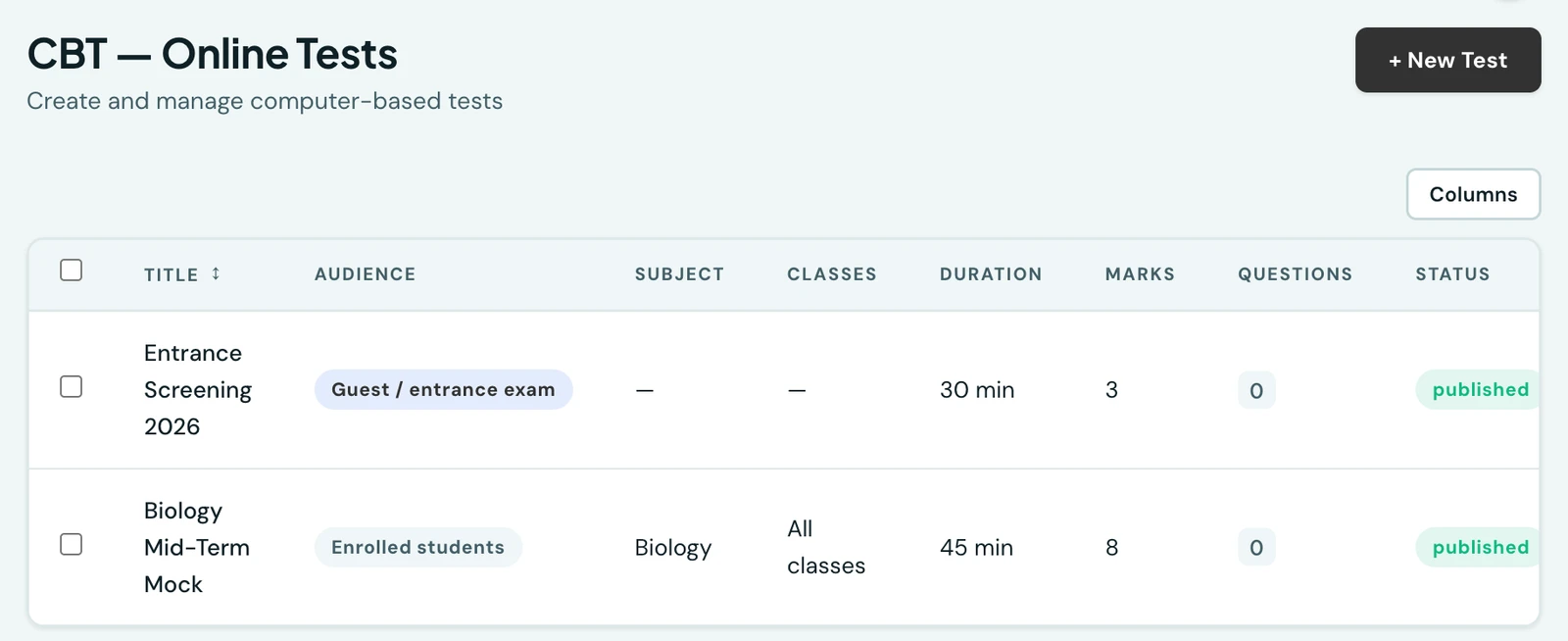
Create timed multiple-choice tests, publish them to as many classes as you need, and get auto-marked results the moment a student submits.
Creating a test
- Go to CBT → New Test
- Enter title, description, duration (minutes), subject, and the classes that sit the test. Pick as many as you need, since one mock paper can cover every stream of a year group, or leave the selection empty to make it available to the whole school
- Optionally set start and end times (leaves a window during which students can begin)
- Add questions. Each one has a type (MCQ, True/False or a written answer that a teacher marks), marks, a correct answer, options, and optionally an image. Total marks are calculated automatically as the sum of every question's marks, so there is nothing to keep in sync by hand
- When ready, click Publish, at which point the test becomes visible to assigned students
Assigning a test to several classes
A test's Classes field takes any number of classes. Every student in any of the selected classes sees the test in their Available Tests list and sits the same paper; results come back in one place, listing each candidate's class. Leaving the field empty is a deliberate choice with its own meaning: the test is open to every class in the school. Changing the selection later is only possible while the test is still a draft, in line with the rest of a test's settings.
Withdrawing and deleting a test
A published test can be taken back to draft with Withdraw, and a test can be removed altogether with Delete. Both are offered on the test's own page and on its row in the tests list.
Withdrawing returns the test to draft: it leaves students' Available Tests and becomes editable again, so a paper published a week early, or published with the wrong classes on it, is a correction rather than a test the school has to work around. Deleting removes the test and its questions and cannot be undone. An abandoned draft is the commonest thing a school wants gone, so deleting does not wait for a test to be published or closed.
Two things stop both actions:
- A test anybody has sat. Its results have to stay where they are, and that includes an attempt still in progress, which is a candidate sitting the paper at that moment.
- A test that is a paper on an exam timetable. Unlink it from the paper first, so that a timetable can never be left pointing at something that is no longer there.
Where either applies, the actions are not offered at all and the reason appears in their place. Nothing is shown that cannot succeed, and the sentence you read before trying is the same sentence you would have been given afterwards.
Teachers can withdraw and delete the tests they created. Owners and school administrators can manage every test in the school. Each withdrawal and deletion is written to the audit log, naming the test and who did it, which is what a deleted test leaves behind.
Finding a test
The tests list is paged, and can be searched by title or narrowed by:
- Class. The tests that class sits. A test left open to every class is included, because those students sit it too.
- Audience. Tests for enrolled students, or entrance exams for guest candidates.
- Status. Draft, published or closed.
- Results. Whether candidates see their score the moment they submit, or it is held back for a teacher to release.
Filtering searches every test your school has, not just the page on screen. Teachers see only their own tests throughout, exactly as they always have.
Question types
- MCQ (Multiple Choice). Provide 2–4 options, mark one as correct
- True/False. Automatically generates True and False options
Formatting a question
A question is written in a small editor rather than a plain box, so a stem can carry the things a
paper actually needs: a bold term, a numbered or bulleted list, a quotation, a heading, a link, and
superscript or subscript for the chemistry and maths that would otherwise have to be typed as
4cm2. The toolbar sits above the question field on the Questions page.
A few things worth knowing:
- Nothing has to change. A question written as plain text stays plain text, and every question set before the editor existed still reads exactly as it did, line breaks included
- The options are still single-line. Formatting applies to the question itself, not to the answers a candidate picks between, which are drawn as chips on the staff list and as tappable rows on a phone
- A picture is still an image upload, not something pasted into the editor. Each question has its own image field, with its own size limit, and that image is what prints on the transcript
- The transcript follows the question. A formatted stem prints formatted on the PDF, so what a candidate sat and what a parent reads are the same document
- Imported questions stay plain. A spreadsheet cell holds no formatting a teacher can see or edit, so a question that arrives by CSV or XLSX arrives as text
- A link in a question opens in a new tab while a candidate is sitting the paper, so following one cannot take them away from answers they have not submitted yet
On a phone, a formatted question is shown as it was written but not edited there. The phone's question form writes plain text, so editing a question a colleague laid out on the web would lose their work; the app shows it as it stands and offers Rewrite as plain text as a deliberate choice, with what it costs stated beside the button.
Importing questions from a file
Instead of adding questions one at a time, upload a whole question bank at once. On a test's Questions page, click Import Questions and upload a CSV or XLSX file. A downloadable template is provided in the dialog.
- Required columns:
question,type(mcq or true_false), andcorrectAnswer - Optional columns:
optionA–optionD(at least two for MCQ),marks(default 1), andexplanation - For MCQ,
correctAnsweris an option letter (A–D) or the exact option text; for true/false it is simply True or False - The file is validated automatically as soon as you choose it, and any problem is reported row by row. Nothing is saved until you confirm the import, and an import is all-or-nothing: a file with any invalid row is rejected outright
- Total marks and question order update automatically, and the same rules apply as for manual entry, so questions cannot be imported once a student has submitted the test
Student experience
Students log in, go to Available Tests, and start their assigned test. A countdown timer starts. On submission (or when time expires), the test is auto-marked. If Show Results Immediately is enabled, results appear right away.
Questions are presented one at a time, on web and in the mobile app alike, with Previous and Next to move through the paper. Above the question is the candidate's position ("Question 4 of 20") and, below it, a numbered strip covering the whole paper: answered questions are filled in, the current one is ringed, and tapping any number jumps straight to it, so a question that was skipped is easy to find and come back to. Submit is available from any question, not only the last, and asks for confirmation if anything is still unanswered.
The timer runs against the deadline the server set when the candidate started, so closing the tab or reloading the page resumes the same countdown rather than granting more time. A paper submitted within a short grace period of the deadline (allowing for a slow connection) is marked normally. Past that, the candidate's answers are still saved in full and remain visible to staff, but the paper scores zero and is flagged auto-submitted. A teacher can review the answers and adjust the mark if the circumstances justify it.
Viewing results
From the test detail page, teachers and admins can see all student submissions with scores, percentages, and statuses. Individual answers can be reviewed. Long lists are paged, so an entrance exam with hundreds of candidates opens as quickly as a class test; Export downloads every candidate's result as a spreadsheet, not only the page on screen.
A test's questions are paged too, and each is numbered by its place on the paper rather than its place on the page, so question 24 is question 24 wherever you reached it from.
A test can also count as one part of the term mark, such as the 1st CA, and its scores be sent there from the results page. See CBT marks into term grades.
Test transcripts (PDF)
Every completed test can be opened or saved as a transcript, a branded PDF that captures the whole paper, question by question. It carries your school's letterhead and colours, and is the same document whoever opens it, so a printed copy sent home matches exactly what staff see on screen.
Each transcript states:
- The candidate's name, admission number and class, the test, subject and duration, when they started and submitted, and whether the paper was submitted normally or auto-submitted because time ran out
- A summary band: score, percentage, and how many questions were answered correctly, incorrectly, or left blank
- Then one block per question, in the test's own order: the question (with its image, where one was attached), every option, the option the candidate chose, the correct option, the marks awarded out of the marks available, and the teacher's explanation where one was written
Correct and chosen options are marked with a symbol, a tint and a word, not colour alone, so a transcript stays readable printed in black and white. A question is never split across a page break, and multi-page transcripts are numbered.
Who can get one, and when
| Who | Where |
|---|---|
| Teachers and admins | The test's Results page, where each row has View transcript and Download |
| Students | Their own Test Result page, on web and in the mobile app |
| Parents | The Tests tab on a child's page, on web and in the mobile app |
| Entrance-exam candidates | Their result page, after sitting a guest exam |
Both actions are always available side by side: View opens the transcript in a viewer without leaving the page, and Download saves it as a PDF named after the candidate and the test.
Results release is respected. If a test does not have Show Results Immediately enabled, students and parents cannot open a transcript. They see the same "results will be released by your teacher" message the result screen shows, and a parent's Tests tab does not list the test at all until results are released. Staff are never blocked: your own marking is always available to you, which is what lets a teacher check a paper before releasing it to the class.
Because questions cannot be edited once anyone has submitted a test, a transcript always shows the answer key the submission was actually marked against.
On the phone
Tests are on the mobile app under More → CBT / Tests. Each row gives the subject, the classes it is assigned to, and its question count, mark total and time limit, with a Draft or Published tag; a test assigned to no class in particular is marked All classes.
Opening a test gives Withdraw and Delete under the same rules as the web client, including the reason shown in their place where neither is possible.
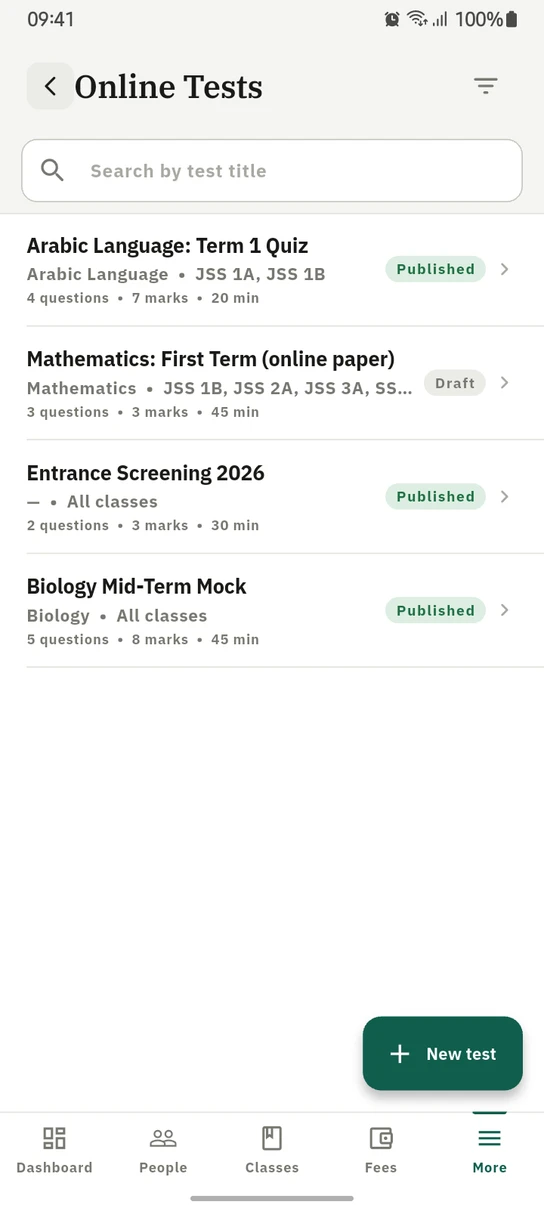
Tests on the phone, each showing what it is worth and how long a candidate gets.
Ready to try it with your school?
Three-month Basic trial. No card required to register.