
Finance
Fee Categories
Group your fee types under categories you name yourself, then read what the school earns by category as well as by individual fee.
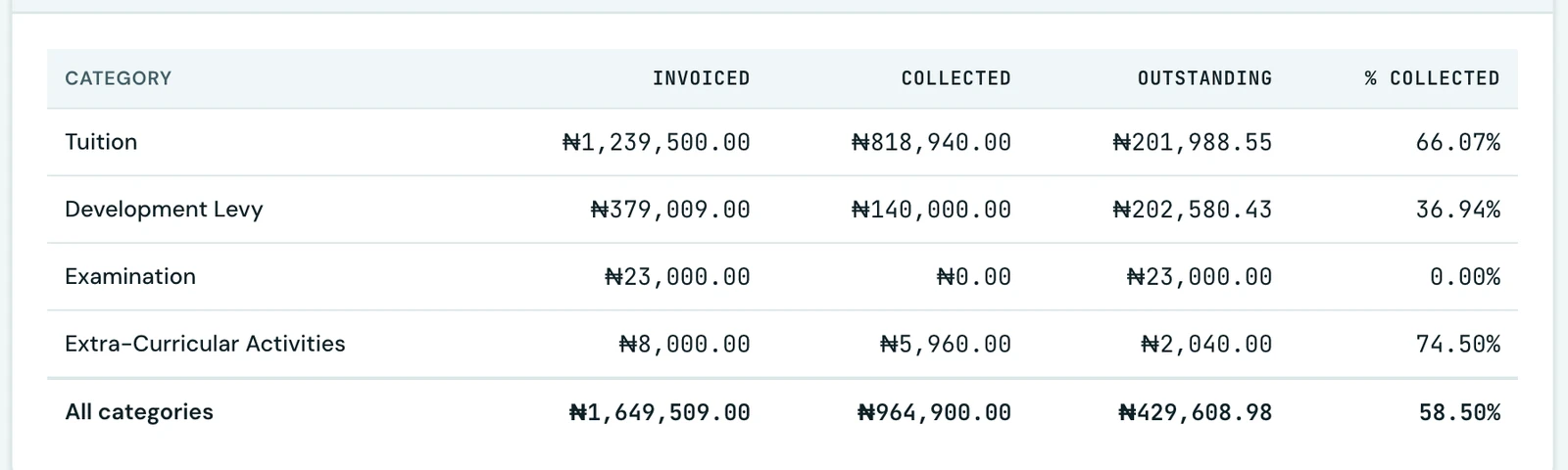
Every fee your school charges for is a fee type: Tuition, JSS1 Tuition, Bus fare, Boarding laundry. A school of any size ends up with dozens of them, which is right for invoicing and useless for the question a governors' meeting actually asks: how much of the term's income is tuition?
A fee category is the bucket a fee type sits in, and the categories are yours to name.
The list is your school's
Every school starts with nine categories that nearly everyone charges for: Tuition, Transport, Boarding, Books, Uniform, PTA, Registration, Examination and Development Levy. Rename them, delete the ones you do not use, and add whatever your school actually charges for.
Adding one is done where you need it. On Finance → Fee Structures, create or edit a fee type, open the Category field and choose New category. Type the name and it joins your list immediately, ready for the next fee type. On the phone the field works the same way, with a New category button under it.
The full list is managed from Manage categories on the same tab (the tag button in the top bar on the app), where you can rename one that was mistyped and delete one you no longer want. A category still in use cannot be deleted: the app tells you how many fee types are filed under it so you can move them first.
Fees you have not filed
A fee type does not have to have a category. One that has none is reported as Uncategorised, and that row is deliberately kept in the reports rather than hidden, so the figures still add up to everything the school billed.
Reading the money two ways
Both breakdowns live on Finance → Reports, and neither replaces the other:
- Revenue by fee category is the coarse view: how much of the term's income is tuition, how much is transport. Every category is charted, since there are only ever a handful.
- Revenue by fee type is the fine view: which individual charges are the big ones. The chart draws the ten largest and the table below it lists every one.
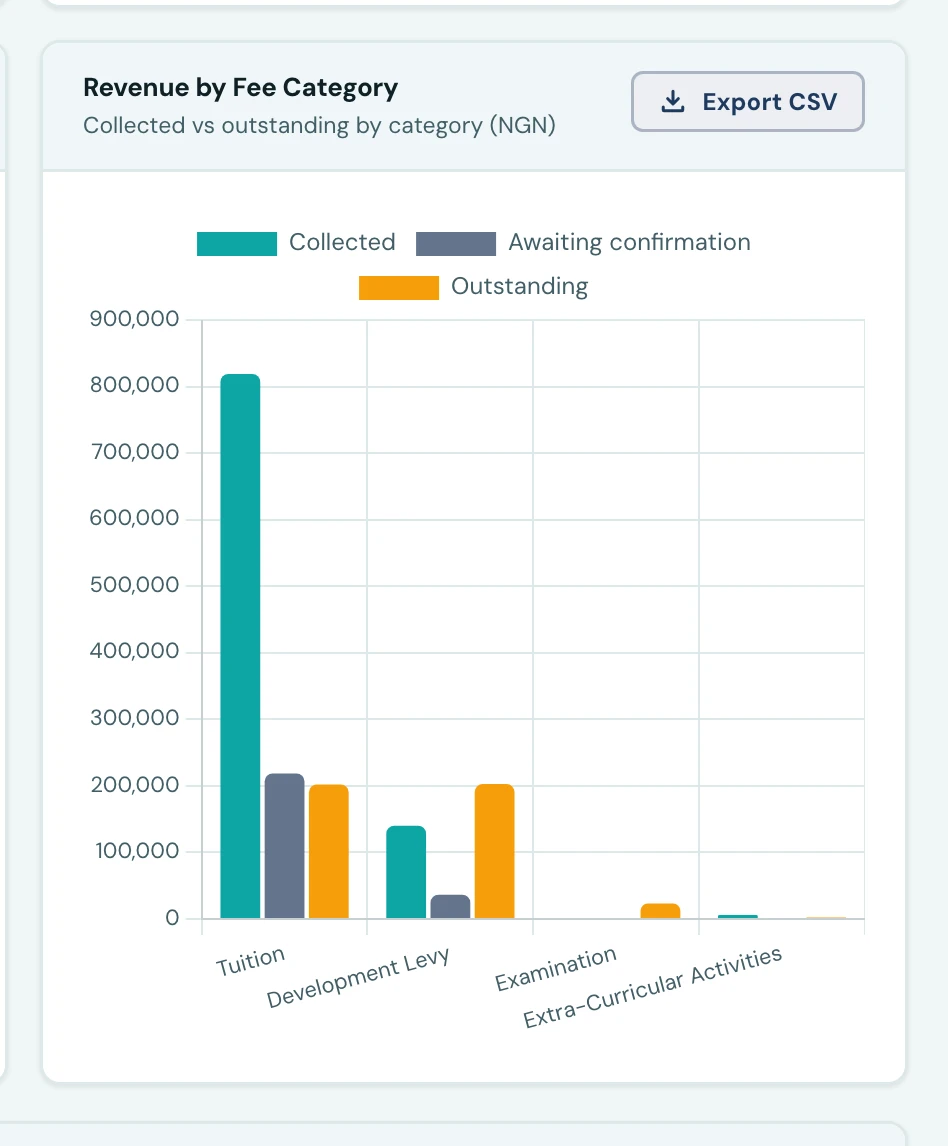
Each is a chart with the exact figures written out underneath, shows invoiced, collected and outstanding per currency, and downloads as its own CSV. Both follow the session and term filters at the top of the workspace, and both are on the phone under Fees → ⋮ → Analytics.
Because they are built from the same invoices, the two reports total the same figure for the same period. If they did not, one of them would be wrong.
Who can change them
Adding, renaming and deleting categories takes the same permission as managing fee types
(finance.feeTypes.manage). Reading the reports takes finance.view, and downloading a CSV takes
finance.export as well.
On the phone
Fee categories are managed on the mobile app. Open Fees, tap the ⋮ menu and choose Fee structures. The tag button in the top bar opens the category list, where Category adds one and each row's menu offers Rename and Delete. When you create or edit a fee type, the Category field has a New category button underneath, so a missing category can be added without leaving the form.
Both revenue breakdowns are under Fees → ⋮ → Analytics: Revenue by fee category first, then revenue by fee type, each downloadable as a CSV.
Ready to try it with your school?
Three-month Basic trial. No card required to register.