
Staff
Teacher Management
Staff profiles carrying subject allocations, class responsibilities and an optional department, doubling as a full directory for whoever handles HR.
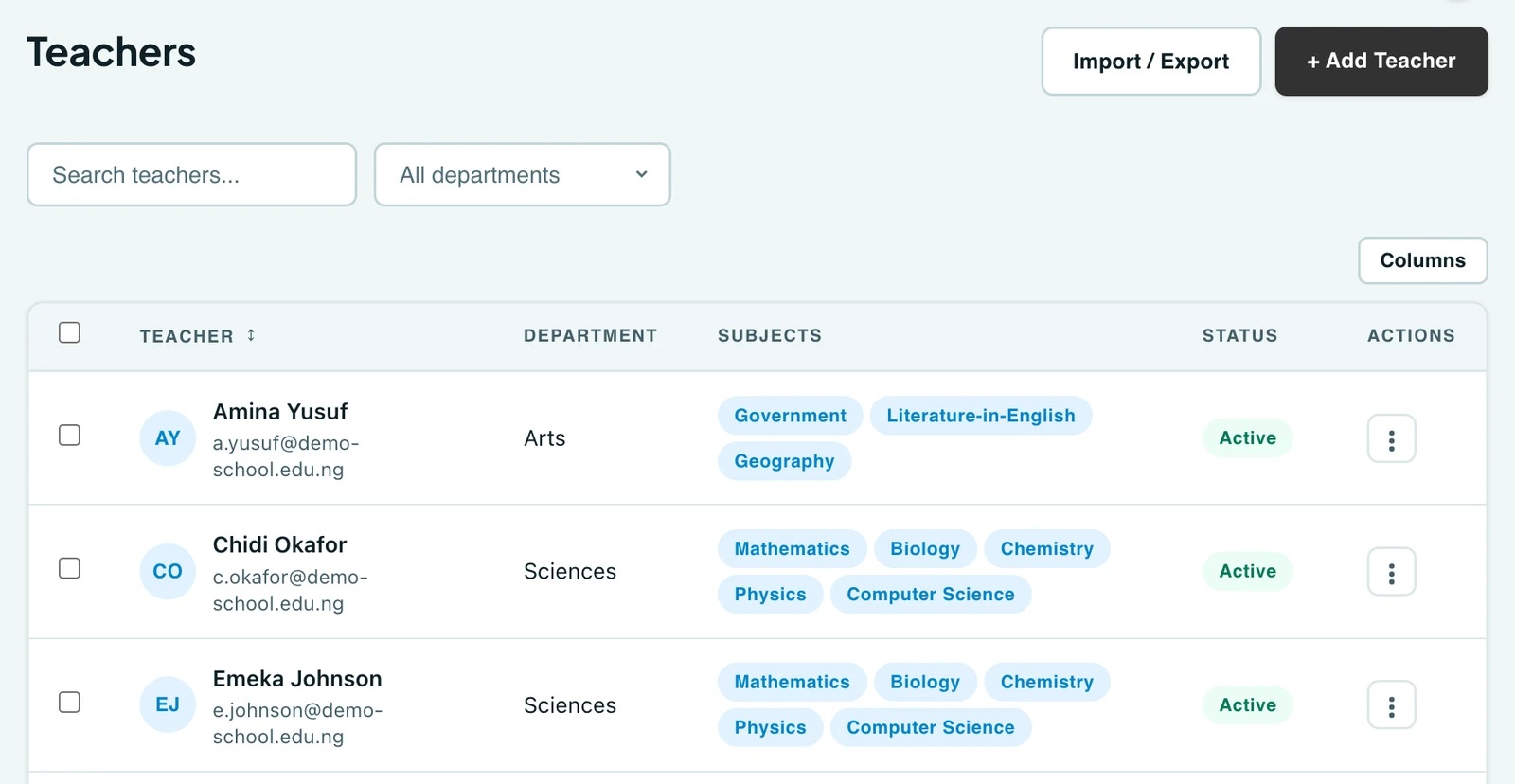
Manage your teaching staff with subject and class assignments. Teachers log in with their email or phone number and can record grades and attendance, and create Computer-Based Tests (CBT), for assigned classes.
Adding a teacher
Go to Teachers → Add teacher. The form asks four things, and each has a card of its own.
Personal details is name (first, middle, last), email and phone; title, gender, department and qualification are all optional.
Responsibilities is what this person is answerable for: which classes they are class teacher of, and, shown rather than chosen, the roles their account holds. There is nothing to pick. A new teacher is given the Subject Teacher role, and Class Teacher as well for as long as they run a homeroom, so what the app lets them do follows what you have recorded here instead of being a third thing to keep in step. In between sits Most periods a week, the teaching load you are willing to give them, which is optional and covered below.
To give a teacher any other role, a bursar's or a head of department's, go to Roles, open the role and add them under Assigned Staff. A role you grant that way is yours and is never taken away by a homeroom changing.
Teaching assignments takes the whole right-hand side: a class at a time, with the subjects this teacher takes in it. Add a class, open it, and tick what they teach there. A class with nothing ticked is not an assignment, so the page says so and will not save until you either tick something or remove the class.
Copy to others on any class gives every other class on the list the same subjects. Arms of a year group usually take the same subjects from the same teacher, so this is the difference between ticking nine boxes once and ticking them five times.
A bar at the foot of the page follows you down it and counts what is about to be saved: so many homerooms, so many classes taught, so many subjects.
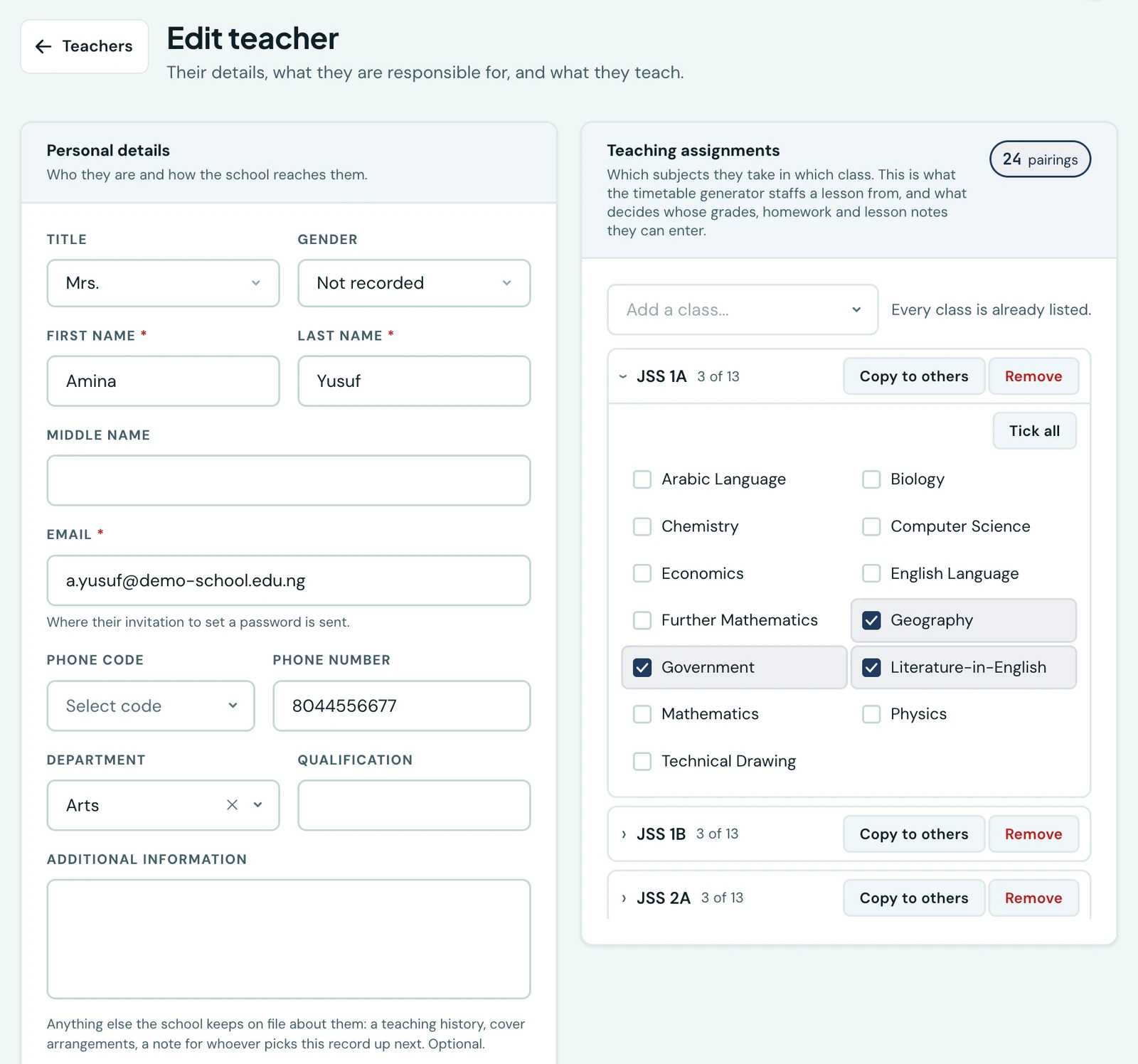
One row per class, opened to show the subjects taken in it.
How much this teacher may be given in a week
Most periods a week sits last in Responsibilities, and is the most you want this person teaching in a week. Leave it empty and they have no limit of their own: the school-wide figure (Most periods a teacher may be given in a week, in the timetable settings) applies instead, and that is empty to begin with, so most schools cap nobody at all.
It is read in two places. The timetable generator treats it as a rule and will not hand anyone more than their limit, so a week it builds never breaches one. A week you build or adjust by hand can, and Check on the Versions tab tells you so: one line naming the teacher, the periods they are down for and the limit you set. It is a warning rather than a blocker, because a teacher a period over is usually somebody covering for the week, and that is your call rather than ours.
Teaching assignments
An assignment is a subject in a class. Mr Okafor takes JSS 1A for Mathematics, English and Civics, and JSS 1B for Mathematics and Civics: five assignments, said in two rows.
This is what the timetable generator staffs a lesson from. Where two teachers both teach Mathematics, the generator hands JSS 1A's Mathematics to the one your school assigned to JSS 1A, rather than to whichever of them it happened to reach first. If nobody is assigned a class's subject, Check on the Generate tab names that class and that subject before the run rather than leaving you with lessons it could not place.
It is also what a teacher may act on. They can enter grades, set homework, file lesson notes, plan a scheme of work and share class material for the subjects they are assigned in that class, and nowhere else. Being assigned Mathematics in JSS 1A no longer opens JSS 3's Mathematics.
The exception is the class they are class teacher of, which is covered next: a class teacher reaches every subject in their own class, whether or not they are assigned to teach it.
Making a teacher a class teacher
Class teacher of on the teacher's own form sets the class they are pastorally responsible for. This is separate from the subjects and classes they teach: a class teacher marks that class's register and signs its report cards, whoever takes the lessons.
Every class is listed, including ones that already have a class teacher. The current holder is named beside the class, because reassigning is a normal thing to do and a class quietly missing from the list would look like a fault. A class has one class teacher, so choosing a class that already has one moves the responsibility, and you are asked to confirm that by name before it is saved.
More than one may be picked. Running two homerooms is uncommon but real, and the field takes as many as the teacher actually holds. You can also set it the other way round, from the class itself, which is often the quicker way when you are working through a list of classes rather than a list of staff.
Deactivating a teacher
Deactivating a teacher releases any class they were class teacher of, so no class is left looking staffed by someone who can no longer sign in. Their teaching assignments stay on their record: those are the history behind marks already given, not a duty still to be discharged. Assign the class a new class teacher from either the class or the new teacher's form.
Reactivating a teacher brings them back, but not the class they ran: it may well have been handed to somebody else in the meantime, so assign it deliberately rather than have it change hands on its own. The Class Teacher role goes with the class, both ways. Hand a class to a teacher and they gain it; take their last one away, or close their account, and they lose it again.
On the phone
Staff are on the mobile app as well, under People → Teachers. Each row gives the teacher's honorific and name, their department, and how many subjects they teach; tapping one opens the same profile, and Add teacher the same form.
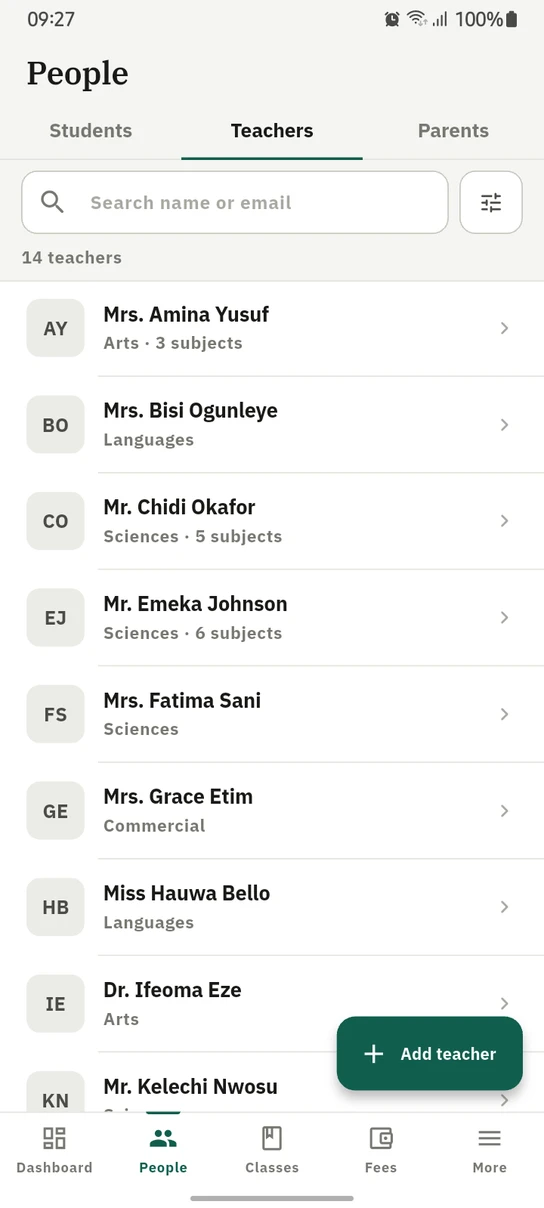
The staff list on the phone, ordered by name and searchable by name or email.
Ready to try it with your school?
Three-month Basic trial. No card required to register.