
Portals
Student Portal
Students sign in from any device to view their grades, attendance history and fee balance, and to sit online tests.
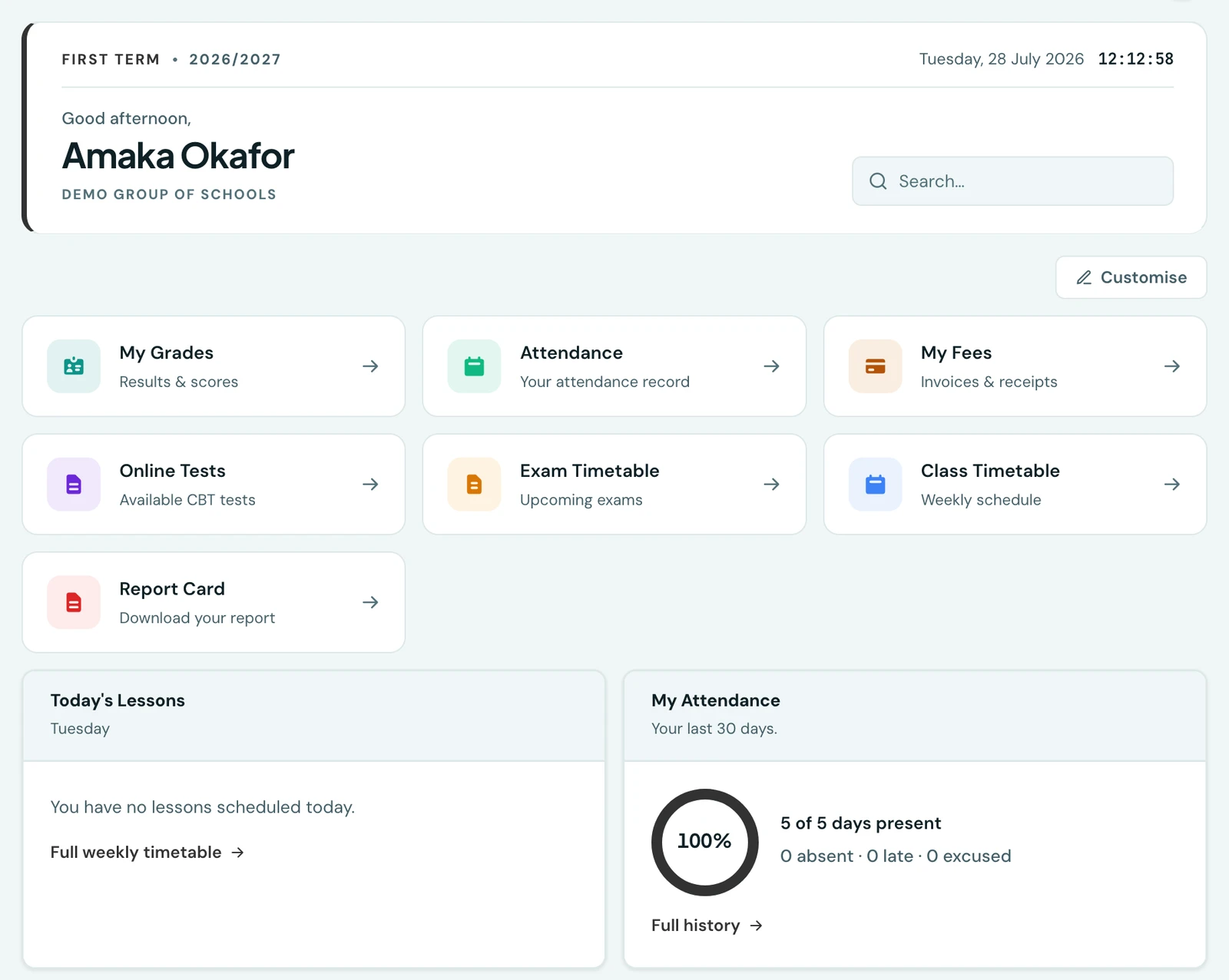
Students log in at their school's subdomain and can view their grades, attendance history, their own fees, their exam and class timetables, download their report card, and take assigned CBT.
Fees
Students see what they owe without having to ask. The dashboard carries a My Fees card with the outstanding balance, how many invoices it covers and when the soonest falls due, and the Fees page behind it lists every invoice, its fee lines, any discount applied, what has been paid and what is left, alongside the receipt history.
Both invoices and receipts download as the same branded PDF the school sends out, so a student can produce proof of payment themselves.
It is entirely read-only: students can see their position but never record a payment or change an invoice. Where a school invoices in more than one currency, each is reported separately rather than added together. This is the same information a linked parent sees in their own portal, which matters for older and self-sponsored students who manage their own fees.
Grades and attendance by term
Both My Grades and Attendance can be narrowed to a single term, a single session, or both, so a student can answer "how did I do last term" without scrolling through their whole record.
The two open on different settings, deliberately. Grades open on everything, because the page groups results by period and shows an average for each: seeing this term beside the last is the comparison the grouping exists to make. Attendance opens on the school's current term, because that page leads with a single attendance rate, and a rate is only meaningful over a stated window. Clearing the filters on either shows the full history.
A subject whose paper is not finished shows as an incomplete mark: the score out of what has been marked so far, an Incomplete tag, the paper's full total, and no letter grade until the rest is entered.
Timetables
Under Class Timetable, students see their class's published week: the periods across the top, the days down the side, each lesson naming its subject, teacher and room, and breaks drawn as bands down their own columns, named on their side. It is the same week, drawn by the same screen, that the office and the class's own page show, so a pupil and their form teacher are never reading two different pictures of one Wednesday. The week also downloads as a one-page PDF. Exam Timetable shows their class's published exam schedule.
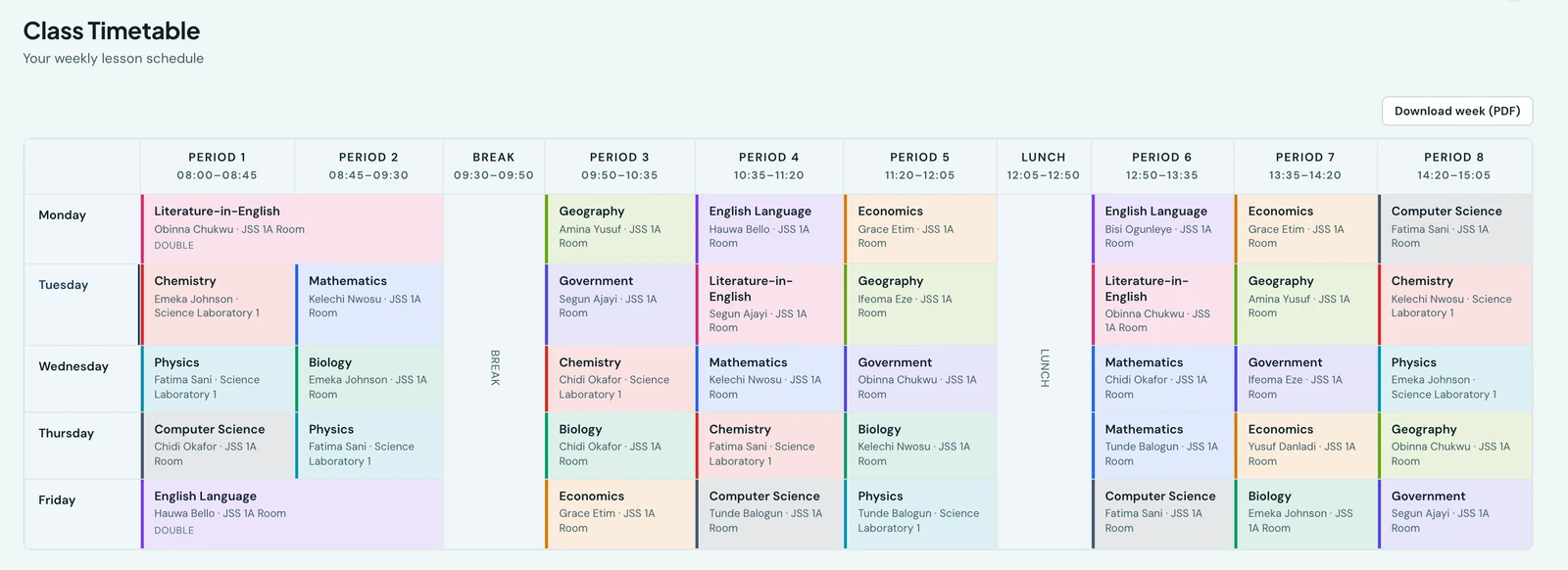
A pupil's own week, drawn exactly as the staff see it.
Login
Students log in at yourschoolname.1410sms.com/student-login with their admission number and
password (default: their admission number). The school is identified automatically from the
subdomain, so students never type a school slug.
First sign-in
A new account is set up with the admission number as its password, and an admission number is on every class list, so it is not a secret. The first time a student signs in, on the web or in the mobile app, they are therefore asked to choose a password of their own before they can go any further, and nothing else opens until they have. There is no way to postpone it and nothing to postpone it for: until the password is changed, every page of the portal would be empty anyway, because the server declines to answer for an account still on its default password.
Someone signing in on a shared or borrowed computer can sign out from that screen instead, without setting a password on it.
Changing a password always ends the sessions opened with the old one, so the student signs in again with the new password straight afterwards. That applies to staff and parents changing their own password too, and it is deliberate: the usual reason to change a password is that somebody else knew the old one, and leaving their session running would defeat the point. Students can change theirs again whenever they like from their Profile page.
Taking a test
- Go to Available Tests
- Click the test to begin, at which point a countdown timer starts
- Answer the questions, which are MCQ or True/False
- Submit before the timer expires, or the test auto-submits
- View results (if results are set to display immediately)
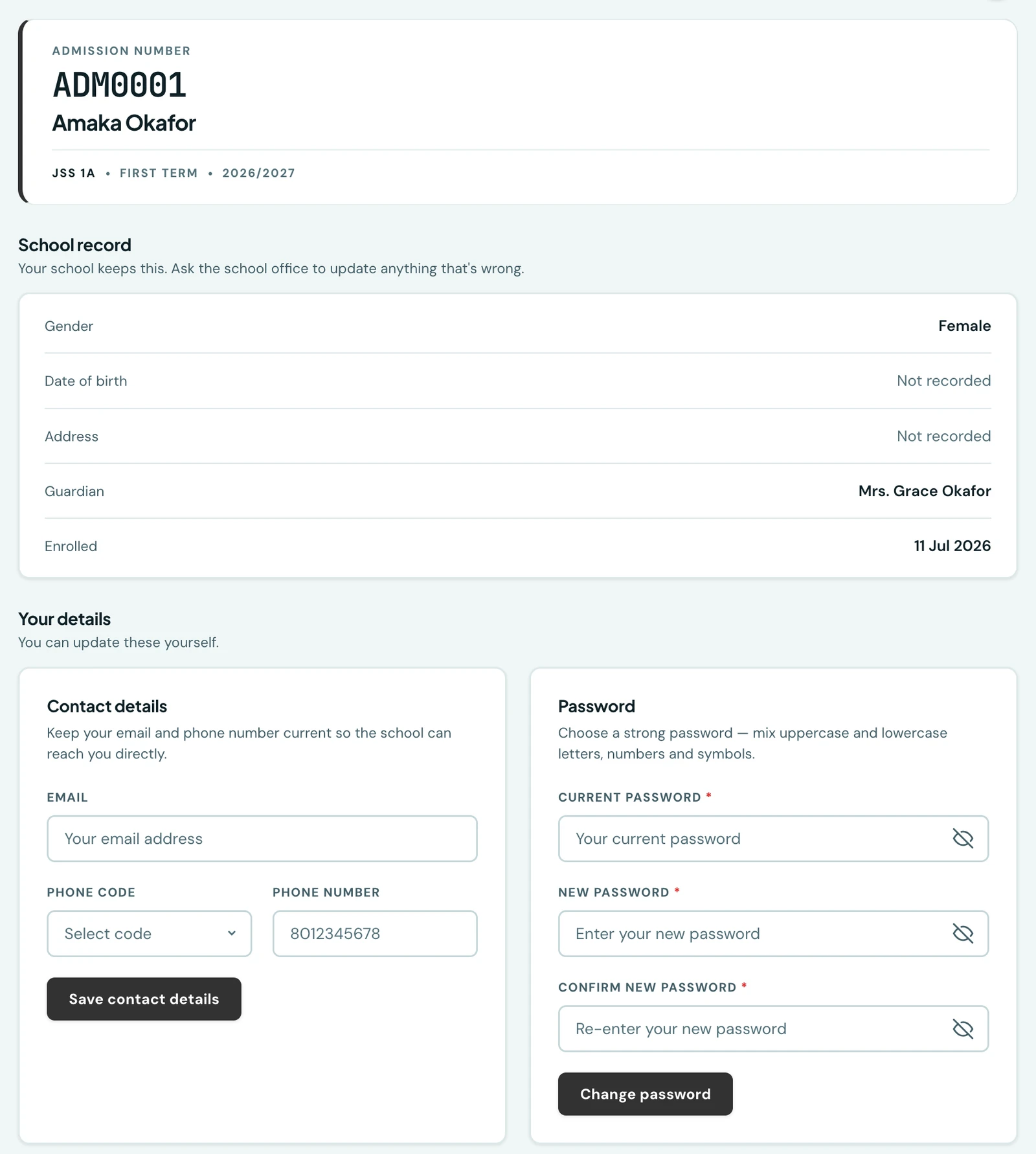
The school record is read-only; the contact details and password below it are the student's own to change.
Contact details
From their Profile page, a student can keep their own email and phone number up to date (and change their password). Those stay under the student's control. They cannot touch their name, class or guardian details, which only an admin manages.
On the phone
Students get the whole portal on the mobile app, and it is the way most of them will use it. The dashboard leads with the average across every term recorded, then attendance and anything owed, then today's lessons read straight from the published timetable.
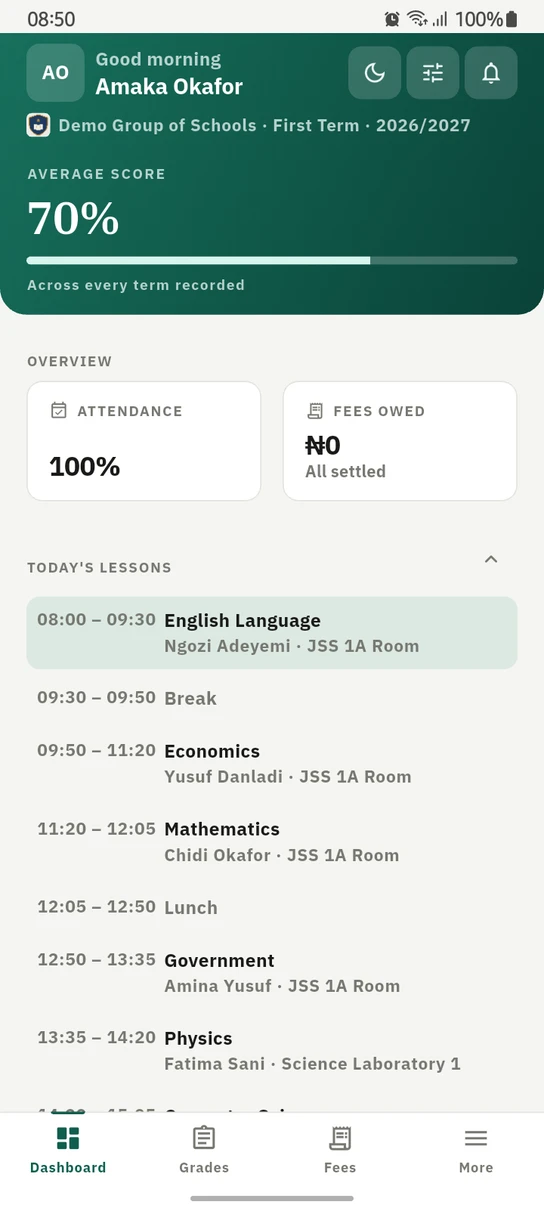
A pupil's dashboard on the phone, their day's lessons under their standing.
Ready to try it with your school?
Three-month Basic trial. No card required to register.