
Staff
Classes & Timetable
Create classes, assign class teachers, and build weekly timetables from your live subjects. Students, parents, and teachers each get their own timetable view.
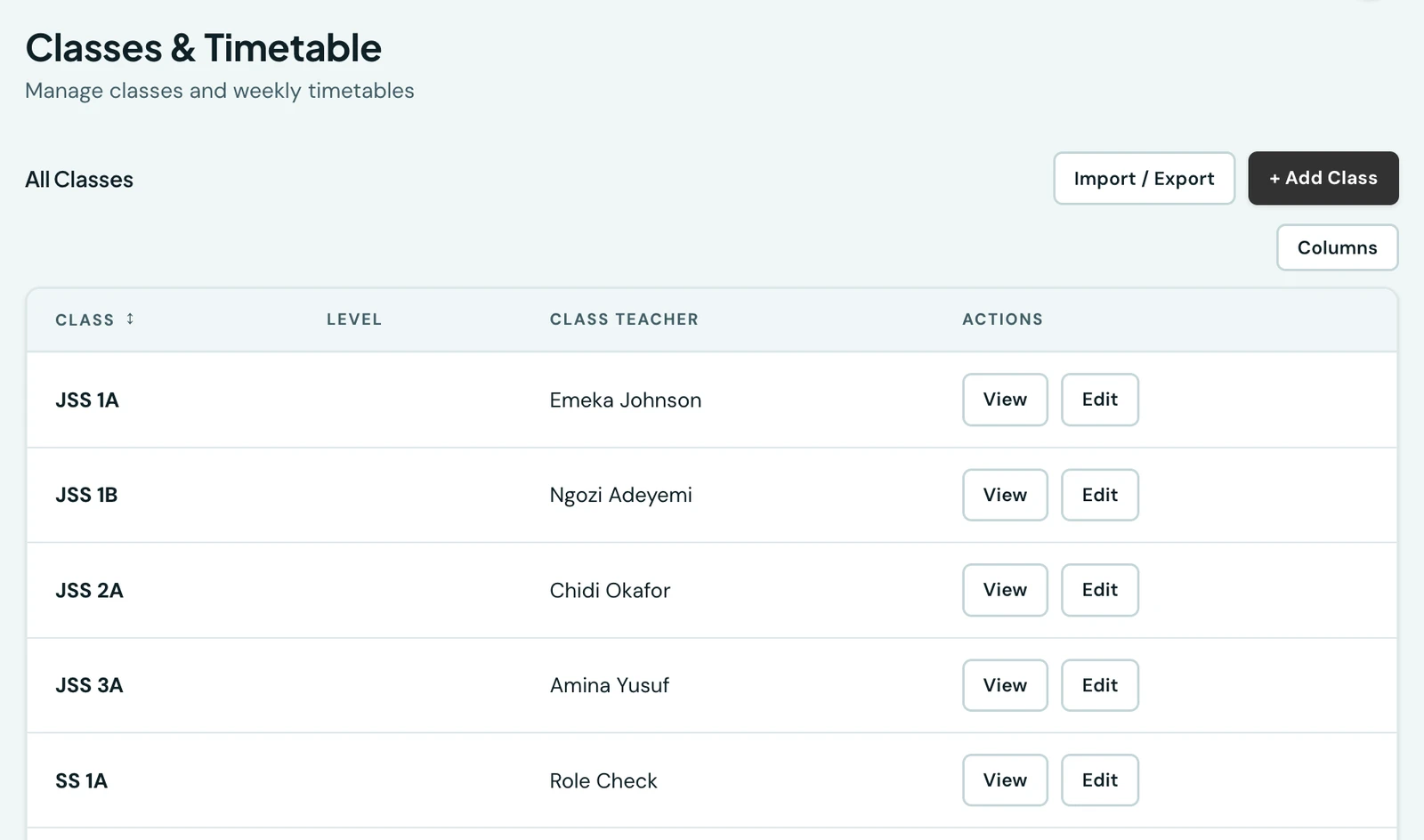
Create classes, assign class teachers and manage weekly timetables, all from the Classes section.
Creating a class
- Class name (e.g., "JSS 2A", "SS 3 Science")
- Level (optional, and already filled in on the classes created for you at registration)
- Class teacher assignment (optional)
- Classroom or room (optional)
- Display order (optional): where the class appears in lists, lowest first. See below
- Assessment type: Standard for subject grades, or Early years for a developmental report instead. See Early Years Assessment
- The class's subject list, ticked from your school's subject catalogue (see below)
The order your classes appear in
Your classes have an order that is obvious to you and invisible in their names: Nursery before Reception before Year 1, Primary before JSS before SSS. Display order is where you say it once. Every class list, dropdown and picker in 1410SMS then follows it, from the attendance register to the invoice form, so you never scroll past Year 10 looking for Year 2.
Give each class a number, lowest first. Numbering in tens (10, 20, 30) is worth the small extra effort: it leaves room to slot a new class between two existing ones later without renumbering everything after it. Leave the field blank on a new class and it is added to the end of the list, where you can then move it.
The classes created for you when you registered are numbered 1, 2, 3 and so on, youngest first, and arrive with their level already filled in. Schools that were already here when display order was added were numbered in tens instead, in the order their classes read naturally, so "Year 2" comes before "Year 10" and "Grade Eight" after "Grade One". Either way that is a sensible starting point rather than a finished answer: nothing in the words themselves says Reception comes before Year 1, so check the order once and adjust where your school differs.
Two other things follow the order. When you move or promote a class of pupils, the next class up is already selected as the destination, so promoting a year is a couple of taps; you can still pick any class. And when you import a class list, the rows are added in the order they appear in your file, so a spreadsheet written in your own order arrives in it.
Timetables
Each class has a weekly timetable, and it is built in one place: the Timetable workspace, where the bell schedules, the clash engine and the version history live. See Weekly Timetable for how a week is put together and published.
The class detail page has a Timetable tab showing that class's published week as a grid, the periods across the top and the days down the side. It is a view rather than an editor: an admin gets a link through to the workspace, and everyone else gets the week. From the same tab anyone who can see it can take a printed copy; see Printing a Timetable.
Once a week is published, each student sees their own class timetable in the student portal, and parents see a linked child's under the child's Timetable tab. A class with nothing published yet shows that plainly rather than an empty grid.
Class subjects
Each class has a curated subject list, meaning the subjects actively taught in that class. Admins set it on the class's own Add or Edit form, by ticking subjects from the school's catalogue. The class subject list is used to pre-populate dropdowns (e.g. when recording grades or building a timetable) so teachers only see relevant subjects for their class, rather than the full school catalogue.
Registration pre-populates this for the starter classes it creates, so a new school's timetable and grade forms work before anyone has configured anything.
The class page
View on a class opens its own page, which is where you go for everything about one class. The Students tab lists its full active roster, each pupil linking through to their record, with a Move students action for reassigning a group of them. The Timetable tab holds the weekly timetable described above.
A teacher's personal timetable
Every teacher gets a consolidated view of their own week under My Timetable in the staff portal. It gathers every period they are scheduled to teach across all classes into one grid: the clock runs across the top and the days down the side, exactly as every other timetable on the platform is drawn and exactly as the printed sheet reads. Each lesson names its subject, then the class it is with and the room, in the subject's own colour, and a double stretches across the periods it runs through. Today's row is marked.
A free period is a gap you can see rather than a row that is simply absent, which is the question a teacher opens this page to answer. Breaks are not shown: a break is nobody's teaching load, and this is the week a teacher is responsible for.
The view is built automatically from the class timetables admins set up; there is nothing extra for teachers to configure. Download week (PDF) prints it as the same one-page landscape sheet described under Printing a timetable.
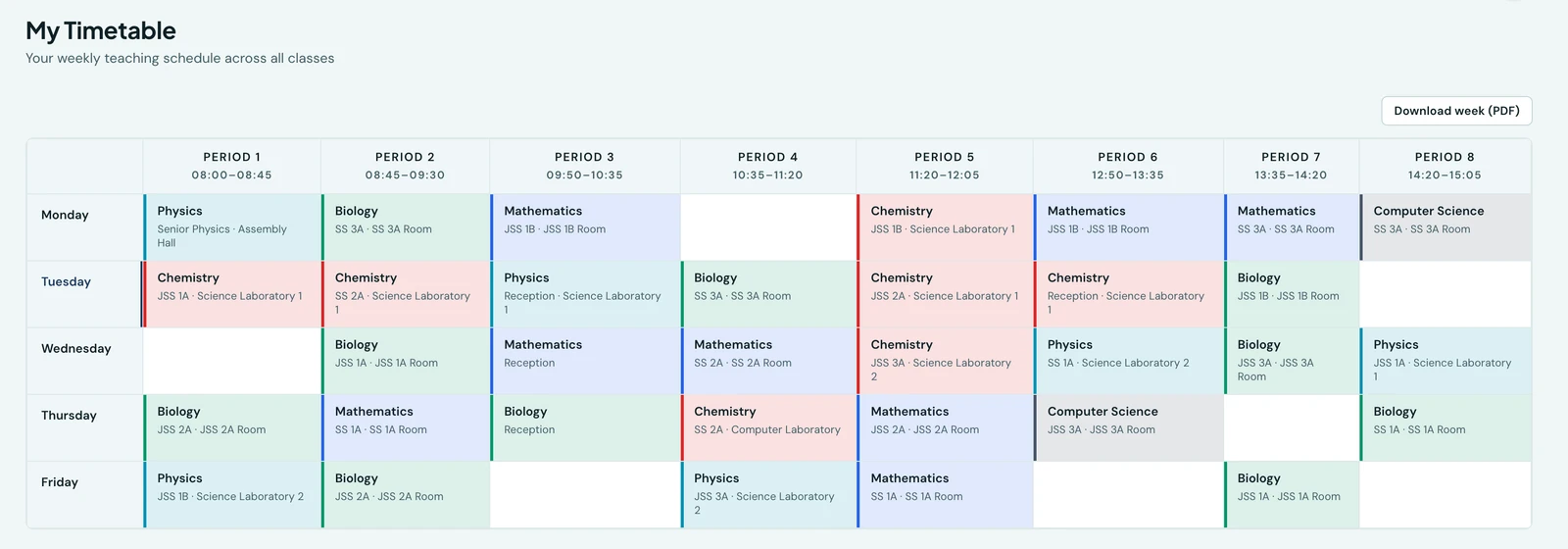
One teacher's whole week, every class they take on one grid.
Deleting a class
Delete takes a class out of use. Nothing is erased: its past attendance, grades and report cards are all kept, the class simply stops appearing in lists, timetables and forms. Tick Show deleted on the Classes page to see deleted classes and Restore to bring one back exactly as it was.
A class cannot be deleted while anything live still points at it. If it still has students, move them to another class first; if its timetable still has periods, clear the timetable. You are told everything standing in the way at once, with the counts, rather than clearing one obstacle only to discover the next.
Past records are deliberately not an obstacle. A class that has ever been taught has grades and registers against it, and blocking on those would mean it could never be deleted, which is the whole reason deleting is reversible rather than destructive.
One consequence worth knowing: a deleted class keeps its name reserved, so you cannot create a new class with the same name. If that is what you want, restore the class instead, or rename the deleted one first. Re-creating it under the same name would leave its history stranded on the old record.
On the phone
Classes are on the mobile app as their own tab. Each row names the class and its homeroom teacher; tapping one opens the class with its roster, subjects and published week, and Promote / Transfer in the header moves a whole group at once, exactly as on the web.
Admins add and edit classes on the phone too, including the class's subject list. The Subjects field on Add class and Edit class opens a checklist of your school's subjects, with the ones the class already takes ticked and a search box once the list is long. Saving the class saves its subjects with it, and a class can take up to 60.
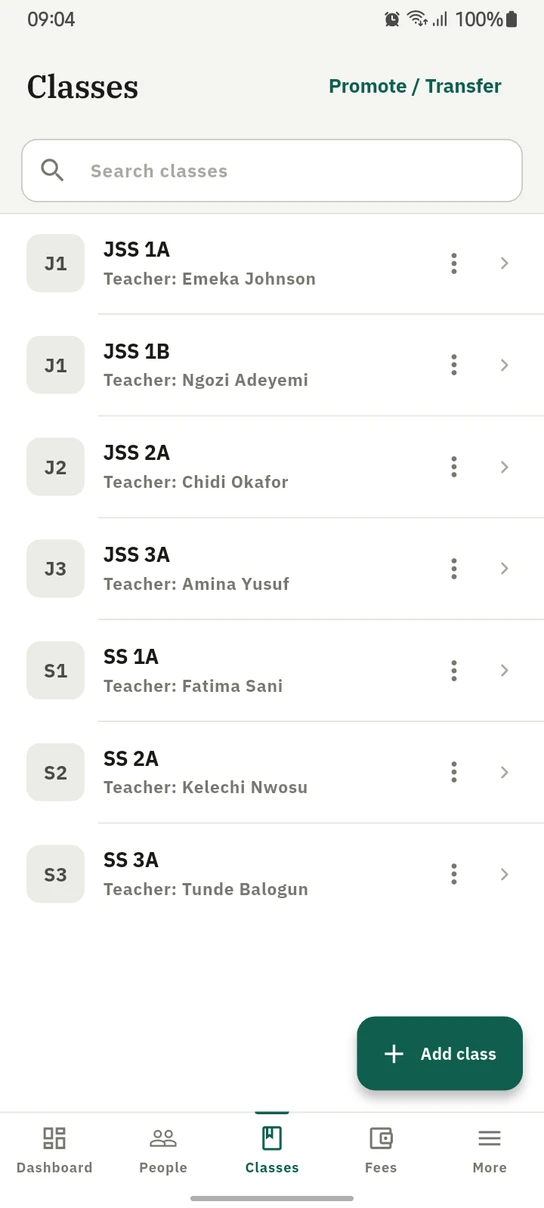
Classes on the phone, each with its homeroom teacher, in the order the school set.
Ready to try it with your school?
Three-month Basic trial. No card required to register.