
Academics
Grade & Results Management
Record scores and auto-calculate letter grades. Download report cards as PDF, with remarks, for any term or session.
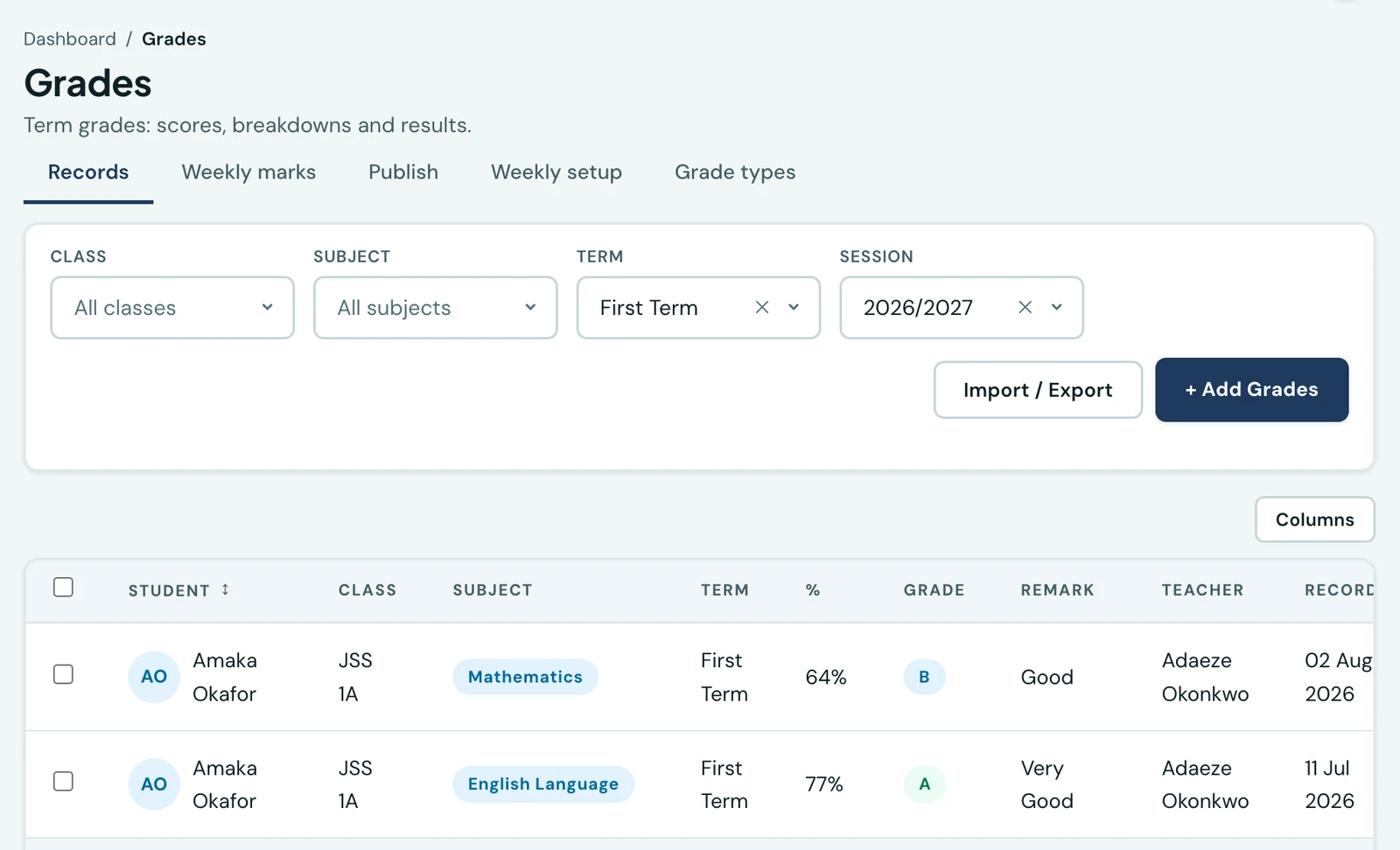
Record student scores for each subject and term. Letter grades and remarks are calculated automatically from your configured grading scale.
Recording grades
Go to Grades → Add Grades. Choose the session, term, class, and student once, then enter scores for as many subjects as you like on the same screen and save them together, rather than recording one subject at a time. Each subject can be a single score or broken down by grade type (Test, Exam, and so on). Any subject already recorded for that student, term, and session is skipped so you never create a duplicate, and the page tells you which subjects were skipped and why. Grades can be updated individually at any time from the Grades list.
A mark is filed under the pupil's own class, and in a subject that class offers when the class has a subject list. A maximum can have up to two decimal places, so a 7.5 / 7.5 / 85 split adds up.
Admins can record grades for any class and subject. A teacher records only the subjects they are assigned to teach in that class, set on the teacher's own form. A class teacher can also see every subject's grades for their own class, so they can follow their pupils' whole term, but they can change only the subjects they teach.
Recording the CA before the exam
A subject broken down by grade type doesn't have to be complete when you save it. Enter the paper's full maximum (say 100) and only the components you have so far (say a CA out of 40), and the grade is saved as incomplete. Until the rest is entered it shows the score out of what has been entered (for example 30 / 40), marked as incomplete, with no letter grade. Positions are ranked on the percentage of what has been entered, so a pupil with 38 of 40 in the CA is placed above one with 90 of 100 overall; that is what a mid-term report is read against. The report card shows no overall grade while any subject is incomplete. Where every grade in a subject is out of the same total, as it is on an assessment structure, an incomplete grade counts in the subject's highest, lowest and class average at its percentage of that total; otherwise those leave out incomplete grades once some of the class are complete. When the exam is marked, open the student again, add the Exam component and save: the grade becomes complete and gets its letter. The components can never add up to more than the maximum.
On a class with a confirmed assessment structure, the form shows the structure's parts for the current term instead of a maximum and grade types: enter a score for each part as it is marked.
When you pick a student, the grades already recorded for them in that term are loaded into the form, so you can correct a score and save it along with any new subjects.
Grading scale
The default grading scale is:
| Letter | Minimum score | Remark |
|---|---|---|
| A+ | 90+ | Excellent |
| A | 70+ | Very Good |
| B | 60+ | Good |
| C | 50+ | Average |
| D | 45+ | Below Average |
| E | 40+ | Poor |
| F | 0+ | Fail |
To customise the scale, go to Settings → Academics → Grade Scale and edit the bands to match your school.
Changing the scale does not re-letter old grades
A mark keeps the letter it was given when it was entered, which is what keeps a report card printed last year still true. Change your grading scale and the marks that no longer match are flagged on this list with an Old scale badge, and you can regrade the ones you choose. See regrading after a scale change.
Viewing grades
Filter by class, subject, session, or term to view grades. Students can see their own grades in the Student Portal, and parents their children's in the Parent Portal, once you have released that term's report cards. Until then a family sees that the term's results have not been released yet, so nobody reads a mark that is still being entered or corrected.
A released mark that is still incomplete is shown to the family as what it is: the score out of what has been entered (30 / 40), an Incomplete tag, the paper's full total beside it, and no letter. A parent who sees 30 out of 40 with no letter is looking at a paper that is not finished, not at a mark their child has lost.
On the phone
Grades are on the mobile app under More → Grades, with the same class, subject, term and session filters as the web. Each row shows the score, the percentage and the letter the school's own scale gives it, and any assessment breakdown behind it. Record opens single or multi-subject entry.
The phone follows the same two rules as the web. A mark in a subject the teacher does not teach is shown but not offered for editing or deleting, and it is left out of multi-subject entry. An incomplete mark carries the Incomplete tag and the paper's total in place of its letter, on a teacher's list, a pupil's own results and a parent's, and both record forms accept components that fall short of the maximum while refusing a total above it.
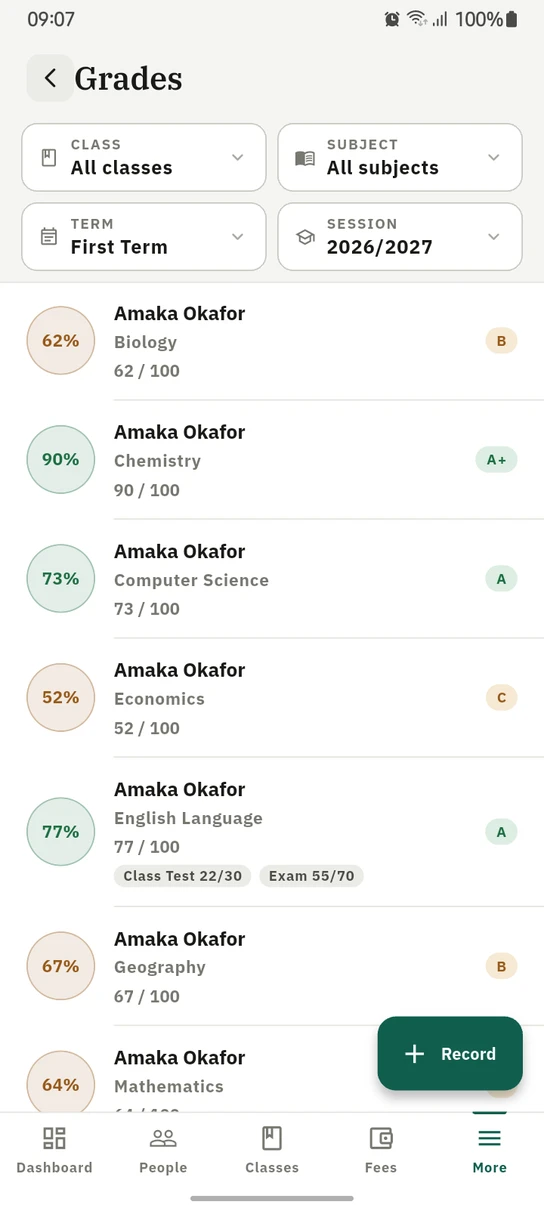
Grades on the phone, letter and percentage on every row and the assessment breakdown under it.
Ready to try it with your school?
Three-month Basic trial. No card required to register.