
Finance
Fee Discounts, Sibling Reductions and Staff-Child Waivers
Define a sibling discount, a staff-child waiver or any reduction your school offers, award it to one student or a whole class at once, and every invoice raised afterwards applies it automatically.
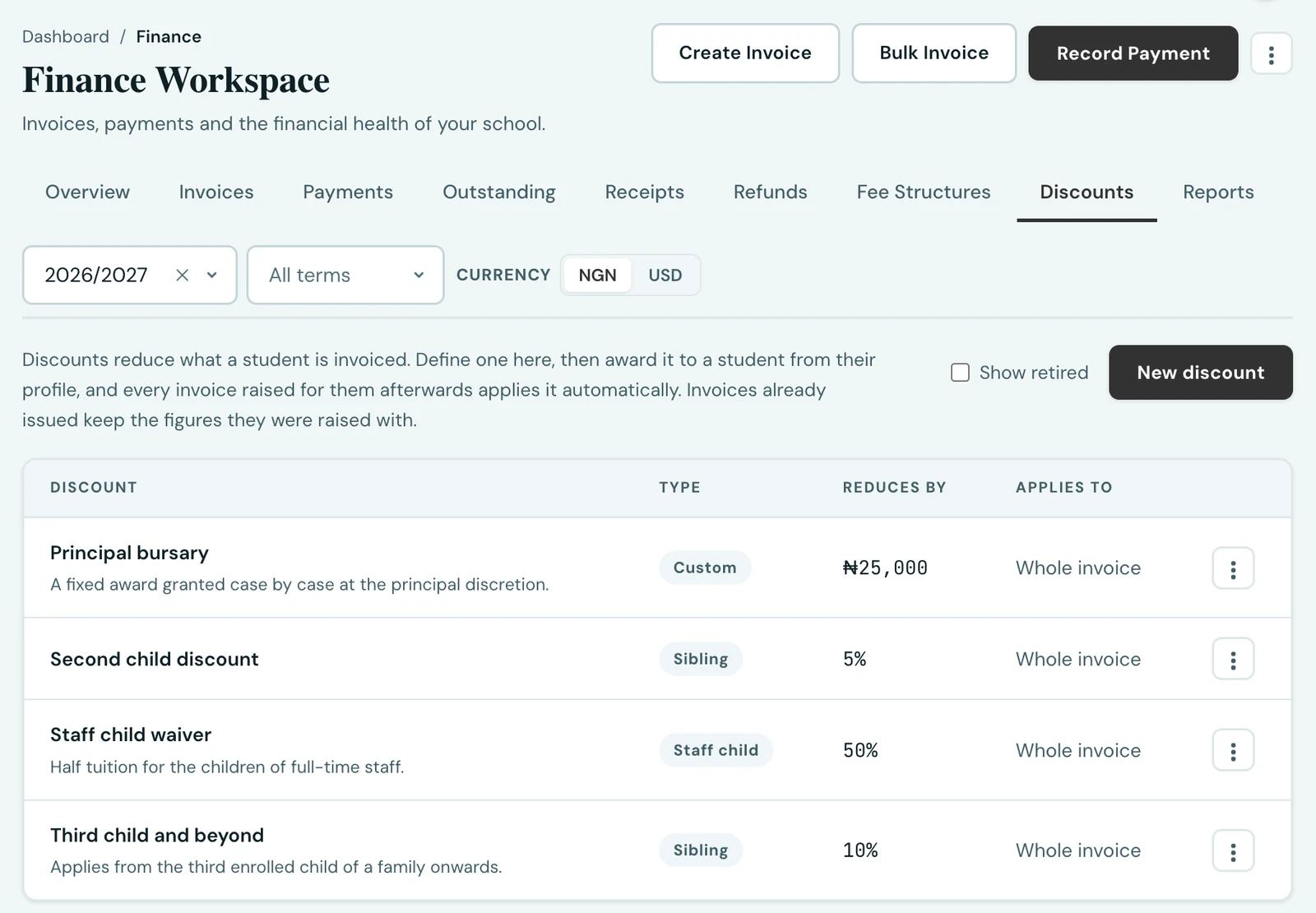
Most schools charge some families less than others. A second child pays reduced tuition, a member of staff's child is waived, a bursary covers part of the term. The Discounts tab of the Finance Workspace is where you define those reductions once, and then award them to the students they apply to. From that point on, every invoice you raise for that student applies the discount automatically. You never have to remember to type a different figure.
Defining a discount
Create a discount with a name, how much it takes off (either a percentage or a fixed amount) and what it applies to. Leave the fee types empty and it reduces the whole invoice; pick one or more (say, Tuition only) and it leaves everything else at full price.
A fixed amount is money in one currency, so it carries a currency of its own. It starts as your school's invoice currency and can be changed from a searchable list. It reduces only invoices raised in that currency: a 40,000 naira scholarship takes nothing off a pupil's invoice in US dollars, rather than taking 40,000 dollars off it. If you bill in more than one currency and want a fixed reduction in each, define one discount per currency. A percentage has no currency and applies to an invoice in any. Wherever you award a fixed discount, the form says which currency it applies to.
Each discount has a type, and the type is not just a label:
- Sibling applies only to a student who is not the eldest enrolled child of their parent. The eldest pays full fees, which is what makes it a sibling discount. Enrolment order comes from your own records, and a student with no parent linked is treated as the eldest, so a reduction is never given on the strength of missing information.
- Staff child applies to whoever you award it to, with no further conditions.
- Custom does the same, for anything else your school offers. This is the one to use for a one-off reduction for a single student; nothing about it involves siblings.
Awarding it to one student
Open the student's record and choose Discounts, then Award discount. Pick the discount, say how far it reaches (until you revoke it, for a whole session, or for a single term) and optionally record why, which stays on the record for whoever asks later.
Awarding it to several students at once
The same form does a whole group. You can start from either end:
- From the Discounts tab, choose Award to students on a discount and pick who gets it.
- From the Students list, tick the students you want and choose Award discount.
When you are choosing the students yourself, there are three ways to build the list, and they all fill the same one: search for students individually, add a whole class at once, or add all of one parent's children. Everyone on the list gets the same discount, the same scope and the same reason, and you can remove anyone before you confirm.
A batch never fails as a whole. If somebody already holds that discount, they are simply passed over and named in the summary afterwards, along with the reason. The rest of the batch still goes through. Awarding to up to 200 students at a time is supported.
The mobile app does the same: open a discount's menu and choose Award to students, then pick by search or by class.
What the invoice will charge, before you create it
The invoice form prices itself as you fill it in. Choose the student and add a fee line, and What this invoice will charge shows the fee lines, each reduction that applies, and the reduced total, per child, plus a family total when you are invoicing siblings. Nothing is created, and there is no button to press: a discount you have to ask about is one you would raise the invoice without seeing, and it matters most to whoever did not know there was a discount to look for.
Change anything and it re-prices. It waits until you have stopped typing, so a figure entered a digit at a time is priced once rather than once per digit.
It is offered for a single student, a family (by parent) and a whole class. For a class, the reductions differ per child, so the card leads with a summary (how many students, how many are discounted, the total coming off and the total to charge) and keeps each student's line behind a disclosure. The same is true in the mobile app.
The pricing is done by the server, not the form, because a sibling discount's eligibility depends on your enrolment records rather than on anything typed into the page. If it cannot reach the server it says so on the card and offers Try again, rather than interrupting what you are typing.
If a discount is granted or revoked in the minutes between the figure appearing and your creating the invoice, the invoice is rejected rather than quietly charging the new figure, and the message names the child whose discounts moved. The card re-prices itself so you can see the new total before deciding.
Revoking an award
You can revoke an award at any time. Revoking stops it applying to future invoices and never touches invoices already issued, so last term's figures stay exactly as they were sent.
What families see
A discounted invoice shows the subtotal, each reduction as its own line, and the reduced total. That is true on screen for staff, in the parent portal, on the student's own fees page, in the mobile app, and on the PDF you send. Parents can see what they were given and why the amount differs from the full price.
Each fee also says what came off it. A discount that applies to particular fees is labelled against those fees with the rate it took off, so a parent is not left working that rate out from two figures, or guessing which of five fees the reduction came from. A discount covering the whole invoice has no single fee to sit against, so its rate is shown once, on the reduction itself.
Two things are deliberately left unsaid. A fixed-amount discount shows no rate, because its value is the amount already printed beside it. And where two percentage discounts both apply, both rates are listed rather than added together: the second applies to what the first left, so 20% and 5% come to 24%, not 25%, and printing a single figure would be wrong.
Because a discount is snapshotted onto the invoice at the moment it is raised, renaming or changing a discount later never rewrites what a family was already charged. Retiring a discount stops it being awarded or applied to new invoices, and leaves every historical record intact.
Discounts are permission-controlled in their own right: seeing them and managing them are separate grants from the rest of fee management, so an accountant can run discounts without every finance role being able to.
On the phone
Discounts work on the mobile app too. Open Fees, tap the ⋮ menu and choose Discounts. Discount creates a new one, and each discount's menu offers Edit and Award to students. Awarding opens a picker where you can search for pupils, add a whole class with Add every student in this class, or choose an Eligibility rule and tap Find students who qualify.
For one pupil, open their record, tap the ⋮ menu and choose Fee discounts. Award grants one: pick the discount, how far it reaches under Applies to, and an optional reason. Each award there can be revoked.
Adding all of one parent's children at once, and awarding from a selection on the Students list, are done on the web.
Ready to try it with your school?
Three-month Basic trial. No card required to register.