
Academics
Exam Timetable
Schedule each class's exam papers with date, time, venue and invigilator, then publish to students and parents, who are notified by email and WhatsApp with a PDF attached.
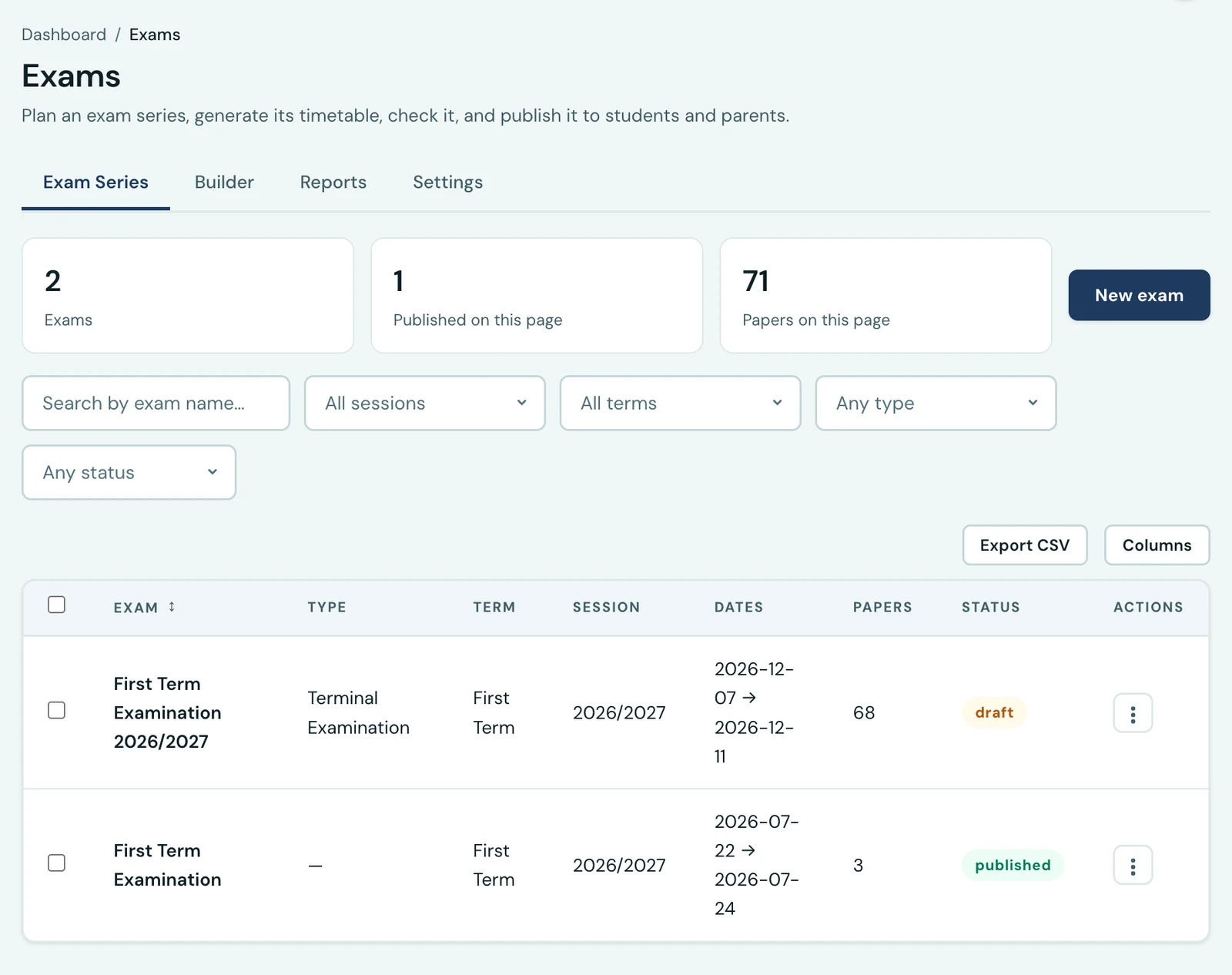
Plan an examination period and schedule each class's papers with a date, time, venue and invigilator, then publish it for students and parents to see.
How it works
- Go to Exams Timetable → New Exam and name the exam (e.g. "First Term Examination"). The term and session are set automatically from your school's current academic calendar and shown for reference rather than chosen by hand. You can also give the exam an optional start and end date to mark the exam period.
- Open the row, which puts that series in hand and takes you to the Builder tab, and build one class's timetable at a time: pick a class and its subjects appear as a grid. Set each subject's date, start/end time, optional venue and optional invigilator, then Save class timetable to record all of that class's papers in one go. Leave a subject's row blank to skip it. Re-saving a class replaces its papers, so it doubles as the edit screen, and Clear class papers removes them all at once.
- When ready, click Publish & notify to make it visible to students and parents, which reads Re-notify parents once the series is out. You can Unpublish at any time to hide it again, and Edit an exam's name and dates whenever you need.
Finding an exam
The list is paged, so a school with years of exams behind it opens the page as quickly as one in its first term. Search by exam name, or narrow the list by session, term and draft or published. The filters and the search apply to your whole exam history, not just the page on screen, so a series is found however far back it was run.
Export downloads exactly the list you are looking at, filters and all, rather than only the page in front of you.
Exam period & locking
The optional start and end dates record when the exam runs. From the end date onwards, the exam's timetable is locked: papers can no longer be added, edited, cloned or removed, so a completed exam's schedule stays a faithful record. The exam's name and dates remain editable, and it can still be published, unpublished or re-notified.
Clash checks
Every paper is checked for clashes before it is saved. A class can never have two papers overlapping in time on the same date (its students can't sit two at once), and the same invigilator can't be assigned to two overlapping papers, even across different classes. A clash is reported clearly and the save is rejected, so the published timetable is always conflict-free.
Reading the timetable
The full timetable is laid out grouped by date: each exam day is its own section listing that day's papers by time, with class, subject, venue and invigilator. Students and parents see the same date-grouped view for their own class.
Publishing & notifications
Publishing makes the timetable visible in the student and parent portals and notifies each affected class's parents a PDF of their child's timetable automatically (falling back to the guardian email on the student record where no parent account is linked). Whether this goes by email, WhatsApp, or both is set under Settings → Communication → Notification Channels. Everything is sent in the background, so publishing is instant.
On the phone
Exam timetables change at the worst moments. A hall floods, a public holiday is announced overnight, an examination board moves a paper: you find out in the evening, away from your desk, and the change has to be made before the morning. That is what the mobile app is for here.
Under Exams in the app you can:
- Create a series and set its name, dates and type.
- Add, change and remove a paper, by tapping it on the timetable.
- Move several papers at once, which is the one worth knowing about. See below.
- Check the series, the same check publishing runs.
- Publish and unpublish it.
- Edit your exam types.
Each of these is shown only to somebody who holds the permission for it, so a teacher who may read the timetable sees it exactly as before, with nothing to press.
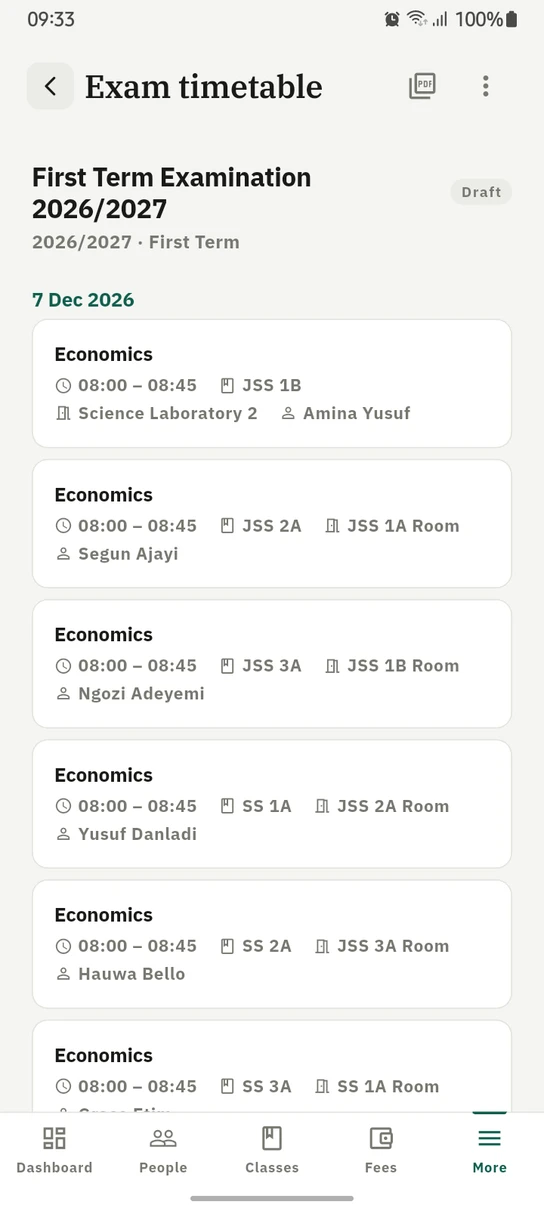
A series on the phone, one day at a time, each paper naming its class, room and invigilator.
Moving several papers together
A year group sitting one paper in one hall is one row per class, and moving them one at a time does not work: each paper clashes with the ones that have not moved yet, and a class sitting three days running and pushed back a day is refused three times over.
So you choose the papers, then either shift them by a number of days, which keeps them in the same order relative to each other, or move them all onto one day. The whole move is checked as a single proposal, against the timetable as it would be rather than as it stands, which is what lets a run of papers cascade properly. You can set one time for all of them, or leave each paper the time it already has.
If the series is published, the families of every class whose paper actually moved are told, and both the old slot and the new one are named so the message can be checked against the sheet on the wall. A paper that ends up where it already was is not announced.
What stays on the web
Four things are deliberately not in the app, because each is a sit-down job you do once per exam series rather than something you reach for on the way across a car park:
- Generating a whole timetable, which is a four-step wizard.
- The exam settings that decide the shape a generated timetable takes.
- Linking a paper to an online test.
- Copying one class's whole timetable onto another, and setting a class's papers all at once.
Who sees what
- Admins create, edit, publish, unpublish and delete exams and papers, on the web and in the app.
- Teachers can view exams in the staff portal, and manage them where their role allows it.
- Students see their own class's published timetable under Exam Timetable.
- Parents see each child's published timetable on the child's Exams tab.
Ready to try it with your school?
Three-month Basic trial. No card required to register.