
Advanced
Roles & Permissions
Define custom staff roles with fine-grained, module-by-module permissions, compare them in a permission matrix, and assign staff to as many roles as needed.
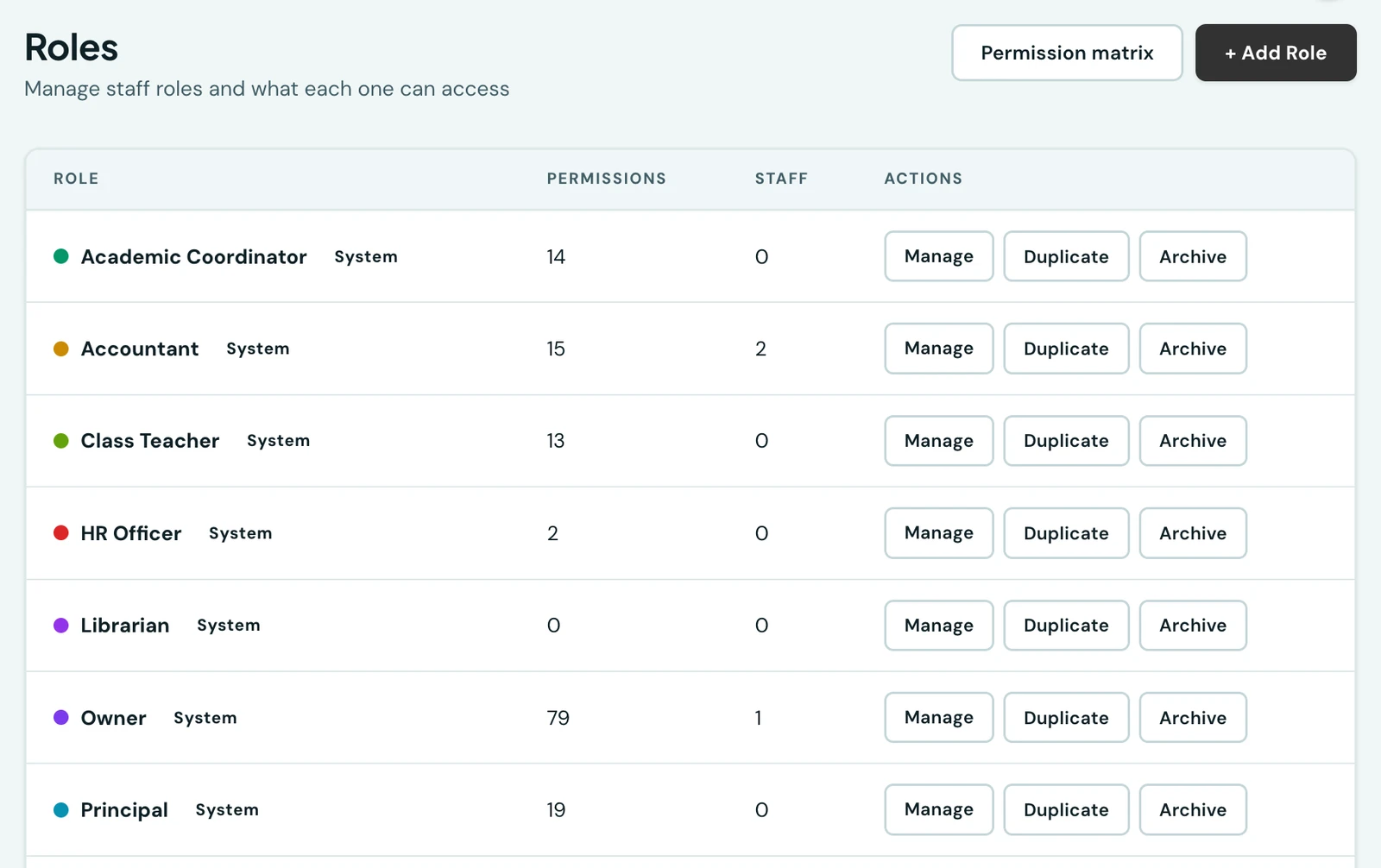
Beyond the admin and teacher split, a school can define its own staff roles from a dedicated Roles page. Principal, Accountant, Receptionist and anything else you need, each holding exactly the permissions you give it.
System roles
Every school starts with a set of ready-made roles covering common school positions (Owner, School Administrator, Principal, Vice Principal, Academic Coordinator, Class Teacher, Subject Teacher, Accountant, Receptionist, HR Officer, Attendance Officer, Transport Officer and more). These can be renamed and re-permissioned, but not deleted.
Attendance Officer is the narrowest of them, and the one worth knowing about: it holds exactly one permission, take staff roll call, and nothing else at all. It is meant for whoever stands at the gate clocking in the staff who have no phone of their own, and somebody holding it opens the platform onto that single screen. It is also the one role whose work the platform checks the location of: a roll call has to be taken on your grounds, in the mobile app, because it is the one action that puts other people on the timesheet without any of them touching anything. See Roll call.
Custom roles and the permission matrix
A primary admin can create additional roles, duplicate an existing one as a starting point, and choose exactly which permissions each role grants, grouped by module (Attendance, Finance, Students and so on) in a searchable checklist. The Permission matrix view compares every role's grants side by side at a glance.
Finance is granted in three parts
Money is the one area where "can they see it" is rarely one question, so it is three permissions rather than one:
- View invoices: the invoice list, an individual invoice and its PDF, including on a student's own record.
- View payments: the payment list, a receipt and its PDF, the evidence attached to it, and any refunds. A refund goes with the payments because it reverses one.
- View finance: everything that is a summary rather than the ledger itself, so the overview, the outstanding analysis, the reports, the cash-flow statement, and a student's fee status on their profile.
So a registrar who raises bills need not be shown everything the school has banked, and a cashier reconciling receipts need not be shown every family's outstanding balance. Exporting is separate again: Export finance data downloads a list you can already read, never one you cannot.
Nothing changed for any existing role when this split arrived. Every role that could read the two lists still can; the choice only arises the first time you take one of them away.
A family's contact details go with View parents
Opening a pupil and reaching their family are two separate things. View students shows the pupil; the guardian's phone number and email, the home address and the pupil's own contact details are shown only to a role that also has View parents, on every screen and in every export. Teachers are not given it by default; the Vice Principal is. A school that wants its class teachers to phone parents adds View parents to the Class Teacher role; a teacher who has it sees only the families of their own classes, while office staff see every family. See Who sees a family's contact details.
A role needs some permission to do with pupils (View students, or one whose own page starts by finding a pupil, such as marking attendance, recording grades or raising an invoice) to look pupils up at all. A role with none, such as a librarian or transport officer, cannot page through the school's pupils. A role that finds pupils only through one of those other permissions sees them without the guardian's name or date of birth, which need View students.
Assigning roles to staff
Every staff account holds at least one role, and the platform will not let you take the last one away. Access is the combination of everything each role grants, so somebody who does two jobs holds two roles rather than needing a third combined one.
The refusal is not pedantry. An account with no role does not lose access: it falls back to a built-in set you cannot see or edit, and for a teacher that set is wider than the teaching roles it replaced. So removing somebody's last role would quietly give them more, not less. To take someone's access away, deactivate the account.
For an office account, you choose the roles when you create it on the Users page.
For a teacher, you do not choose at all, and the teacher form has no role picker. A new teacher is given Subject Teacher, and Class Teacher for as long as they are class teacher of a class. Hand them a class and they gain it; take their last one away, or close their account, and they lose it again. That is the whole difference between the two roles: a class teacher enters the report card and the early-years card, a subject teacher builds CBT tests, and whoever runs a homeroom while teaching subjects does both.
To give a teacher anything beyond those two, open the role here and add them under Assigned Staff. A role granted that way is yours: it stays until you remove it, whatever happens to their homeroom. For an office account, edit it from the Users page or from a role's detail page here.
Teaching forms offer only what the person teaches. Setting homework, entering grades or weekly marks, recording a Hifdh session, planning a scheme of work and the early-years card each list the classes and subjects the person teaches or is class teacher of, and nothing else. A register lists only the classes they are class teacher of. An office account teaches nothing, so these forms offer it nothing, unless one of its roles holds that area's school-wide permission, for example View/record all grades (school-wide); for Hifdh it is the permission to manage Hifdh, since viewing every class's register does not let anyone record in it. Give that permission to the people who need it rather than a teacher record they do not have. New homework is the one exception: it is always set by a teacher who is class teacher of the class or teaches the subject in it.
Retiring a role
A role you no longer want is archived, which keeps it and its permissions on record but stops it granting anything and takes it out of the pickers. A custom role nobody holds can be deleted outright; a built-in one can only be archived.
Both ask the same thing of you first: move its staff onto the roles they should keep. A role cannot be archived while anybody still holds it, and the reason is the one above. Archiving does not take the role off anyone, it only stops it counting, so somebody whose only role you archived would be left with none at all and fall back to that wider built-in set. The page tells you how many staff still hold it. Restoring an archived role is never blocked.
An archived role cannot be given to anybody either, for the same reason: it grants nothing, so assigning it would leave that member worse off than before rather than governed by it. Restore the role first if you want it back in use.
What each person sees
The sidebar, the search bar and the pages themselves all follow the same permissions, so a menu only ever lists pages that person can actually open, with no entry that bounces you back to the dashboard when you follow it. A whole section (Finance, Configuration and so on) disappears when a role can reach nothing inside it, and opening a page's address directly is checked the same way.
Two consequences worth knowing:
- Pages that exist purely to administer something (Teachers, Subjects, Departments) need the matching manage permission, not just the permission to view that data. A teacher can see the staff directory in the places it is used without being offered the page for adding and removing teachers.
- Roles built around one job show a focused portal. An Accountant sees Fees and the people pages their work needs, not the academic ones; a Class Teacher sees their register, grades and report cards. This is a property of the role's permissions, so adjusting a role changes what its holders see immediately.
On the phone
The mobile app carries the same Roles page, under More → Roles in the School group, for anyone who holds the role-management permission. You can create a role, rename it, change its colour, duplicate one as a starting point, restore an archived one, and archive or delete a role nobody holds.
Opening a role gives you two tabs. Permissions is the same searchable, category-by-category checklist as the web, saved in one go, with a count of what the role would grant along the bottom. Staff lists everyone who holds it, with a searchable picker for assigning more; assigning takes effect straight away, so you can hand a role to several people in a row without leaving the list.
Two things stay on the web. The permission matrix, which compares every role side by side, is a grid far wider than a phone screen; open each role instead. And a role's permissions cannot be saved from anywhere by someone who does not hold them themselves, which the app tells you before you start editing rather than when you try to save.
Each row of the list gives the role's colour, how many permissions it grants, how many members hold it, and whether it is one of the built-in roles or one your school wrote itself.
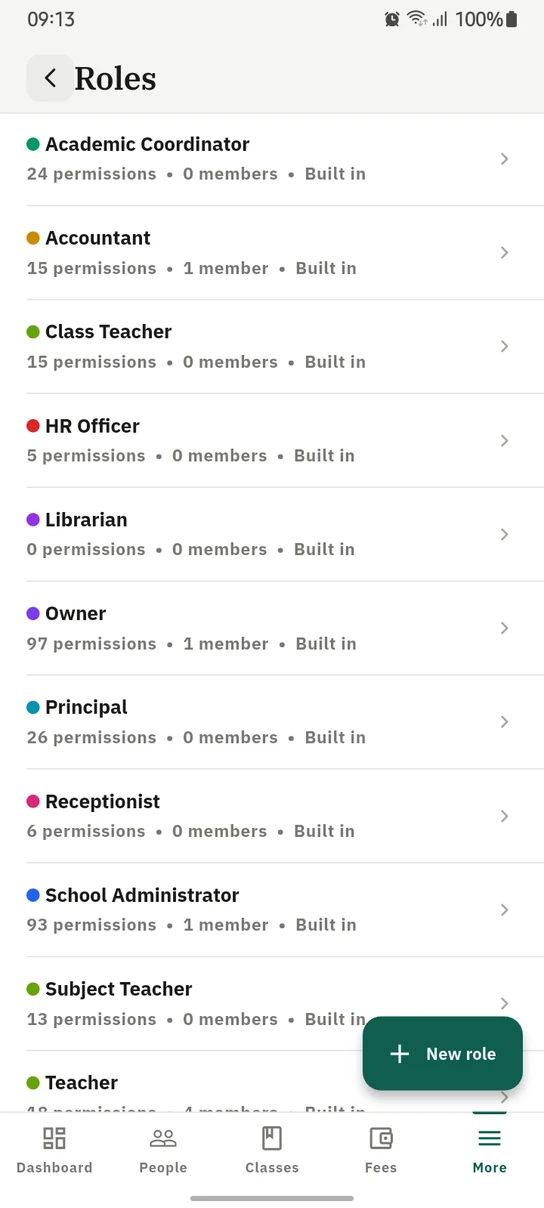
Roles on the phone, each showing what it grants and how many people hold it.
Ready to try it with your school?
Three-month Basic trial. No card required to register.