
Students
Student Management
Enrol, profile and manage every student, covering admission numbers, class assignments, guardian details and deactivation, with fast full-text search across names and admission numbers.
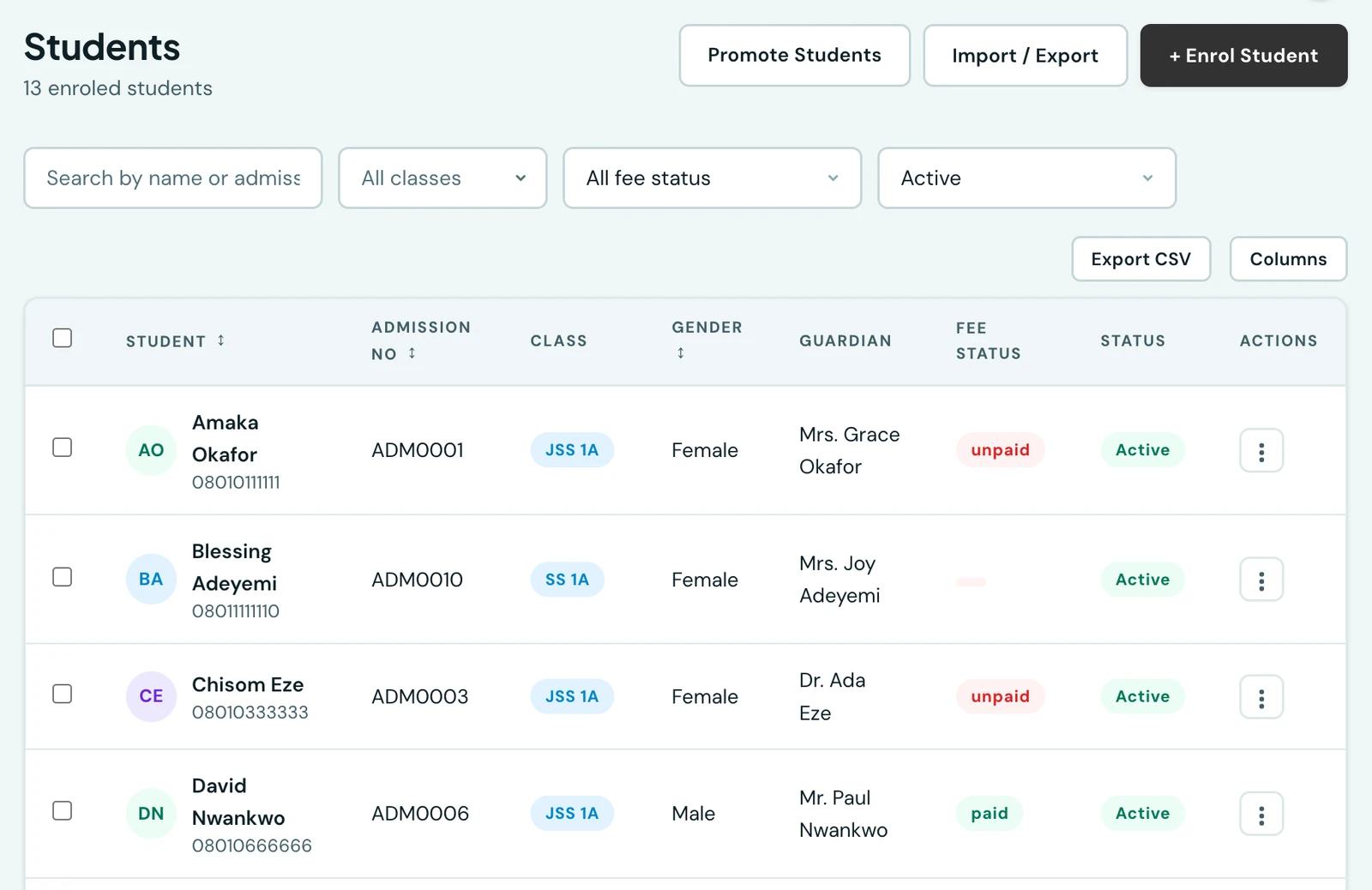
Enrol, profile, and manage every student in your school. Each student has a unique admission number (auto-generated using your set admin prefix or manually inserted), assigned class, and optional parent links.
Enrolling a student
Go to Students → Add Student. Fill in:
- First name, middle name, and last name (middle name is optional)
- Date of birth, gender (optional)
- Class (required)
- Admission number, either auto-generated from your configured prefix or typed in yourself
- Guardian name, phone code, phone number, email, and relationship (all optional)
Every guardian field is optional, and filling in the name and the phone number does one extra thing. A pupil can be enrolled with no guardian details at all, and that is a complete record as far as the roster is concerned. Fill in the guardian's name and phone number and the guardian also gets their own parent account and a link to set a password, so they can see their child's grades, attendance and fees. The form says which of the two is about to happen as you type, so it is never a surprise either way.
Those two, and not the others, because they are what a parent account actually needs: the phone number is what a parent signs in with and is where most family notifications go, and the name is what identifies them on a register. The email address and the relationship are genuinely optional on a parent account, and can be filled in later without the account being any less usable in the meantime.
A guardian who does not get an account is one you chose not to give an account to, and you can fill the two fields in later. Editing the pupil creates the account then.
A guardian's phone number always carries its country code. The code sits beside the number and starts on your school's, so a local number needs nothing chosen, and a number is never saved without one. A pupil recorded before this rule may have a guardian number with no code. Their record says so, because WhatsApp cannot reach such a number and no parent account is made from it. Edit the pupil, choose the code, and both start working. The same goes for the pupil's own number, and for any number on a parent, teacher or staff record: an older number saved without its code opens with the code empty rather than filled in with your school's, and saving asks you to choose one.
Editing a student's details
To change a pupil's name, class, date of birth, admission number or guardian details, go to Students, open the menu at the end of the pupil's row and choose Edit. The Edit Student form opens beside the list with the pupil's current details filled in; change what you need and press Update. Closing the form with changes unsaved asks before discarding them.
- Editing needs the Manage students permission. Staff without it do not see Edit.
- Only an active pupil can be edited. For a pupil who has left or graduated, choose Re-activate first. A graduated pupil cannot be moved to another class until they are re-activated.
- An admission number can be changed here, as long as no other pupil in your school has it.
- Filling in the guardian's name and phone number creates the guardian's parent account, as it does at enrolment.
- Contact details are edited only by staff who can see them (see below). For everyone else they are left out of the form and stay as they were.
- Every change is recorded in the audit log, with what it was before.
Deactivating, re-activating, graduating and resetting a password are not part of the form: they are actions on the row's menu or on the pupil's own page.
Who sees a family's contact details
A pupil's record holds how to reach the family: the guardian's phone number and email, the home address, and the pupil's own email and phone. Only staff whose role has the View parents permission see them. Staff with View students but not View parents still see the pupil, their class, admission number, guardian's name, marks and attendance, but not the way into the family's home. By default that is the Owner, the School Administrator, the Principal, the Vice Principal, the Accountant and the Receptionist; teachers do not have it.
If you want your class teachers to be able to phone parents, give the Class Teacher role the View parents permission on the Roles page. It applies at once, on the web and on the phone. A teacher given it sees only the families of pupils in their own classes, on the pupil's record and on the Parents page alike; office staff with it see every family.
Where the details are hidden, the pupil's record says so rather than leaving a gap: "Contact details are held by the school office." The guardian's name stays, so a teacher can tell the office which family to call. A message's delivery report likewise names each recipient's phone or email only to staff with View parents.
Staff without it do not see these fields in the list, on the profile or in the edit form, and their export leaves the columns out. Saving a pupil they were not shown the details of leaves the details exactly as they were. Enrolling a new pupil still asks for them, since whoever enrols the child is the one with the family's details in hand.
The guardian's name and the pupil's date of birth go one step further: they are shown only to staff with View students. A role that finds pupils for its own work, such as keeping the hifz register or reading report cards, sees the pupil's name, class and admission number but not who they live with or when they were born. Every teacher role, the Principal, the Vice Principal, the Academic Coordinator, the Accountant and the Receptionist have View students, so for them nothing changes; the Academic Coordinator has it because the exam entries it prepares need every candidate's date of birth. The fee pages are the one exception, and deliberately: an invoice and a receipt still name the guardian who is billed.
Adding a parent, or changing a parent's phone number or email, needs View parents as well as Manage parents, so nobody can change contact details they are not allowed to see.
Admission numbers
Admission numbers follow the format PREFIX-00001, PREFIX-00002, etc., numbered sequentially per
school. Your school's numbering is entirely its own and is unaffected by any other school on the
platform. The prefix defaults to your school's own initials (e.g. "Mumtaaz College" becomes MC),
set automatically when your school is verified. To use a different prefix, go to Settings →
Sequential Numbers → Admission Number Prefix. New students will use the new prefix; existing
numbers are unchanged.
Student passwords
A student's default password is their admission number. Admins can reset any student's password from the Student Detail page. Students change their own password from their Profile page by entering their current password and a new one. Students are not issued email-based logins, so there is no emailed reset link.
Report cards
Open a report card from the dedicated Report Cards page (filter by class, term and session, then View report card) or straight from a student's profile. Select the session and term, then download it as a PDF. The PDF is generated by 1410SMS itself, so the copy the school prints is the same document the student and parent get. Report cards include all subject grades, letter grades, teacher remarks, and school branding.
Students can download their own report card from the student portal, and parents can download a linked child's from the child's page, both as the same one-click PDF.
Searching students
The student list has a search box that matches on first name, last name, and admission number. Searches are powered by a database full-text index, so results stay fast even with tens of thousands of students. Type one or more words: each is prefix-matched, so "jo sm" finds "John Smith".
On the phone
The roster is on the mobile app too. Students, teachers and parents are three tabs of one People screen, each row carrying the pupil's admission number, class and, where they have been invoiced, their fee standing. Search and the class and fee-status filters work as they do on the web, and Add student opens the same enrolment form. To edit a pupil, open their record and choose Edit from its menu; the same rules apply.
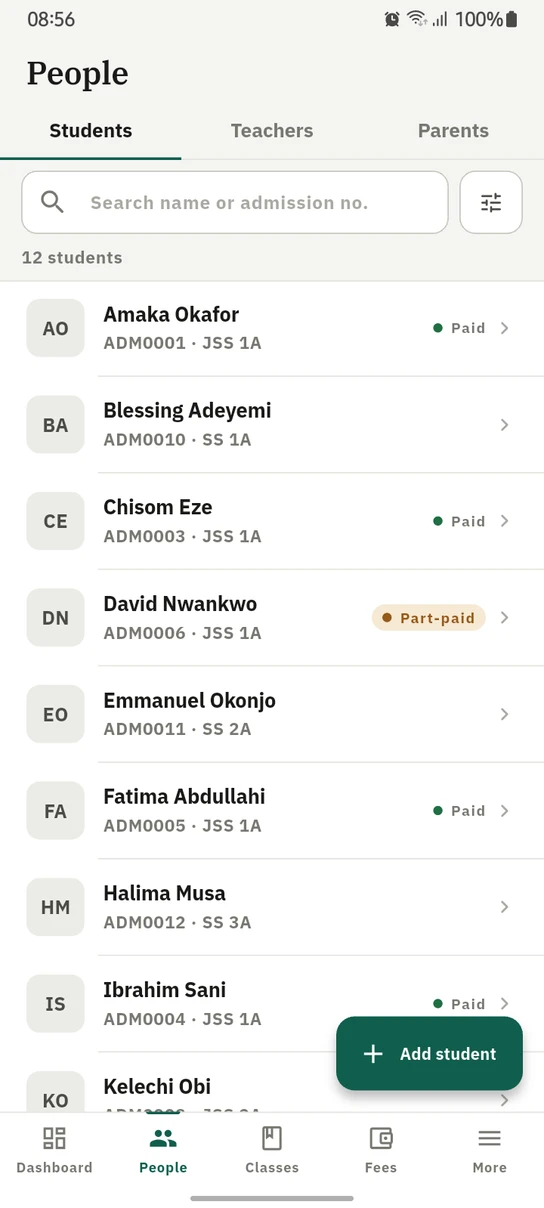
The roster on the phone, a pupil's fee standing on the row rather than a screen away.
Ready to try it with your school?
Three-month Basic trial. No card required to register.