
School Setup
Appearance & Dark Mode
Every user picks light, dark, or match-my-device for the portal from the sidebar, or on the sign-in page. The choice is per person and per device, and never changes what anyone else sees.
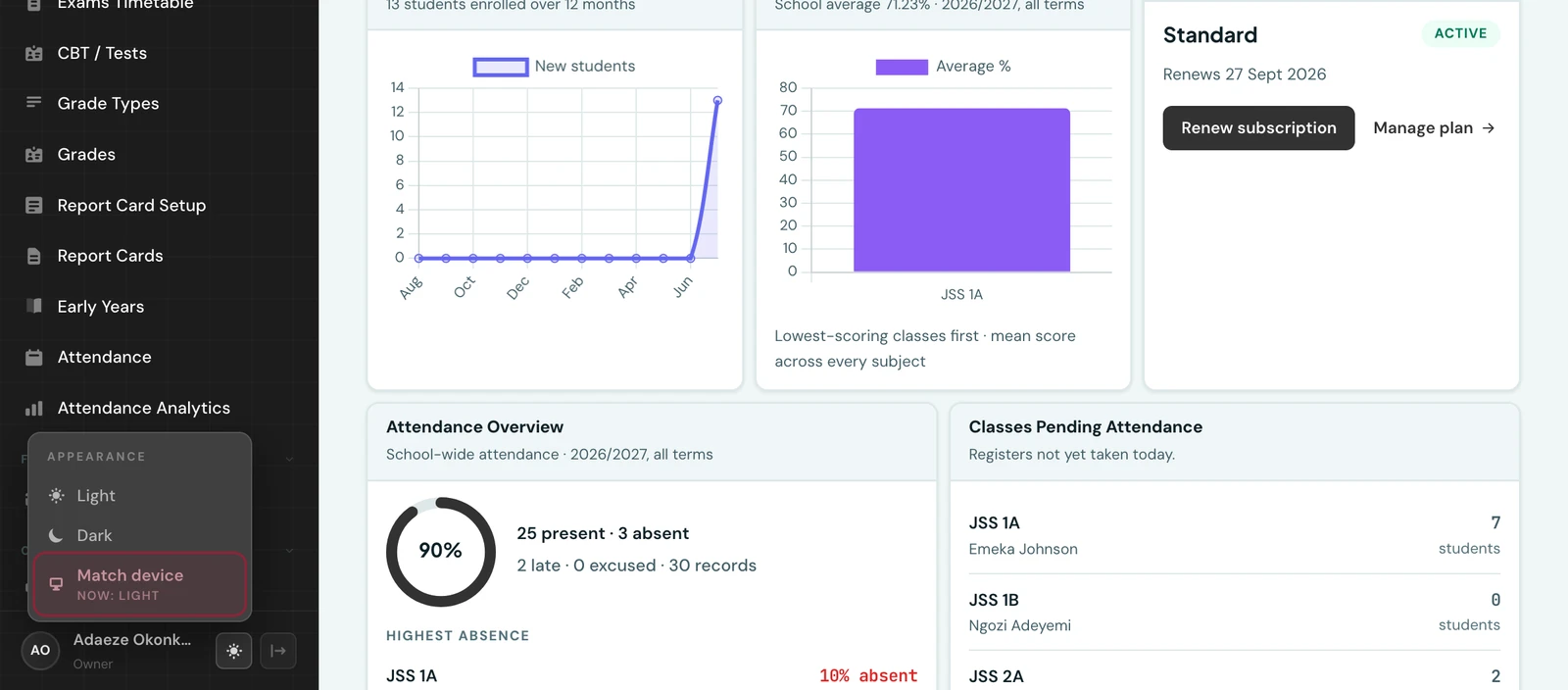
Every person who signs in chooses how the portal looks to them: light, dark, or whatever their device is set to. It is a personal setting, not a school-wide one.
Choosing a theme
The appearance button sits in the sidebar footer next to your name on every portal, staff, student, parent and super-admin alike, and at the foot of the sign-in form on your school's sign-in pages, so the choice can be made before signing in. Its icon shows which theme is currently painting: a sun for light, a moon for dark. Click it for the three choices; pick one and it applies immediately, with no reload and nothing to save.
- Light. The default. Your school's own brand colours theme the portal.
- Dark. A low-light palette for evening marking and OLED screens.
- Match device. Follows your device's own appearance setting, switching with it automatically (including on a schedule, if the device has one). The menu shows what it currently resolves to, so "Match device" is never a mystery.
The choice is remembered on that browser, so it survives signing out and back in. Because it is stored per device, the same person can run dark on a laptop and light on a tablet.
Brand colours and dark mode
In light mode the portal is themed with the colours set under Settings → Brand Colours (see Profile & Branding). Dark mode deliberately uses one consistent palette for every school instead: brand colours are chosen against a white page, and a colour that looks right there can be unreadable on a dark one. Your school's identity returns the moment that user switches back to light.
Report cards are unaffected by either setting. They are printed documents, so they always render on white, exactly as they will appear as a PDF.
On the phone
The mobile app has the same three choices. Open More, tap Appearance and pick Match device, Light or Dark. The choice is saved on that phone, so it is separate from the one you made in a browser. The sun or moon button at the top of the dashboard switches straight between light and dark; to follow your phone's setting again, use Appearance.
The app keeps its own colours in both themes rather than your school's brand colours, so changing Brand Colours on the web does not change how the app looks.
Ready to try it with your school?
Three-month Basic trial. No card required to register.