
Finance
Online Fee Payments
Set your school up to take fees online. Money settles straight into your school's own verified bank account and never rests with 1410SMS.
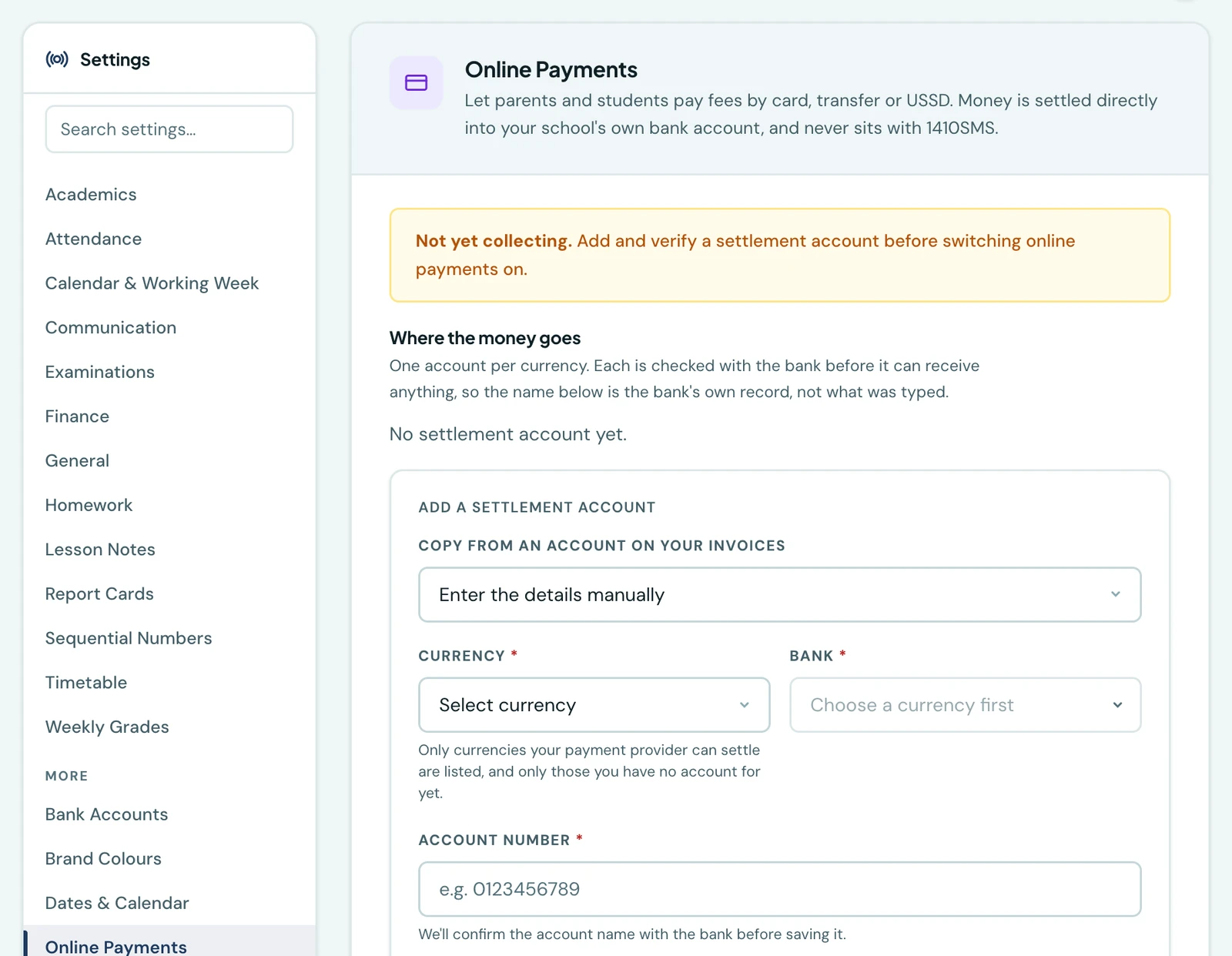
Online payments let a school collect fees by card, bank transfer or USSD instead of chasing bank slips. Setup lives under Settings → Online Payments, on the web or in the mobile app, and takes two things: a bank account we can verify, and a decision about who pays the transaction fee.
Where the money goes
Fees settle directly into your school's own bank account. They do not pass through a 1410SMS account and they never rest with us, so there is nothing for us to hold, delay or reconcile on your behalf.
That account is a settlement account, and you add it under Where the money goes:
- Pick the currency the account is held in. Only currencies your payment provider can actually settle are listed, which is narrower than the list you may invoice in.
- Pick the bank, from the list for that currency.
- Type the account number and click Verify and add.
If the account you want is already one of the bank accounts printed on your invoices, use Copy from an account on your invoices and the currency and account number fill themselves in. The bank is filled in too where we can identify it beyond doubt. Where we cannot, we say so and leave it for you to pick, rather than guessing at a bank and letting verification fail.
We check the number with the bank before saving it, and what appears on the row afterwards is the bank's own record of the account name, not what anyone typed. An account that the bank rejects is recorded as failed with the reason, rather than quietly accepted.
You may hold one account per currency. To change an account, remove it and add the replacement.
Switching collection on
Collection settings holds the switch itself, plus two choices.
Allow fees to be paid online is the master switch. It is deliberately separate from your settlement setup, so turning collection off for a while never discards a bank verification you had to complete once. Until an account is verified, the switch cannot help you, and the page says which step is outstanding rather than only reporting that you are not ready.
One switch covers everyone who can pay, parents and students alike. There is no separate control per audience, because whether your school takes card payments at all is one decision, not two.
Who pays the transaction fee decides what the payer is charged, and nothing else. Either way, the amount credited against the invoice is the same:
- The school absorbs it (the default). The payer is charged exactly the invoice balance, so the checkout total matches the figure printed on the invoice PDF. Your settlement is that balance less the provider's fee. At school-fee sizes this is cheap, because provider fees are typically capped.
- Pass it on to the payer. The checkout total is the balance plus the provider's fee, itemised rather than silently rolled in, and your settlement covers the balance in full.
Note shown at checkout is optional free text for anything a payer should know first, such as "please pay the full term where possible".
There is nothing to choose about payment methods. Payers are offered every method your provider supports, and the page lists which those are.
What a payer sees
Once collection is on, an unpaid invoice carries a Pay now button beside its Download button: on a child's record in the parent portal, and on a pupil's own fees page. A settled or cancelled invoice does not, since there would be nothing to pay and the click could only end in a refusal.
Clicking it confirms the amount first. If your school passes the provider's fee on, the confirmation names both parts, the fees and the processing charge, before the payer is sent anywhere. Someone should learn that they are being charged more than the invoice says on the screen where they agree to it, not from a bank statement afterwards.
They then pay on the provider's own secure checkout page, using whichever method they prefer, and come back to a page that confirms the result. The full outstanding balance is paid unless you allow part payment (below); a family paying an instalment should be invoiced for the instalment.
If they happen to be signed out by the time they come back, that page asks them to sign in and then confirms the payment straight away. Either way the payment is not at risk: your school is told about it independently of whether the payer ever returns to us, so a closed tab or a dropped connection costs nothing but the on-screen confirmation.
What lands in your school is an ordinary payment. It appears on the Payments tab with the rest, carries a receipt number from your own receipt sequence, credits the invoice, updates the pupil's fee status, and counts in your collection figures exactly as a payment your bursar typed in would. There is no separate ledger of online payments to reconcile against the real one.
Letting a family pay part of a balance
Off by default, and switched on under Settings → Online Payments beside the online-payment toggle. Off, a family pays the whole outstanding balance in one go, which suits a school that wants the term settled at once. On, the Pay now dialog opens on the full balance but lets the family type the part they can pay now; the rest stays outstanding, shows on the invoice as before, and can be paid later, online or at the school. Two things the platform refuses as the family types: an amount under the provider's floor, and an amount that would leave a remainder under it, since that remainder could never be paid online afterwards. Payments a bursar records by hand are unaffected either way.
Pupils paying their own fees
A pupil can pay their own invoice, from their fees page or the mobile app. It is the same flow, the same confirmation and the same receipt; the only difference is who is signed in.
One thing is required first: the pupil needs an email address on their own profile, because that is where the payment provider sends its receipt. If there is none, the Pay now button explains that and offers to take them to the field, rather than refusing a payment they are one step away from making.
We deliberately do not fall back to the guardian's email address, even where your records hold one. A receipt should reach whoever actually paid, and mailing a guardian a receipt for a payment they did not make invites exactly the wrong phone call home.
What 1410SMS takes
Nothing, on every plan, at the time of writing. Fee collection is here to make the platform more useful to a school, not as a revenue line. The page states the current platform share outright, so you never have to take that on trust or work it out from a settlement figure.
The payment provider's own transaction fee still applies, as it would with any gateway. Settlement timing is the provider's too, on its normal settlement cycle, and is not something your school or 1410SMS sets.
Making your revenue tally with your bank statement
Your revenue figure and your bank balance will not match for online payments, and both are correct.
A pupil who owes ₦50,000 and pays ₦50,000 has settled their fees in full, so the invoice is credited ₦50,000 and that is your revenue. The gateway's fee is a cost of collecting that money, much like a bank charge: an expense, not a reduction in what the school earned. Were we to net it off, your income would be understated and an invoice could never read as fully paid, because every payment would fall short of the amount due.
So the ledger stays gross, and Finance → Reports → Bank settlement reconciliation accounts for the difference. Choose the date window your statement covers and it works the sum through line by line: what payers were charged, less the gateway's fees, less the platform share, giving what should have reached your account. Beside it sits what your ledger credited to invoices, so both figures and the gap between them are visible at once. Each currency is reported separately, since a settlement in naira and one in dollars reconcile against different statements.
It also names the discrepancies a single total would bury:
- Fees we were never told. The gateway reports its fee after the fact. Where it did not, the expected settlement is higher than what actually landed, so the report says how many payments that applies to rather than showing a figure that looks complete.
- Money that could not be applied. If a bursar records a transfer against the same invoice while a card payment is in flight, the payment still arrives but no longer has a balance to clear. That money reached your account and is a credit owed back to the family.
- Voided receipts. Voiding corrects a payment recorded in error and moves no money, which is right for a cash entry keyed twice. An online payment, though, really was collected and really did settle, so voiding it leaves money in your account credited to no invoice. Only a refund returns it.
Only online payments appear here. Cash, transfer and POS payments reach your account directly, with no gateway in between, so they reconcile against the statement itself.
Receipt by receipt
The same arithmetic is on every row of the Payments tab, in a Net settled column beside the amount. For a payment taken online it shows what the invoice was credited less the gateway's fee, with the deduction named underneath. For a payment your bursar recorded it shows the full amount, because nothing was deducted by us.
Where the gateway has not yet told us what it charged, the column says so rather than showing a figure worked out from a fee of zero. Every payment taken before we began recording fees reads that way permanently.
Both figures are in the payments CSV export too, as gatewayFee and netSettled, so a spreadsheet can
total them against a statement. The amount column is unchanged and still gross.
Very small payments
A payment below roughly the provider's own flat fee costs more to process than it is worth, and the provider refuses it with an error the payer cannot do anything about. We decline those up front with an explanation instead. In practice this only affects token amounts, well under any real fee instalment.
Who can set this up
Three separate permissions govern the page, because deciding where a school's money lands and deciding what a payer sees at checkout are different levels of trust. A bursar can reasonably hold the second without the first:
- View online payment settings shows the section, the settlement accounts and the current settings.
- Manage settlement accounts allows adding, verifying and removing the accounts payments are paid into.
- Manage online payment settings allows switching collection on or off and changing who bears the transaction fee.
Every change is recorded in your audit log, with who made it and when.
On the phone
Online payments are set up from the mobile app as well as the web, under More → Settings → Online payments, a row that appears only for staff who may view the online payment settings. Add and verify a settlement account under Where the money goes (Copy from an account on your invoices fills it from one you already have), then switch on Allow fees to be paid online, choose Who pays the transaction fee? and tap Save changes. Without the permission to manage them, the screen says you can see the settings but not change them.
The bank settlement reconciliation is on the phone too. Open Fees, tap the ⋮ menu and choose Statements, set the dates, and the Bank settlement section works through the same figures, with an export for those dates. The Net settled figure for each payment is shown on the web's Payments tab only.
Ready to try it with your school?
Three-month Basic trial. No card required to register.