
Guides
Design the report card your school actually prints
Schools do not agree on what belongs on a report card, and until now ours only had one opinion. The Report Card Designer lets each school decide what appears, where it sits, and what it says.
Ask ten schools what belongs on a report card and you will get ten answers.
Some rank every child in the class and print the position in bold. Some think ranking a nine-year-old is the worst thing a school can do to them, and want the column gone. Some print the highest and lowest score in each subject so a parent can see where their child sits without a rank. Some print three assessment columns, some print one. Some want the head teacher's remark at the bottom under a signature line, and some want it at the top, because it is the part parents actually read.
Until this release, 1410SMS had one opinion about all of that, and it was ours.
The card was a good card. It was also the same card in Kaduna and in Lekki, in a nursery and in a sixth form, and every school that wanted something slightly different had the same conversation with us: could you move this, could you take that off, we do not use positions here.
What changed
Report Cards → Designer is now a page where a school lays out its own card and watches it redraw as it goes.
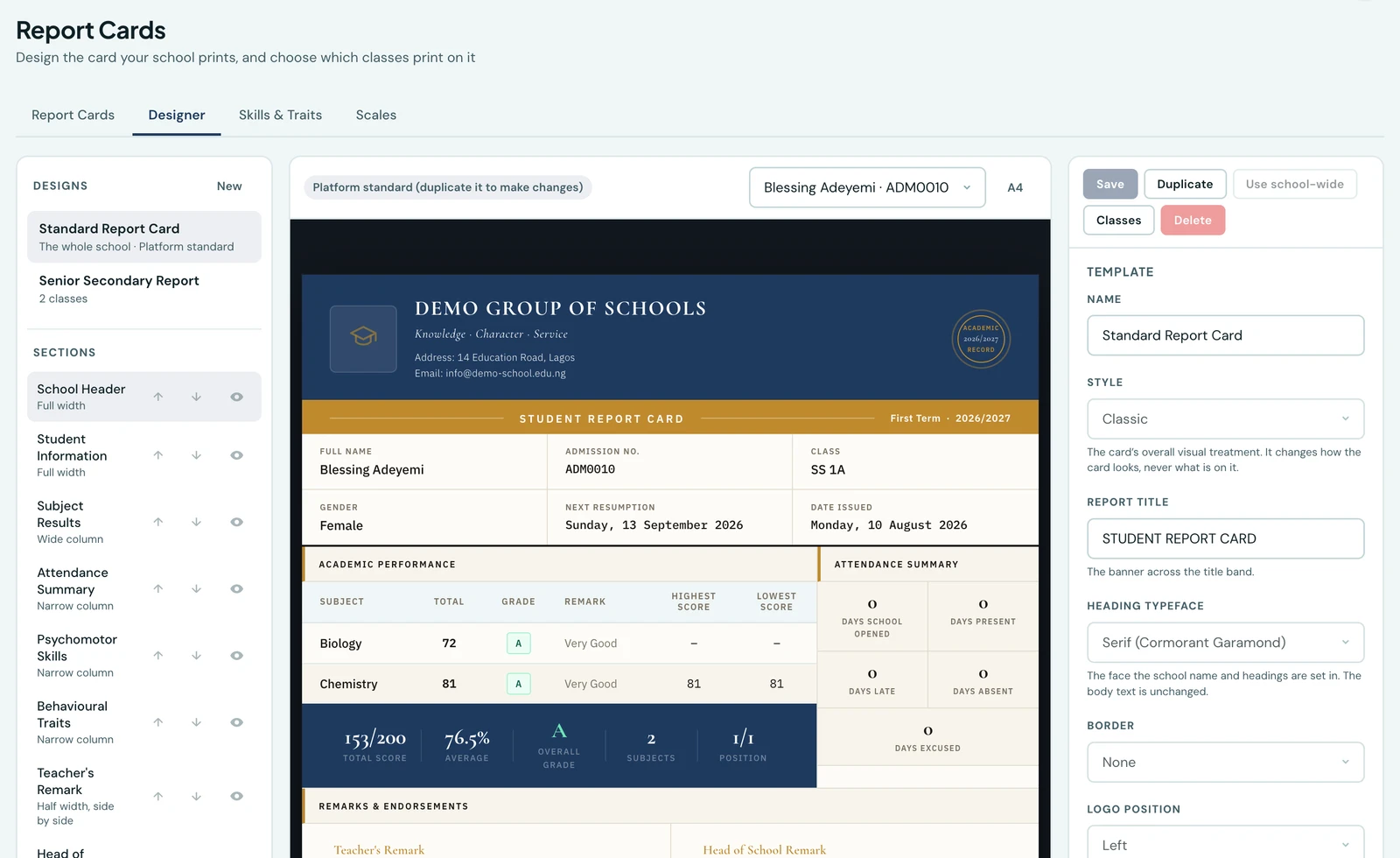
The designer. Sections on the left, the card in the middle, and the settings for whatever you have selected on the right.
Three things are going on there.
The section list on the left is the card's running order. Every band of the card is an item you can move up, move down, hide, or place: full width, the wide column, the narrow column beside it, or half width next to its neighbour. Move the remarks above the subject table and the remarks print above the subject table. There is no fixed skeleton underneath waiting to reassert itself.
The middle is not a mock-up. It is the real card, rendered by the same code that produces the PDF, using a real pupil's real marks. We debated a tidy sample student with three subjects and a short name, and decided against it: the question a head teacher is actually asking is will this fit our card, and a school with fourteen subjects and double-barrelled surnames needs that answered honestly. Pick any graded pupil from the dropdown at the top.
The right-hand panel is whatever you have selected. Select the subject table and you get its columns: total, grade, remark, highest, lowest, class average, position, previous terms. Select the skills grid and you get rows or a grid, and how many columns. Select nothing and you get the card itself: its style, its title band, its heading typeface, its border, where the logo sits.
Colours
The card follows your school's brand colours by default, which is right almost all the time and occasionally wrong. A school whose brand is a bright orange may not want a report card in bright orange, and a school with a formal crest often wants the card darker and quieter than the website.
So the card's two colours can be set on their own.
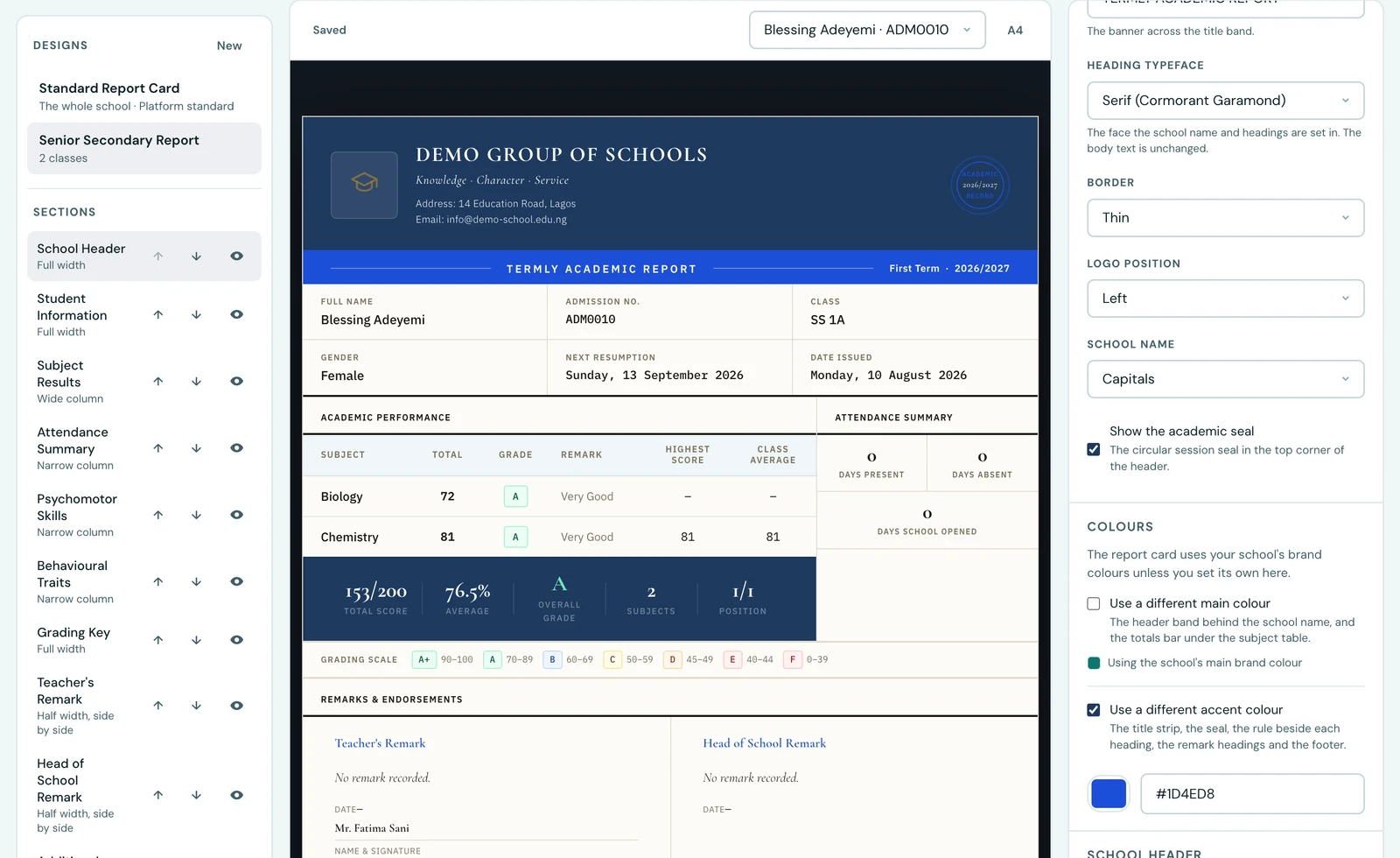
The main colour still follows the school's brand. The accent has been set to a blue of its own, and the title band in the preview has already changed.
They are described by where they print rather than by their names, because "secondary colour" tells you nothing about what will move. The main colour is the header band and the totals bar. The accent is the title strip, the seal, the rules between sections, the remark headings and the footer.
Each one is off by default and says which school colour it is inheriting. That is deliberate: a pre-filled colour picker cannot express follow the school, so a school that rebrands next year would find its report card still printing last year's colour with nothing on screen to explain why. Leave it off and the card follows. Switch it on and it does not.
One school, several cards
A school is often several schools. The nursery, the junior school and the sixth form do not necessarily want the same document, and a boarding house report is not a termly academic report.
You can keep more than one design and say which classes print on which.
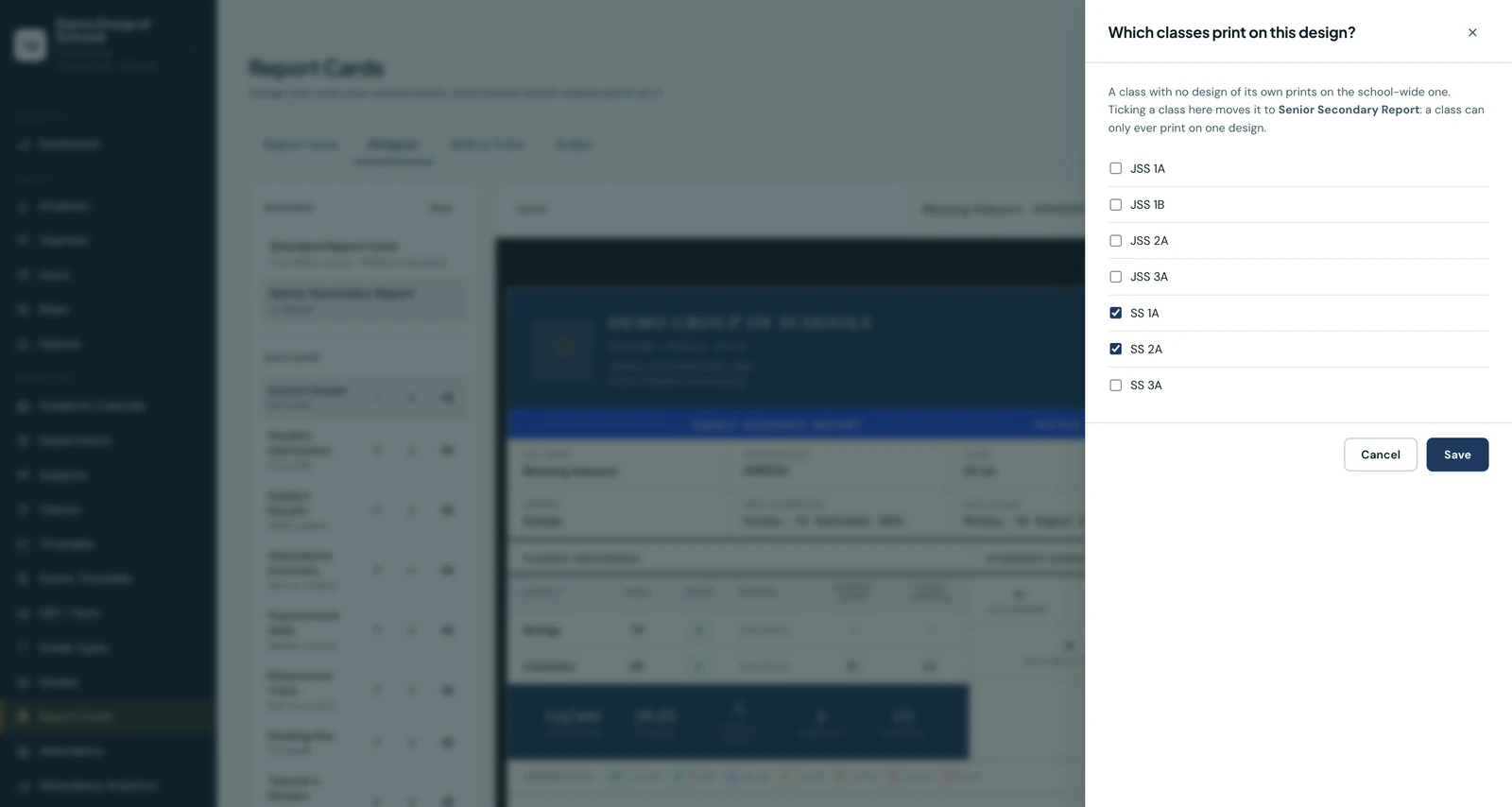
SS 1A and SS 2A print on the senior design. Everything else falls through to the school-wide one.
A class can only ever be on one design, which is enforced in the database rather than by asking you to be careful. Anything you have not assigned prints on your school-wide card, so a school that wants one card for everybody never has to open this at all.
What has not changed
If you never open the designer, nothing about your report cards changes. The card every school has been printing is now called the Standard Report Card, it is what every school starts on, and it is the same document it was last term. It cannot be edited or deleted, which is what makes it somewhere to go back to: customising means duplicating it, and if the copy turns out to be a mistake, the original is still sitting there.
The maths is still ours. Totals, averages, grades, positions, class highs and lows, cumulative averages across terms. None of that is affected by how the card is laid out, and none of it is computed twice. The design decides what is shown and where. It never decides what a number is.
The phone gets it for free. The mobile app displays the PDF the server produces, so a design saved on a laptop at four o'clock is what a parent opens on their phone at five.
Where to find it
Report Cards in the sidebar, then the Designer tab. It sits beside the report card directory and the skills and traits catalogue, which used to be three separate pages and are now one workspace.
Teachers see the directory and nothing else. Designing the school's card is an administrator's job, and the tabs a teacher cannot use are not shown to them at all.
There is a fuller walkthrough in the Report Card Designer documentation, including what every section's settings do.
Keep reading
Guides
The bug that printed confident nonsense
A school asked why the Arabic on its report cards was gibberish. It was not gibberish, and that is what made it hard to spot. What it takes to print Arabic properly in a PDF.
Read article
Operations
Your school knows who was in class. Does it know who was teaching?
The pupils' register is taken every morning. Staff attendance is a signing book on the front desk. Here is how we built the second one, and the four things we deliberately refused to do.
Read article
Ready to try it with your school?
Three-month Basic trial. No card required to register.