
Guides
Build your school week without the wall chart
The timetable is the one document a school rebuilds every year and dreads every year. The new Weekly Timetable workspace does the placing, catches the clashes as they happen, and shows nobody anything until you publish.
Most schools we work with build the timetable the same way. One person, a wall chart or a spreadsheet, and the better part of a fortnight. Everything else waits on it, because until it is finished nobody knows who is free when, which room is spoken for, or whether the new maths teacher has been given five lessons or fifteen.
Then the first week of term arrives and two teachers turn up to the same room.
The clash is never the interesting part. The interesting part is that it was findable. A person holding two hundred lessons in their head cannot find it; a computer holding the same two hundred lessons finds it instantly and refuses to make it in the first place. That is most of what the new Timetable workspace does.
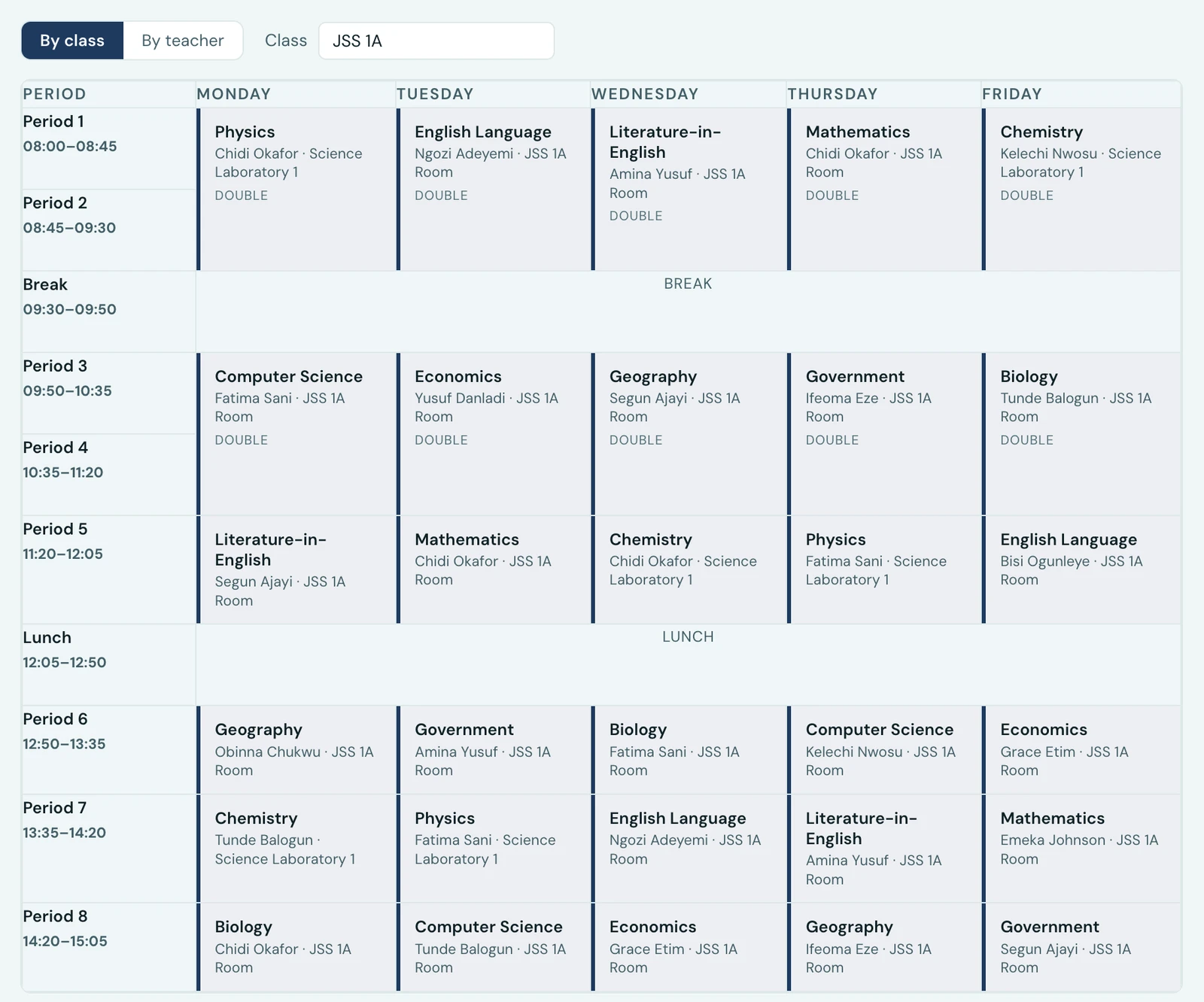
One class, one week. Doubles span the periods they actually run across, breaks sit where the school stops, and every lesson says who is teaching it and where.
You describe the school, not the grid
The old way of putting a timetable into software was to type a finished timetable into software. You did the hard part on paper and the computer stored it.
Here you describe your school instead, and there are only three things to describe.
The shape of your day. A bell schedule: the periods, their times, and which of them are teaching periods and which are breaks. Most schools need exactly one. A school whose junior and senior sections run different days can have several.
The rooms. Each with a kind: classroom, laboratory, hall, library, sports. The kind is not a label. A subject can require a laboratory, and the timetable will then only put it in one. Every class also has a home room, which is where it sits unless a lesson says otherwise, so an ordinary lesson never has to name a room at all and a school that has never filled in a room still gets room clash detection.
What each class needs. Periods a week per subject, how many of those should be doubles, the most it should have in any one day, whether it needs a particular kind of room, and who takes it. Leave the teacher blank and the timetable will use whoever teaches that subject and is free.
That last tab keeps a running count of what you have asked for against how many periods the week actually holds, and tells you plainly when you have asked for more than there is. It is a small thing that removes a specific and very common afternoon: the one where a week refuses to come out and nobody can work out why, because the answer is that it never could.
Then it builds it
The Generate tab checks the school over before it offers to build anything at all.
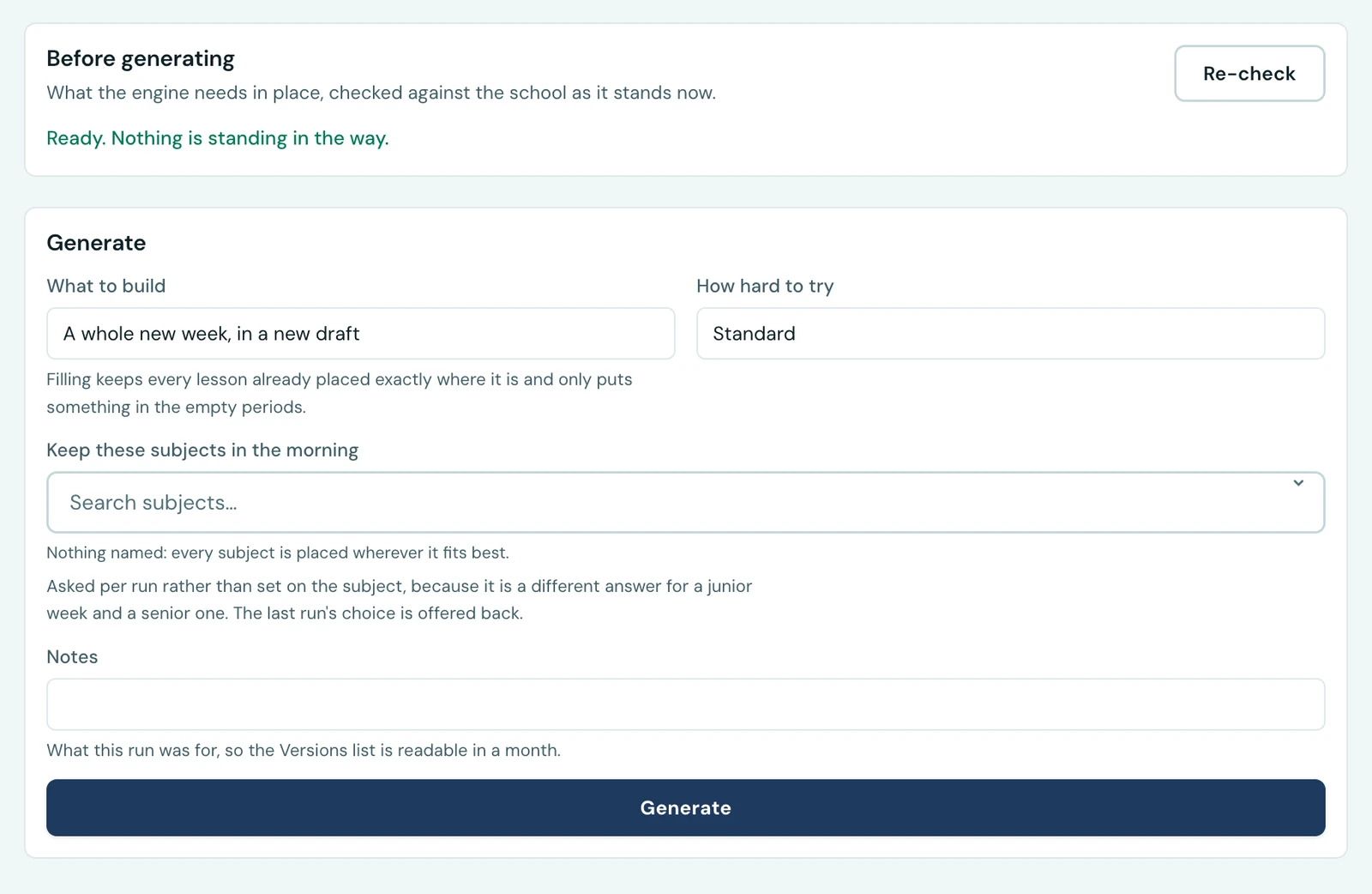
It says what is standing in the way before it starts, not after. Warnings do not stop a run. Blockers do, and each one names what to fix.
A class with no bell schedule, a subject nobody is down to teach, a class asking for more periods than its week holds, more practicals than your laboratories can seat. These are the things that would otherwise surface as a half-built week and a shrug.
Two ways to run it. Build a whole new week in a fresh draft, or fill the one you already have, which keeps every lesson you have placed exactly where it is and only puts something in the empty periods. The second is what you want after moving a few lessons by hand and deciding you were right.
A run never touches your published week. It produces a draft.
And you move what you disagree with
No generator knows that Mrs Adeyemi does not teach double periods after lunch, or that the Friday assembly runs long. The Builder is a class's week with a palette beside it of what is still to place, by mouse or by keyboard.
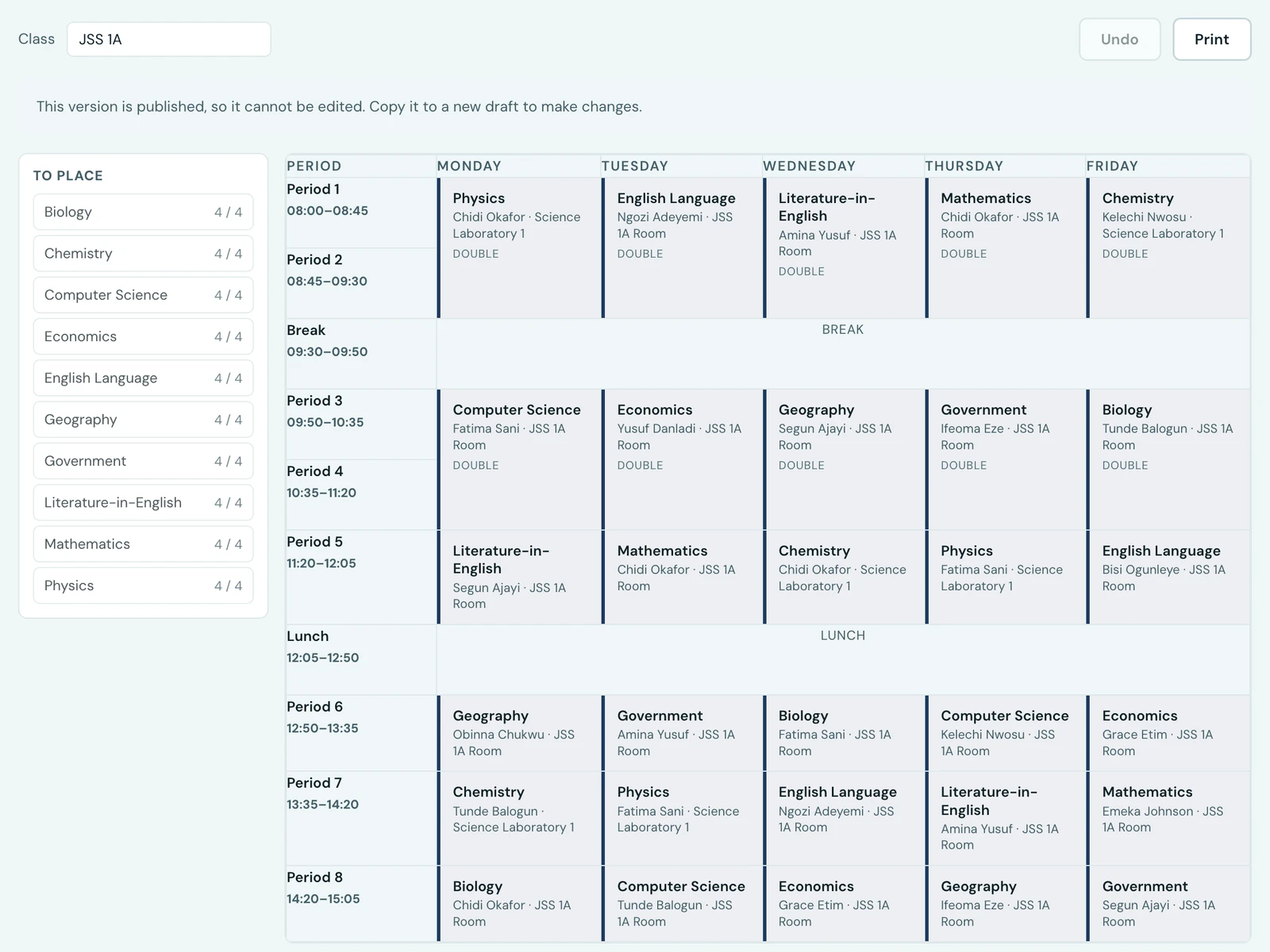
The count beside each subject is what is left to place. Every change saves as you make it, and Undo steps back through what you have done.
A clash is drawn in the cell it happens in, as it happens. Not in a validation report on another screen, and not at publish time when you have forgotten what you were doing.
There is one rule worth knowing because it looks like a bug the first time you meet it. The same teacher can be in two places at the same time if it is the same subject: that is a merged lesson, two forms sitting a practical together, and it is one lesson rather than two. Anything else is a clash.
Nobody sees a thing until you publish
This is the part that matters most, and it is the part a wall chart cannot give you.
Every week you build is a version. Drafts are yours. The published one is what teachers, students and parents see, and there is at most one of those per term.
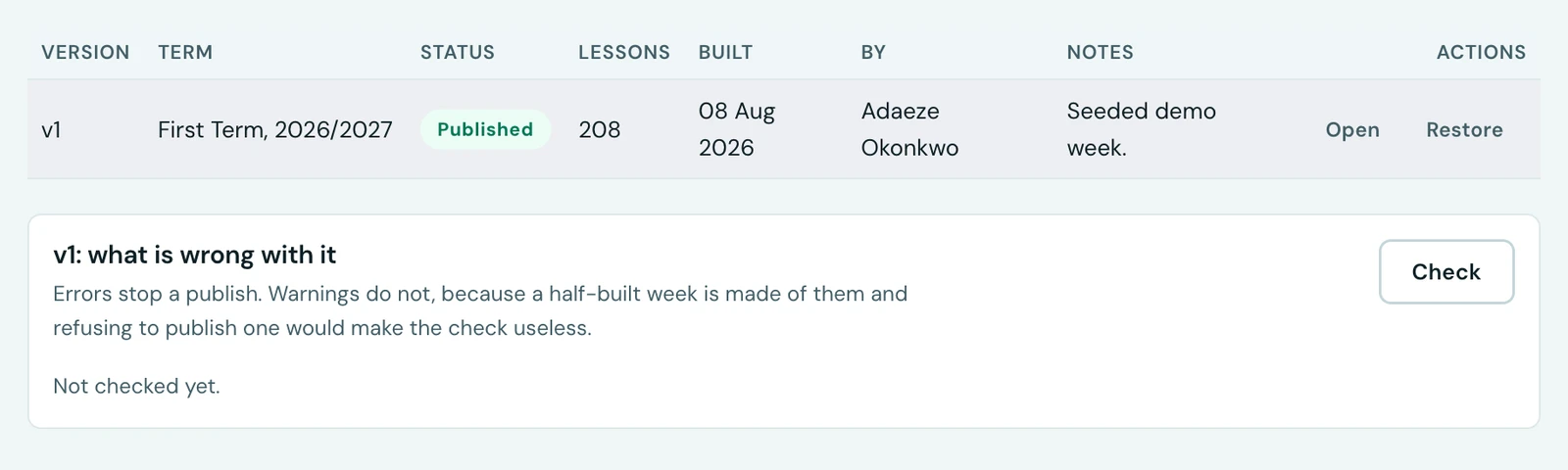
Check a version before publishing: errors stop a publish, warnings do not. Compare two versions to see exactly what moved between them.
So you can rebuild next term's timetable in the middle of this one, in daylight, on the real system, with the real staff list, and nobody outside the workspace is any the wiser. Publishing archives the old version rather than deleting it. When somebody asks what changed in a mid-term reshuffle, the comparison is a screen rather than an argument.
Until you publish for the first time, your existing timetable is still your timetable. Every school already on 1410SMS keeps seeing exactly what it saw yesterday. The engine takes over at the moment you first publish and not a moment sooner, which means adopting this is something you do at your own pace rather than something that happens to you on a Tuesday.
What everyone else gets
Once it is live, the week stops being a document that has to be distributed.
- Teachers see their own week across every class they take, and what they are teaching next.
- Students see their class's week.
- Parents see each child's week, which quietly answers most of the questions a school office gets asked on a Sunday evening.
- The app shows the same published week a day at a time, opening on today, with the period running now and the one after it on the dashboard.
That last one is deliberate. A phone is not where you read a timetable grid, it is where you check what is happening in twenty minutes. We did not put the builder on it either, for the same reason nobody builds a timetable on a phone.
Where to find it
Timetable in the sidebar. Eight tabs: Overview, Periods and Rooms, Requirements, Groups, Teachers, Generate, Builder, Versions. Start at Periods and Rooms, because everything else depends on the shape of your day.
The full walkthrough, including teacher unavailability, teaching groups and what each readiness check is looking for, is in the Weekly Timetable documentation.
Keep reading
Operations
Nobody should draw an exam timetable in pencil
One person draws the exam grid, one paper moves, and the whole thing needs checking again by eye. Usually it is not. Here is the workspace that replaced the pencil.
Read article
Operations
Your school knows who was in class. Does it know who was teaching?
The pupils' register is taken every morning. Staff attendance is a signing book on the front desk. Here is how we built the second one, and the four things we deliberately refused to do.
Read article
Ready to try it with your school?
Three-month Basic trial. No card required to register.